
Awards
Configure My Awards Landing Page
You can customize the landing page for employee awards to make recognition more engaging and aligned with your company’s brand.
Steps to Configure:
- Click into the Admin Gear.
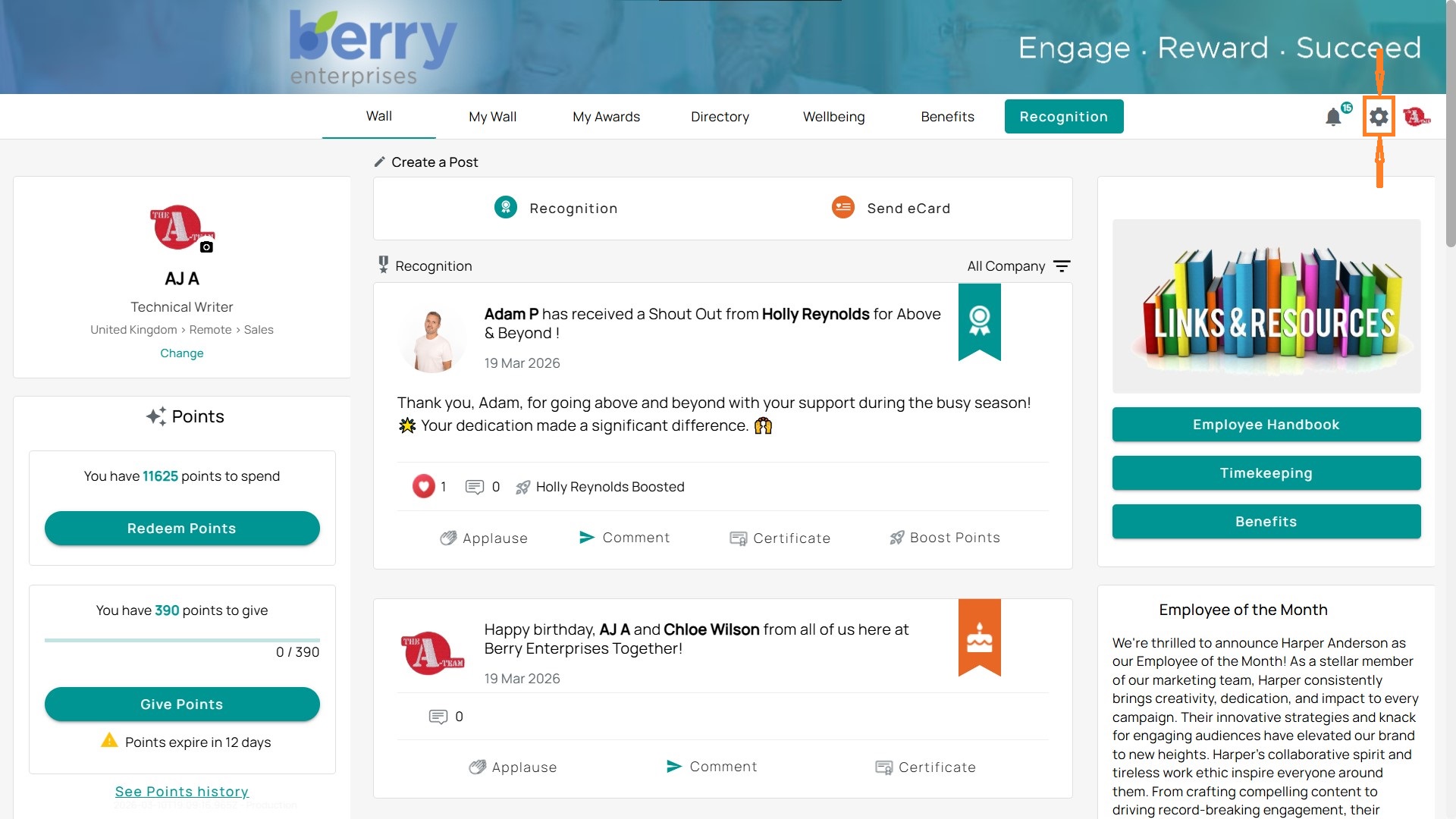
- On the left-hand menu, select Awards.
- Choose Configure Landing Page.
Configuration Options:
- Default Configuration: Create one design for all users.
- Per Level Configuration: Add different landing page designs based on years of service or award levels (e.g., 3 Years, 5 Years, 10 Years).
What You Can Customize:
- Language: Select a preferred language for the award section.
- Cover Image or Video: Upload a banner or video (recommended resolution not smaller than 860 x 860 px).
- Company Logo: Upload your organization’s logo (recommended resolution not smaller than 250 x 250 px).
- Letter Text: Add a personalized message such as “Happy Anniversary!” or “Thank you for your years of service.”
Preview in Real Time:
As you make changes, the right-hand Preview panel updates instantly, so you can see how the award landing page will appear to employees.
Save and Apply:
Once satisfied, click Save Changes.
- For level-specific pages, click + Add Level, select the award milestone (e.g., 10 Years of Service), and customize the content.
Extending Awards That Have/Will Expire
Sometimes recipients need more time to redeem their awards. As an admin, you can extend the expiration date on unredeemed awards. This works for awards that are about to expire or have already expired.
Steps to Extend Awards
Step 1. Open Admin Gear
Go to the Admin Gear in the top right corner.
Step 2. Navigate to Awards
On the left-hand menu, select Awards → Unredeemed Awards.
Step 3. Search or Filter
Use the column filters to search by Recipient, Date Range, or Award Status.
Example: Select Status to filter for Expired awards.
Step 4. Choose an Award
- Locate the award you want to extend.
- Click the Calendar icon under the Actions column to edit the expiration date.
Tip: To extend multiple awards, use the checkboxes on the left, then click Calendar once.
Set a New Date
- A dialog box will open.
- Click the Calendar icon again to pick a new expiration date.
Save Changes
- Click Save to confirm.
- The award will immediately update with the new expiration date.
Note: If the award has expired, it will be moved from 'Expired' to 'Active' once it is extended. Ensure that you adjust your filters to view it in the Active list.
Edit/Generate Log In Letters
Login letters allow employees without email addresses to access the Terryberry platform and redeem awards. These letters contain login details that can be printed and distributed directly to recipients.
Login codes are one-time use only and should only be given to the employee they were created for.
When to Use Login Letters
- Award Recipients – provide instructions to claim their awards.
- Points Recipients – share details on accessing and redeeming points.
- Workers Without Email – generate printable login letters for distribution.
How to Create and Print Login Letters
Step 1. Navigate to Admin Gear
Click the Admin Gear in the top-right corner of your screen.
Step 2. Go to User Management
From the left-hand menu, select User Management → Login Letters.
Step 3. Generate a Single Login Letter
- Find the user in the list.
- On the far-right under Actions, click the Print icon.
- A login letter will appear with the username, login code, and instructions.
- Select Print to download or print the letter.
Step 4. Generate Multiple Login Letters
- Check the box next to each employee you want to include.
- Once selected, a Print button will appear at the top left.
- Click Print to generate all selected letters at once.
A dialog box will open with all letters. Choose Print to download or print.
Example Login Letter Includes
- Employee’s name
- Username
- Login code
- Direct program link with instructions.
How to Create Points Letters
Points Letters allow you to send printed award notifications to employees who may not have an email address in the system. These letters provide login information and instructions for redeeming their Terryberry points.
Steps to Create Points Letters
Step 1: Open Admin Tools
Click the Admin Gear in the top-right corner of your screen.
Step 2: Navigate to Points
On the left-hand menu, select Points.
Then click Unredeemed Points.
Step 3: Generate a Single Letter
- Locate the recipient in the Unredeemed Points list.
- Click the Print icon on the right-hand side of the row.
- A preview of the letter will open, showing the recipient’s details, login code, and link.
- Click Print to send it to your printer or save as PDF.
Step 4: Generate Multiple Letters at Once
- Use the checkboxes on the left to select multiple recipients.
- A Print button will appear at the top.
- Click Print to create letters for all selected users.
- Each letter will include the employee’s unique login details.
Step 5: Return to Unredeemed Points
- Close the preview by clicking X.
- Repeat as needed for additional recipients.
Tip: These letters are ideal for employees without email access. Ensure you securely deliver the login details so they can redeem their awards.
Set Default Filters for Wall
Define what users see by default on the Recognition Wall. Admins can set a company-wide default by department or location.
Steps:
- Click into the Admin Gear.
- From the left menu, go to User Management → Default Wall Filter.
- Select a filter level (e.g., Department Name or Location Name).
- Click Save Default Wall Filter.
- A confirmation will appear:
- Apply Wall Filter to All Users – replaces any custom filters employees set.
- Only Apply to Users Without a Custom Wall Filter (Recommended) – preserves user preferences while still giving a default for everyone else.
To remove a company-wide setting, click Remove Default Wall Filter.
Set Profile Data Visibility for All Users
As an admin, you can control which information is visible on employee profiles and in the directory.
- Start by clicking into the Admin Gear.
- On the left panel, select User Management.
- Click User Data Visibility.
From here, you’ll see three tabs:
- Directory View – Controls what information is visible in the company directory (e.g., name, position, email, hire date).
- Profile View – Controls what information is visible on individual user profiles (e.g., phone, address, birthday).
- Default Birthday Config – Sets whether birthdays are public or private by default.
You can toggle each option on or off by checking the box. A live preview on the right shows how the data will appear.
When finished, click Save to apply changes.
Note: For birthdays, if visibility is set to public, the birth month and day will appear in the Upcoming Birthdays list and on profiles. If private, they will remain hidden. For GDPR compliance, it’s recommended to keep birthdays private by default.