
Admin Functionality (Orders Report)
Use this report page to track order history, monitor spending, and export data for auditing or budget reconciliation.
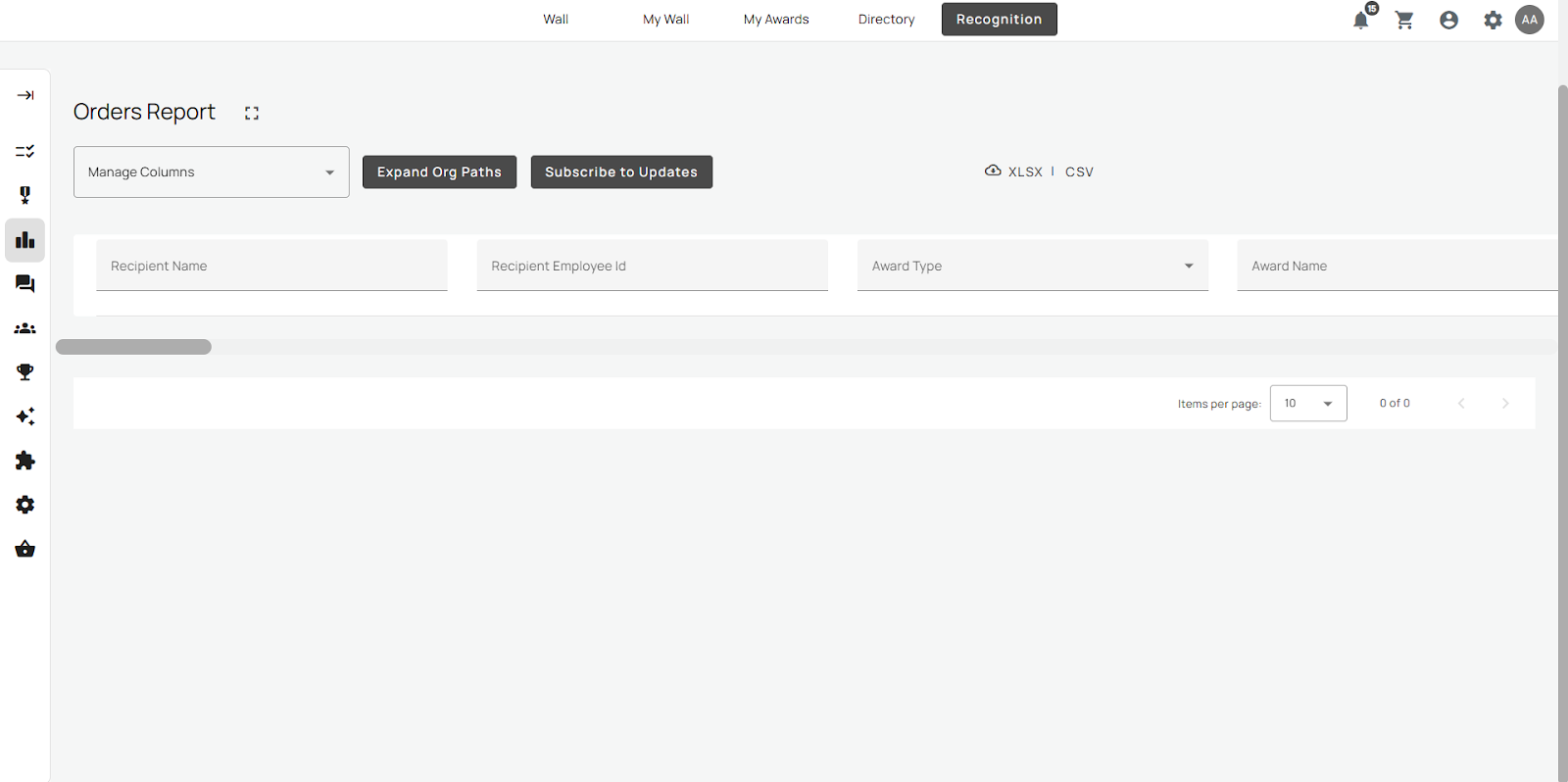
Accessing Orders Report
Super Users can view and export all reward redemption activity for their employees through the Admin Toolbox.
- From the top-right corner, click the Settings (gear) icon to open the Admin area.
- Under Reporting, select Orders.
This view displays every redemption transaction linked to employees within the administrator’s scope.
Viewing Orders
The Orders report provides a detailed overview of all catalog transactions, including item type, order status, delivery details, and redemption dates. Admins can use this data for internal audits, reward tracking, or fulfilment reconciliation.
By default, all active orders appear in a table view. Columns can be adjusted to simplify the display or focus on specific data points.
Managing Columns
Admins can customise visible columns within the Orders table.
Use the Manage Columns control to:
- Select Default or Select All Columns.
- Deselect any fields not required (for example, Award Type, Award Name, Award GUID, or Invoice Number).
Note: Only the columns currently visible will appear in the exported report. Hidden fields are excluded from downloads.