
How to Manage Members
Admins can learn how to manage members here.
User Management is where administrators add participants, grant admin privileges, and remove accounts. All actions are performed from the Members tab in your Admin Panel.
Grant Admin Privileges
You can give any existing participant admin privileges. If the person doesn't have an account yet, ask them to create one first.
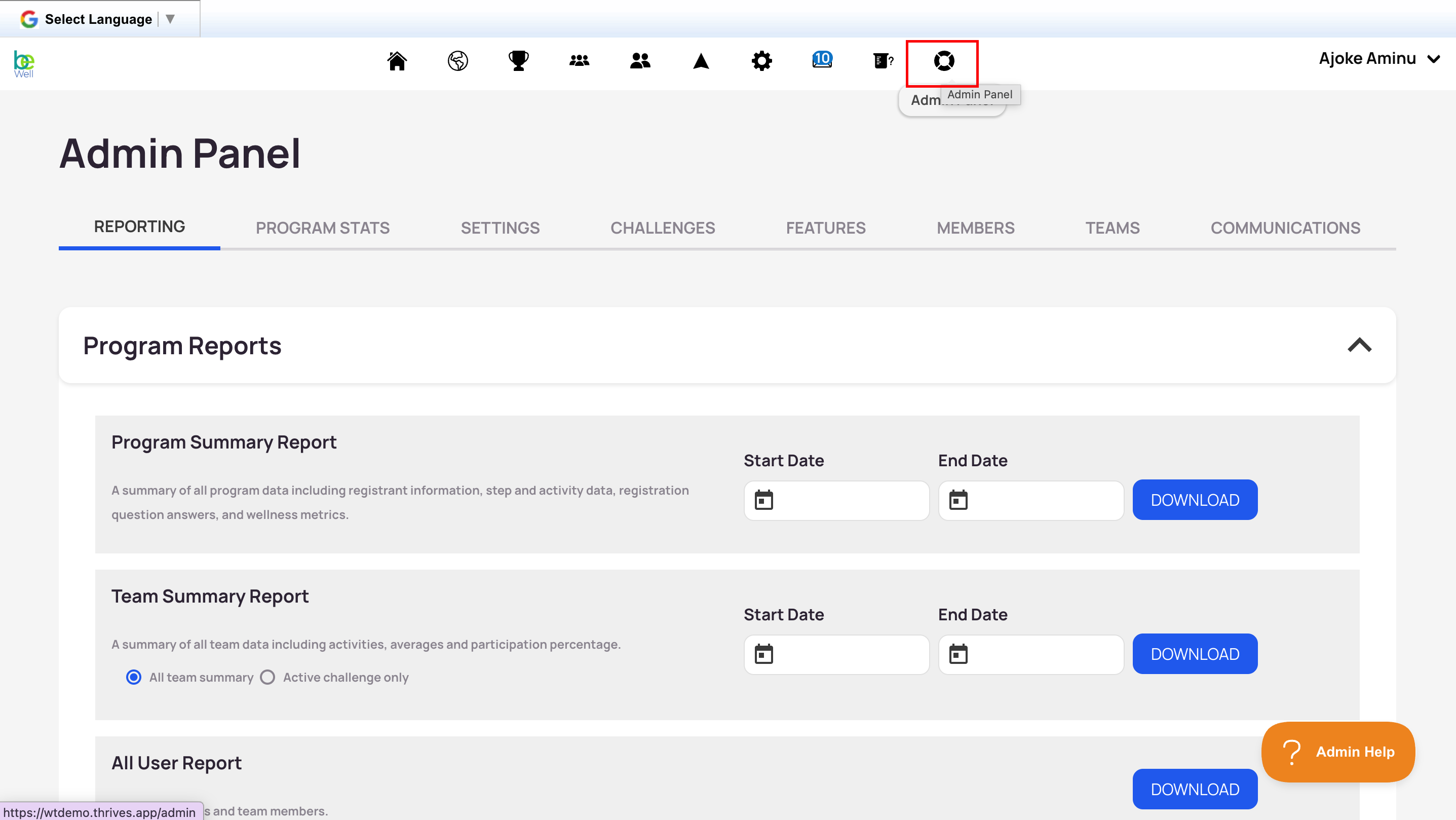
- Open your Admin Panel.
- Select the Members tab.
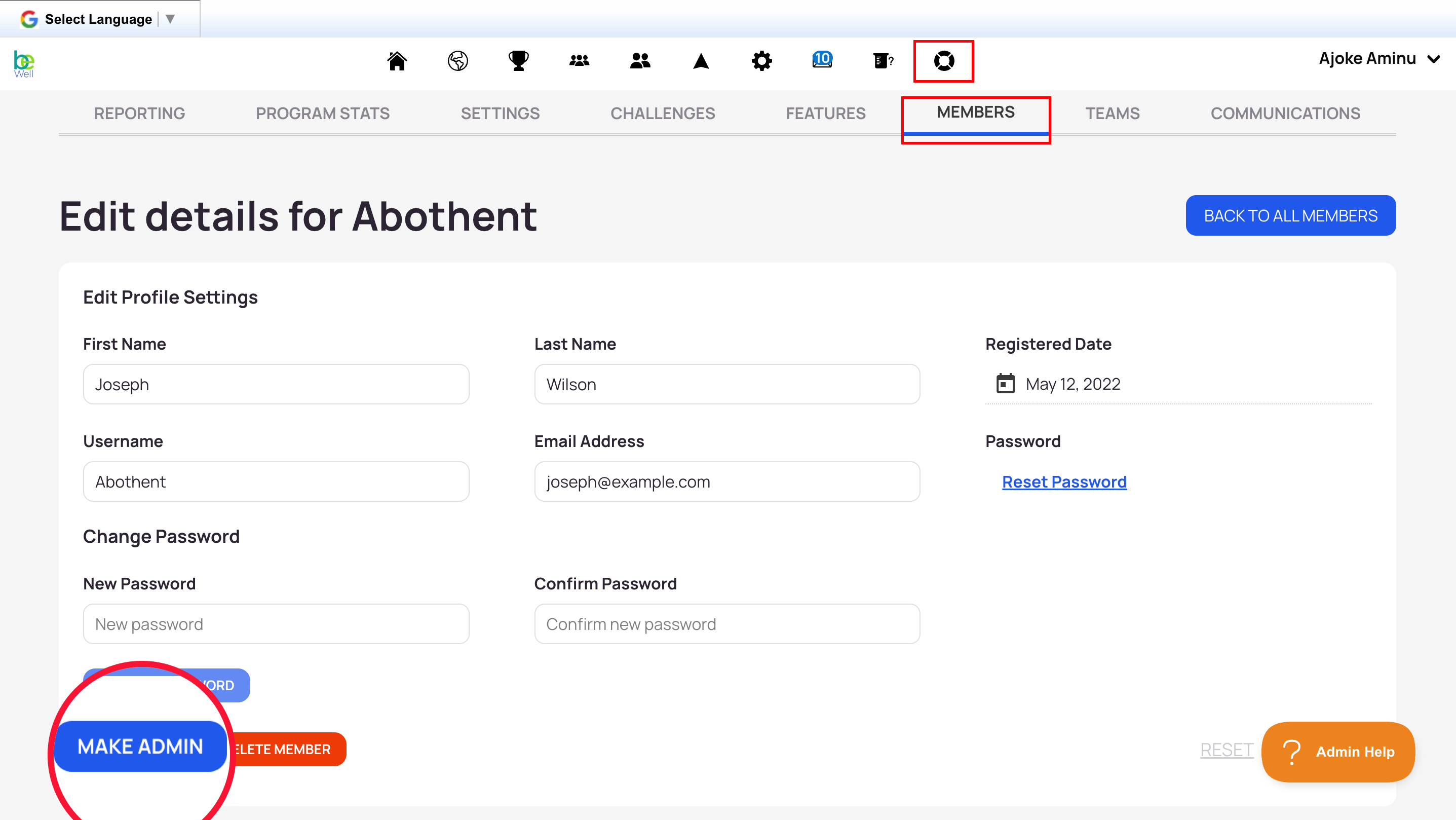
- Search for the member and select Edit.
- Select Make Admin.
- Select Save.
Adjust a Participant's Registration Date
A participant's registration date determines the point from which their steps count. You can change it if needed.
- Open the Admin Panel and select Members.
- Search for the member and select Edit.
- Select Registered Date and choose a new date.
- Select Save.
You can't select a registration date earlier than the program creation date.
Delete a User
Deleting a user removes them from all teams and challenges they were part of.
Warning: Deleted accounts cannot be recovered, and neither can any data associated with the user.
- Open your Admin Panel.
- Select the Members tab.
- Search the username or email of the user and select Edit on the far right.
- Select the red Delete Member button and confirm.