
How to Upload Users
By default, your site assumes that anyone included in the file is an active employee/user. Anyone missing from the file will be deactivated. To avoid accidental deactivations, always include all active employees each time you upload.
Tip: If you need a data file template, reach out to support@terryberry.com or your Customer Success Manager (CSM).
Manual File Upload
1. Click the Admin Gear in the top right corner.

2. Open the User Management menu on the left.
3. Select Upload Users.
4. Click Browse Files (or drag and drop your file). Supported file types: .CSV and .XLSX.
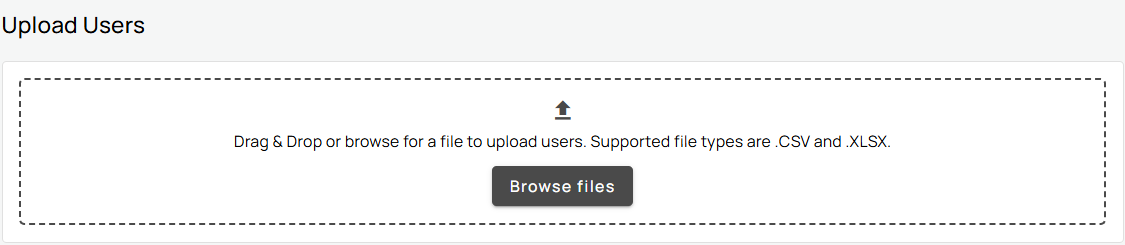
5. Your file will first appear in the In Progress tab.
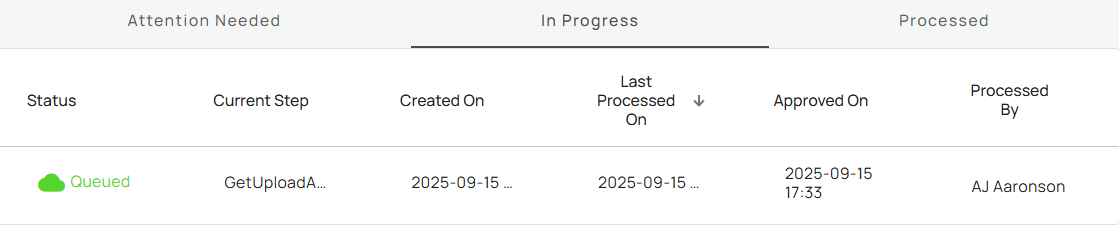
- This step can move quickly. If you don’t see it, check Attention Needed.

6. Files with errors or that require administrator approval appear under Attention Needed.
- Click the Status name for details.
- Approve or Decline the file to continue.
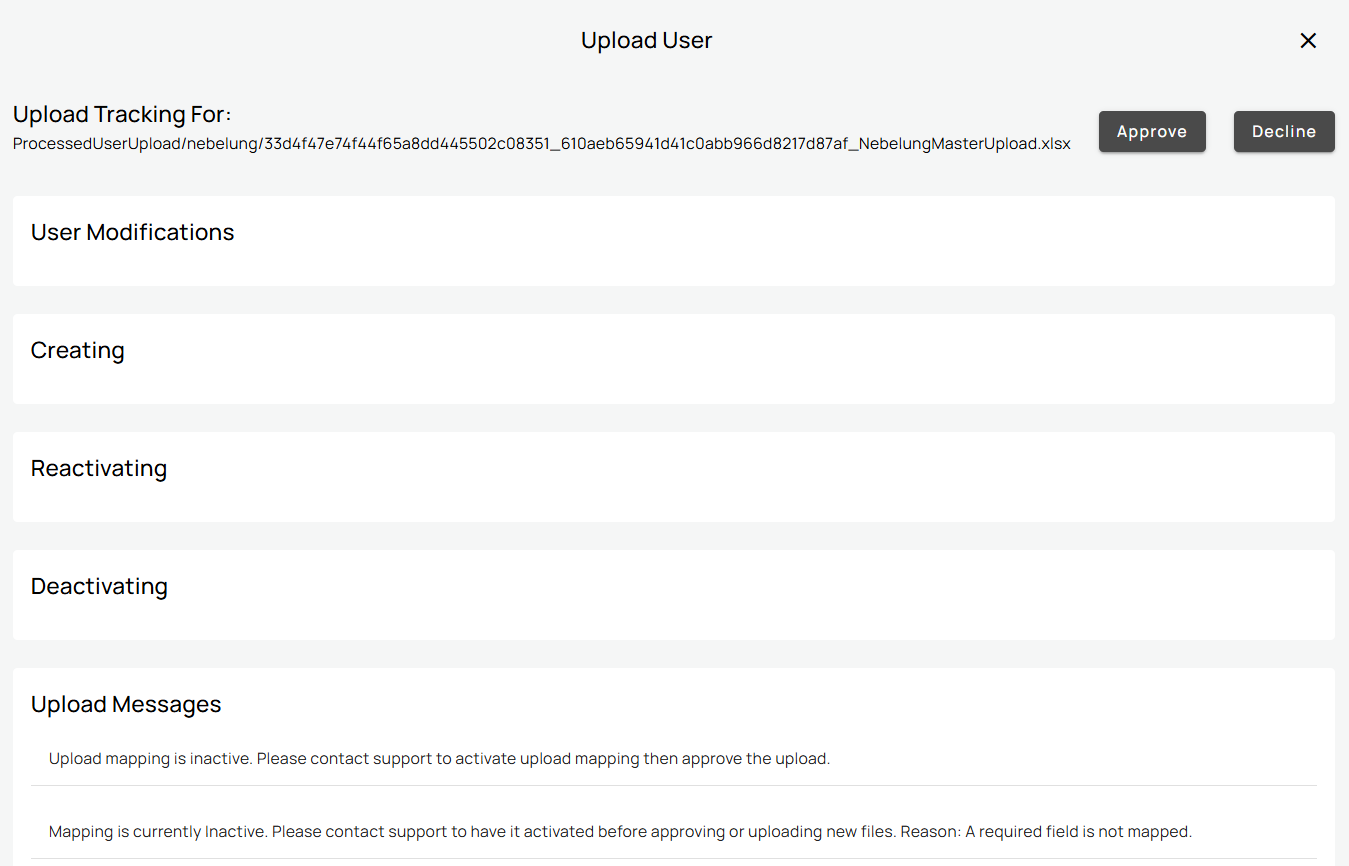
- If a technical error occurs, review the alert. If unresolved, contact support@terryberry.com.
7. Once approved, your file will appear in the Processed tab.
