
Reports
Points Funding Report
The Points Funding Report tracks the budgets you assign to users for giving recognition. It helps you see how funding is distributed, used, or expired.
Summary Tab
- Shows the past 12 months of activity across all users.
- Columns display Funded, Funding Used, and Funding Expired.
- Example: July may show 42,750 points funded, 0 used, and -42,750 expired.
Filterable 12-Month Summary
- Let's you filter funding activity for specific users or groups.
- To add a user:
- Search their name.
- Check the box to include them.
- Repeat as needed for multiple users.
- Data will update dynamically to reflect the combined selection.
User Funding Balances
- Displays available balances for each user.
- Columns include:
- Recipient Name
- Employee ID
- Hire Date
- Email Address
- Manager Name
- Manager Email
- Org Path
- Status
- The last column on the right always shows the current balance.
Details Tab
Provides a deeper look at funding events for each user.
- Funding Event: filter between Funded, FundsExpired, and FundsUsed.
- Points Amount: how many points were involved in the event.
- Created Date & Time: filter activity to specific date ranges (e.g., “How many users sent points in May?”).
- Expiration Date & Time: When points expire if unused.
- Funding Balance After: balance left after the transaction.
Export & Subscriptions
- Subscribe to Updates: receive regular updates on funding given, used, or expired
- Export: download reports as CSV or Excel (XLSX) for advanced sorting and filtering.
Quick Checklist: Points Funding Report
1. Access the Report
- Go to Admin Gear → Reporting → Points Funding
2. Summary Tab
- Review the last 12 months of funding activity.
- Check totals for Funded, Used, and Expired.
3. Filterable 12-Month Summary
- Search for and check user names to add them.
- Combine multiple users into one view.
4. User Funding Balances
- View balances by user.
- The last column shows you the current balance.
5. Details Tab
- Use Funding Event filter: Funded, Used, Expired.
- Check Points Amount, Date/Time, Expiration, Balance After.
6. Export & Subscriptions
- Export: Download CSV/XLSX.
- Subscribe: Set up automatic email updates.
Tip: You can find an arrow to sort High > Low or Low > High near the bottom right of any search box.
Service Anniversaries Report
The Service Anniversaries Report highlights upcoming anniversaries for employees currently on the site. It also flags anniversaries tied to a Terryberry award.
When to use this report:
- To track upcoming service awards.
- To forecast anniversaries for the year.
- To ensure awards are ready before milestone dates.
Access the Report
- Click the Admin Gear in the top-right corner.
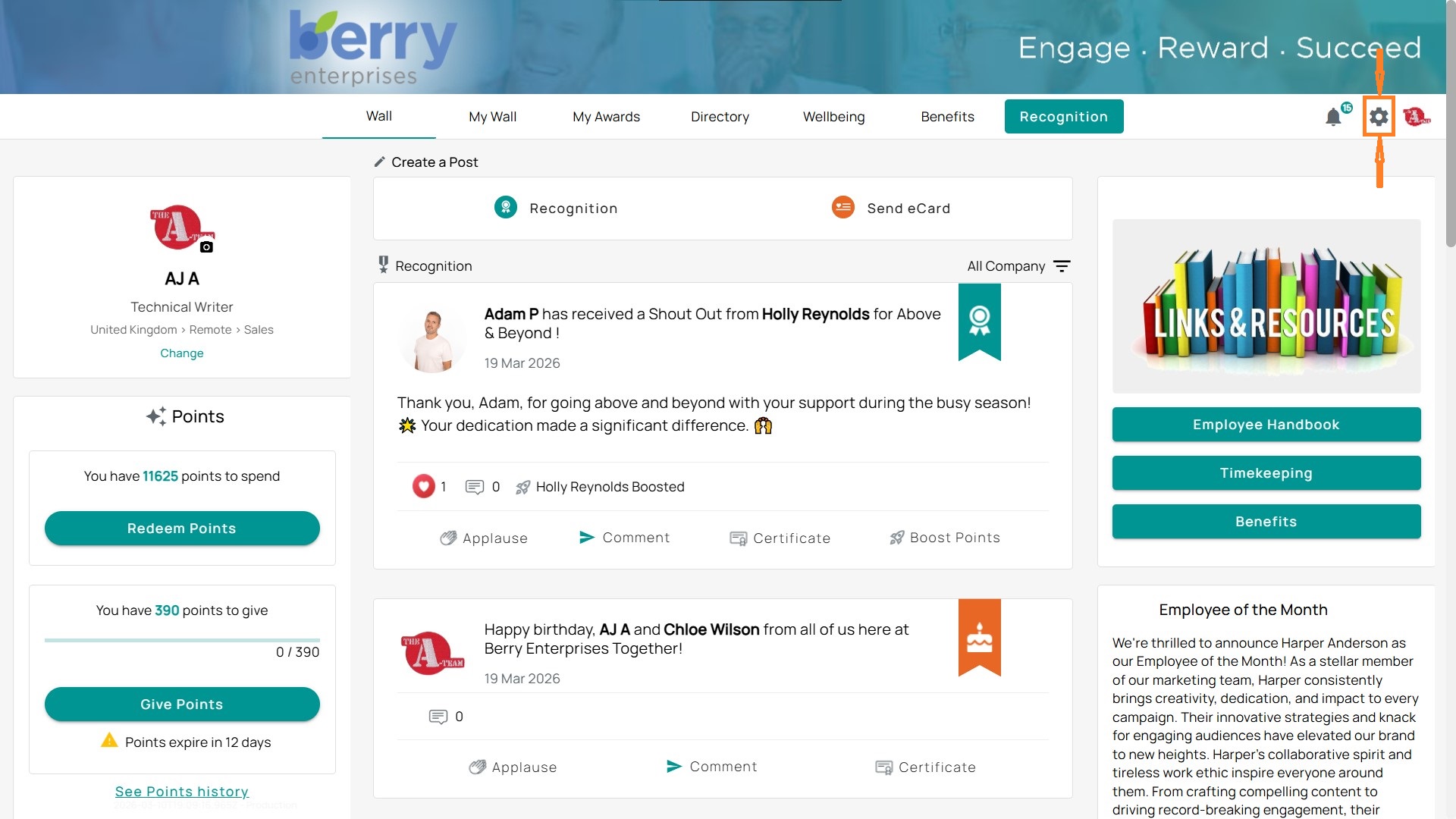
- Open the Reporting drop-down on the left side.
- Select Service Anniversaries.
Forecast Tab
The Forecast tab shows upcoming milestones at a glance.
- Anniversaries are grouped by milestone level (e.g., 5 years, 10 years).
- Use the drop-down on the right to switch timeframes:
- Next 7 Days / Next 30 Days
- Current Year (Jan 1 – Dec 31, 2025)
- Upcoming Year (Jan 1 – Dec 31, 2026).
Details Tab
The Details tab lets you drill down further.
- By default, it shows the next three anniversaries for all users.
- You can filter and customize columns to refine your view:
- Recipient Status – Switch to Active Only to exclude inactive or termed users.
- Is Milestone – Filter to Yes to see only anniversaries tied to a Terryberry award.
- Issue Date – Use the column or Calendar icon to filter by date range (month, fiscal year, or custom range).
- Tip: Awards issue at midnight Eastern, so start with the next day to capture upcoming events.
Export or Subscribe
- Export the report as CSV or XLSX for further sorting and sharing.
- Subscribe to Updates if you want automatic email deliveries with the latest anniversaries list.
Quick Checklist: Service Anniversaries Report
1. Access the Report
- Admin Gear → Reporting → Service Anniversaries
2. Forecast Tab
- View upcoming milestones at a glance.
- Use the drop-down to switch timeframes:
- Next 7 Days / 30 Days
- Current Year (Jan–Dec)
- Upcoming Year (Jan–Dec)
3. Details Tab
- Default shows the next three anniversaries for all users.
- Filters you can apply:
- Recipient Status → Active Only (exclude termed/inactive users)
- Is Milestone → Yes (show only anniversaries tied to awards)
- Issue Date / Calendar Icon (narrow to month, fiscal year, or custom dates).
4. Export & Subscriptions
- Export report to CSV/XLSX for advanced sorting.
- Subscribe to Updates for automatic email reports