
Converting an Activity to Steps
Not every activity is tracked in steps but cycling, swimming, yoga, and other exercises can still count toward your goals. Be Well lets you convert the time you spend on an activity into an equivalent number of steps, so all your effort is reflected in your progress. This article covers how to convert an activity on both mobile and browser.
Note: If your health or fitness account is synced with Be Well, you can log an activity conversion, but you cannot make a manual step entry. Manual step entry is only available when no device is synced and your program allows it. Converted activities are always public to maintain accountability across the program.
On Mobile
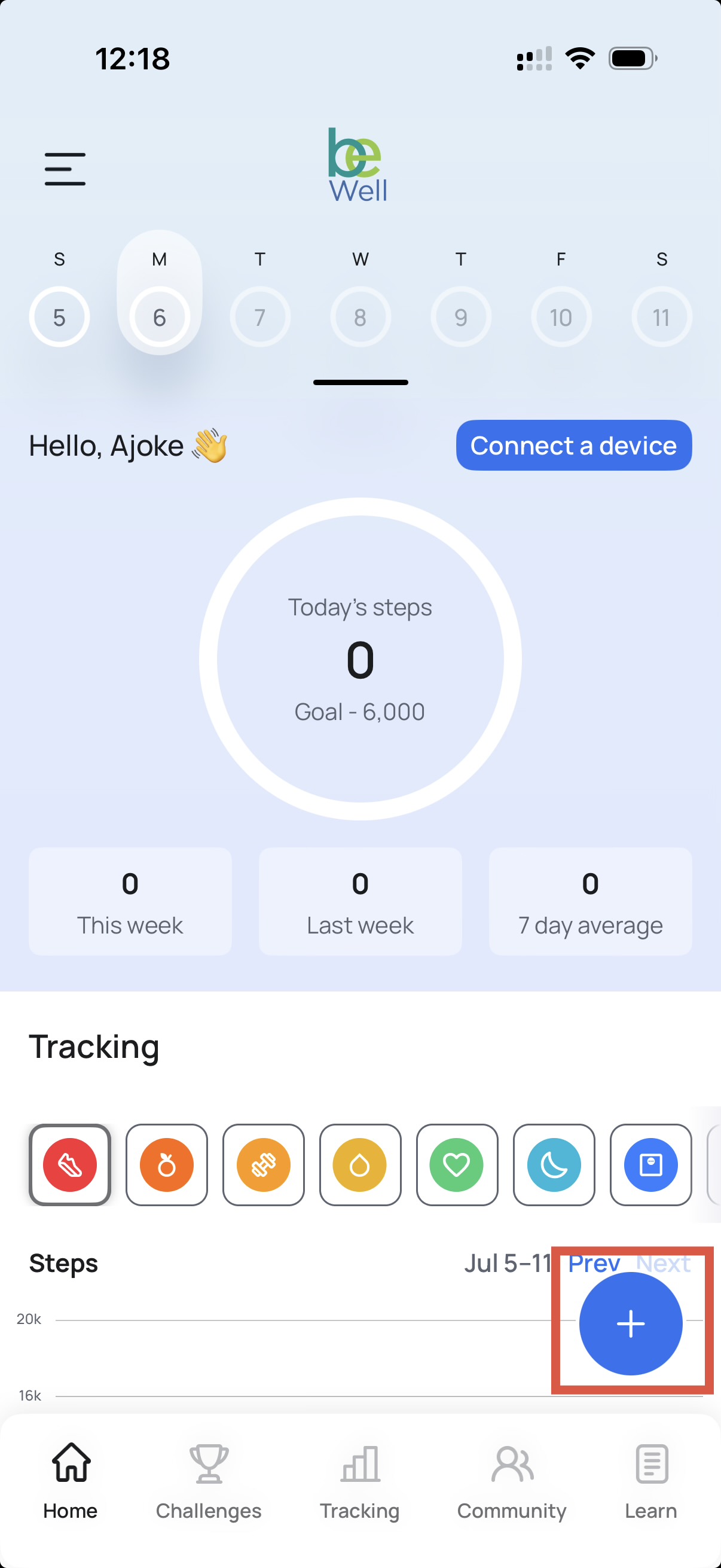
- From the Home tab, tap the blue "+" icon in the bottom-right corner of the screen.
- Select the option to log an activity.
- Follow the prompts to choose your activity type and enter the duration. Be Well converts the time into an equivalent step count automatically.
- You have the option to include a post with your entry. If you don't wish to add one, continue to the next step.
- Tap Submit.
Your converted activity is saved and will appear in your activity log, marked with an icon for that entry type.
On Browser
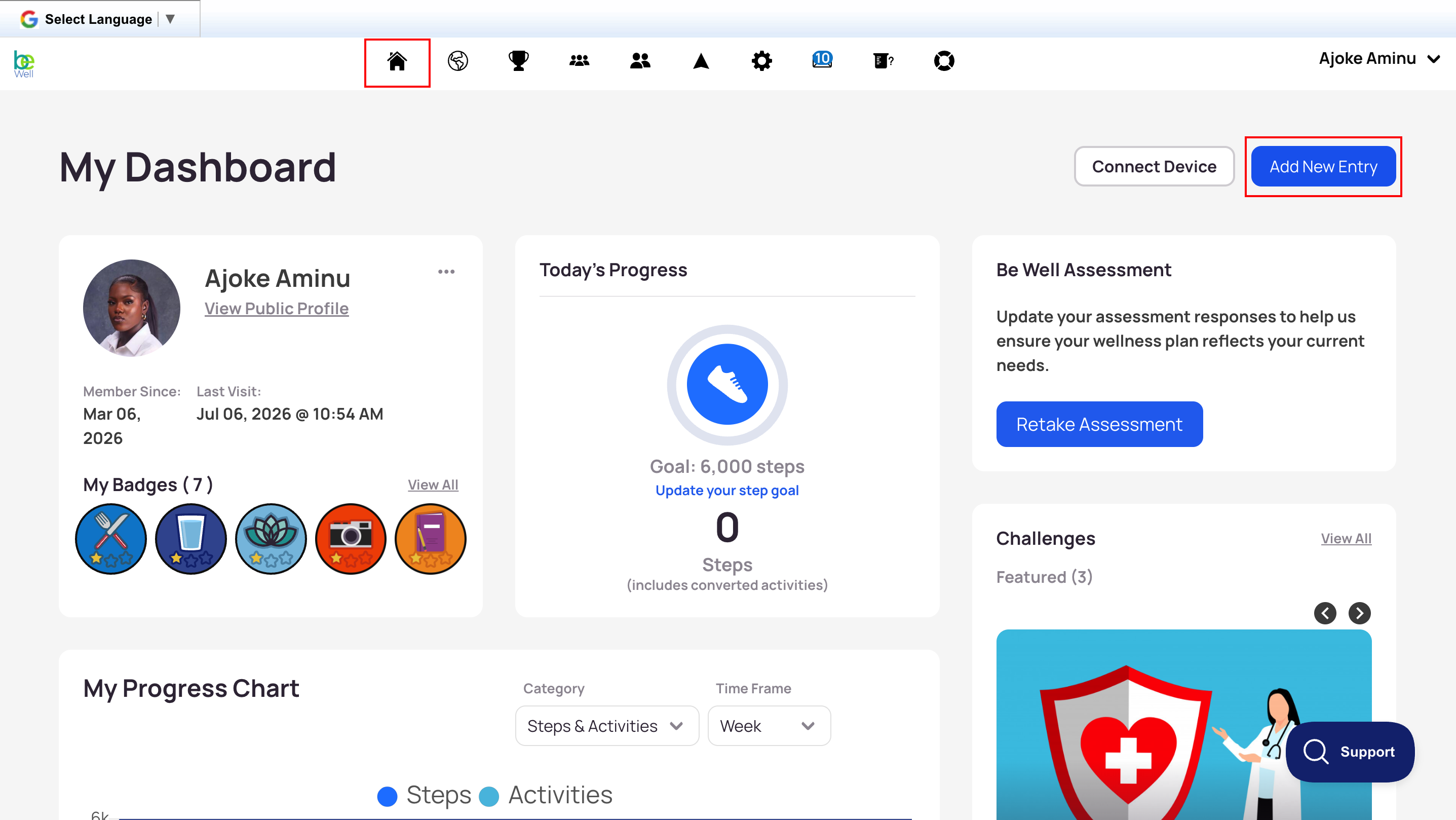
- In the My Dashboard tab, click "Add An Entry" in the top-right corner.
- Click "Activities."
- Use the dropdown menu to select your activity.
- Enter the number of minutes you spent on the activity, then select Convert.
- Click Save.
Editing a Converted Activity
You can adjust or remove a converted activity after logging it.
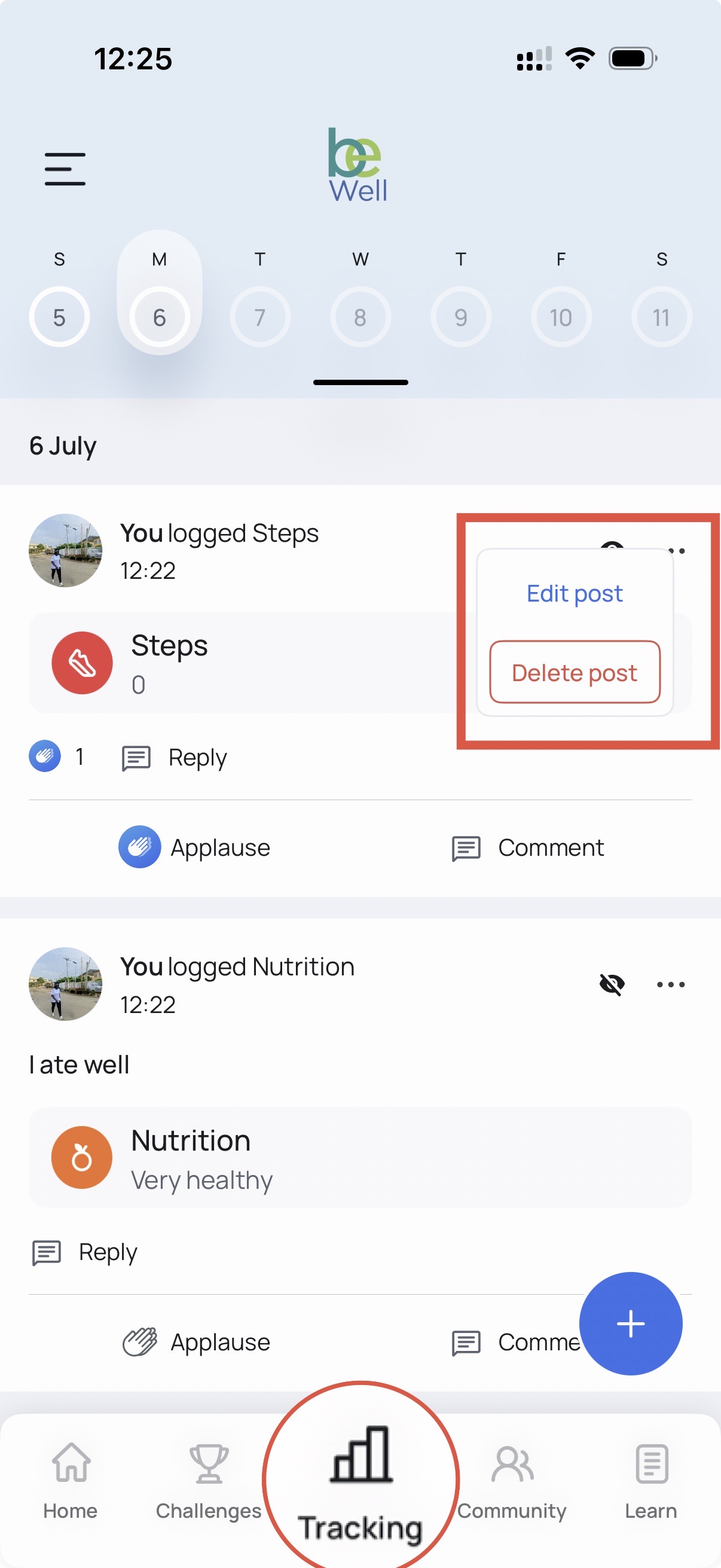
- Select the Tracking tab (mobile) or navigate to your dashboard (browser).
- Scroll to the date of the entry you'd like to change.
- Locate the entry. From here you can edit the post, adjust its privacy setting, or delete it.