
Challenge Management - Admin
Challenges are the engine of a Be Well program. They give participants a shared goal, a visual pacer to track against, and a reason to stay consistently active. As an administrator, you can create movement, chart, wellness, and team challenges, tailor them to your population, and invite or add participants directly. This page walks you through creating each challenge type and configuring it for your program.
Challenge Types
The challenge types available to you depend on your subscription. To request access to a type you don't currently have, contact your Customer Success Manager.
Movement Challenges encourage physical activity by tracking steps and converted activities. Marked with an orange shoe icon, they include a theme and a virtual map route that guides members from one milestone to the next. When active, a pacer bunny travels the route at the daily step goal, giving members a visual sense of their progress.
Chart Challenges also track steps but drop the virtual map and themed milestone content, showing a leaderboard only. They function identically to a movement challenge otherwise, and are a good fit when themed content isn't needed.
Wellness Challenges track aspects of wellbeing rather than steps alone, so members can begin to understand the relationship between their behaviors. Marked with a green head icon, they work on a wellness-points basis: members log metrics such as nutrition, water, mood, sleep, heart rate, mindfulness, weight, and journal or photo entries. There are seven prebuilt wellness challenges, each running exactly 42 days (6 weeks). Note that this duration is not editable. Administrators can see that a member made an entry, but never the content of that entry.
Create a Movement or Chart Challenge
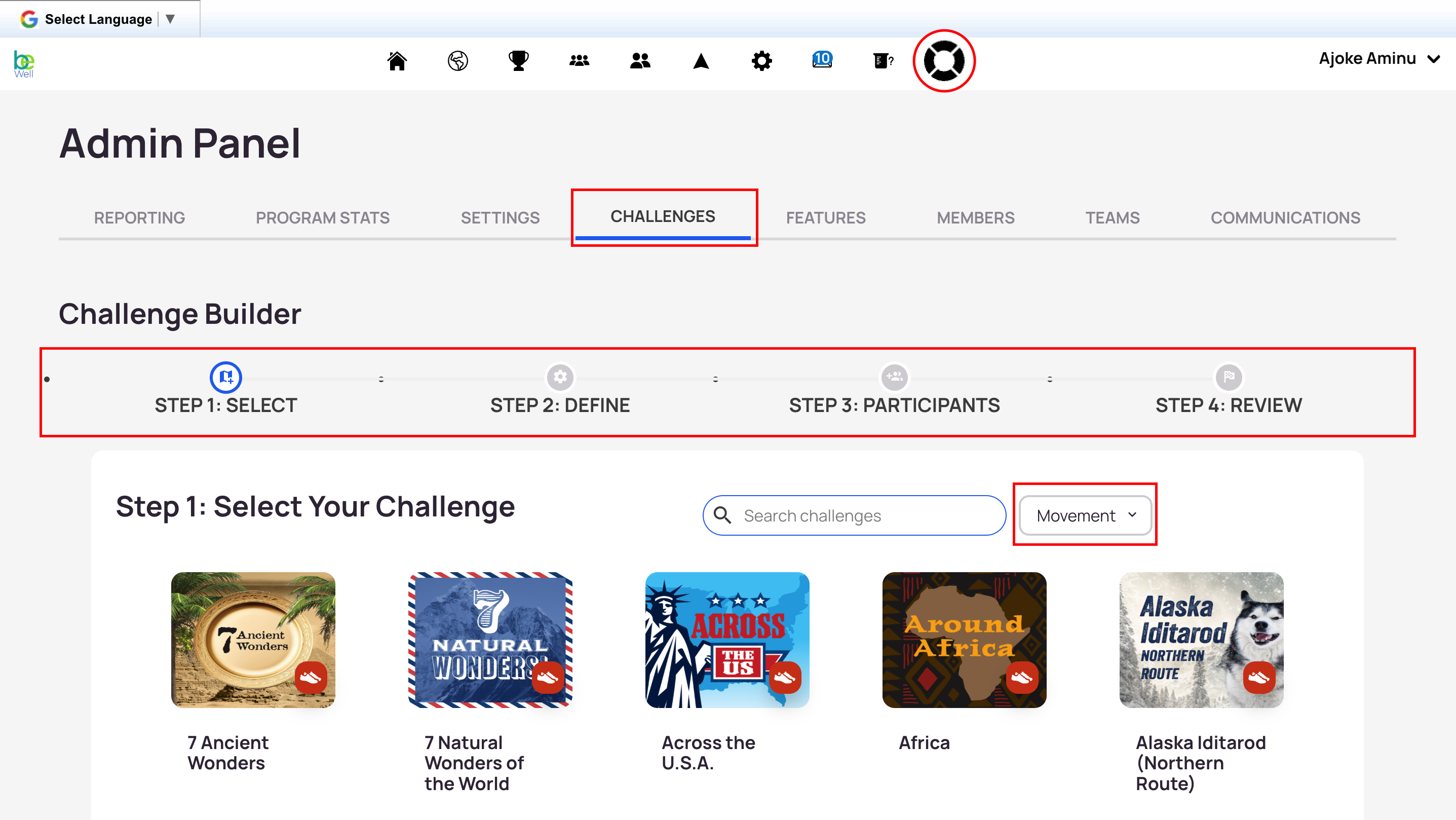
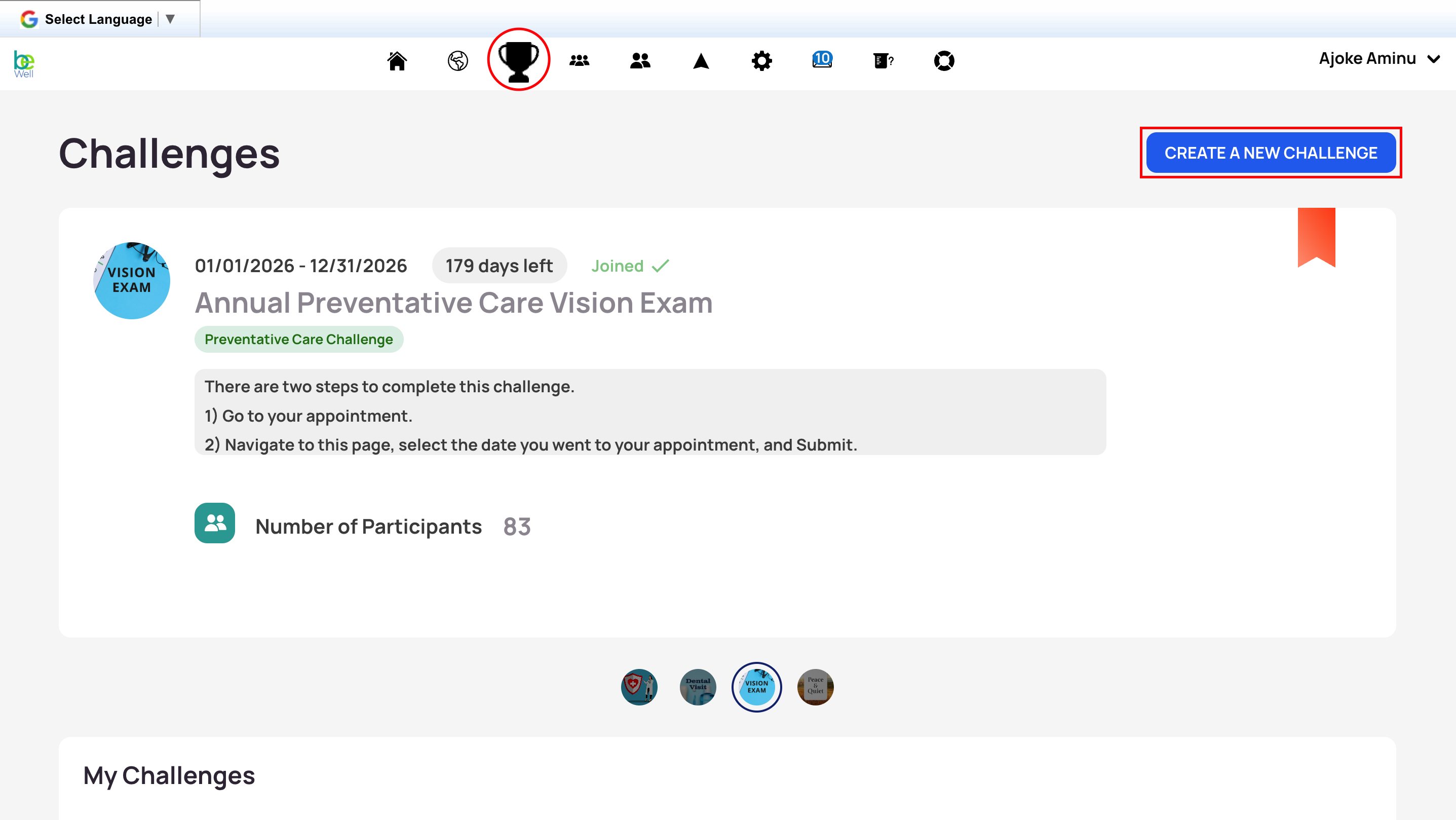
- Select the Challenges trophy icon in the top toolbar and click Create a Challenge.
- Review the available challenges listed. Select Details to preview a challenge's themed email templates, poster, and milestones.
- Click the challenge tile to select it; the page scrolls to the bottom, where you select Next.
- Enter your challenge criteria. We recommend running challenges for 3–6 weeks with a goal of 5,000–8,000 steps per day, depending on your group. If you're unsure, start lower and adjust for future challenges.
- If your program is connected to Terryberry's Be Rewarded platform, you'll see the option to attach incentive points. Make your selection and enter the point amount.
- Select Next, then choose how to bring in participants:
- Add Members automatically adds all or selected participants once the challenge is built.
- Invite Members emails all or selected participants, who then join via the Challenge icon in the program.
- No, Skip this Step creates the challenge without adding anyone; participants can join later.
- Click Next, review the details, and click Submit.
Create a Wellness Challenge
Participants cannot create wellness challenges — these are administrator-only.
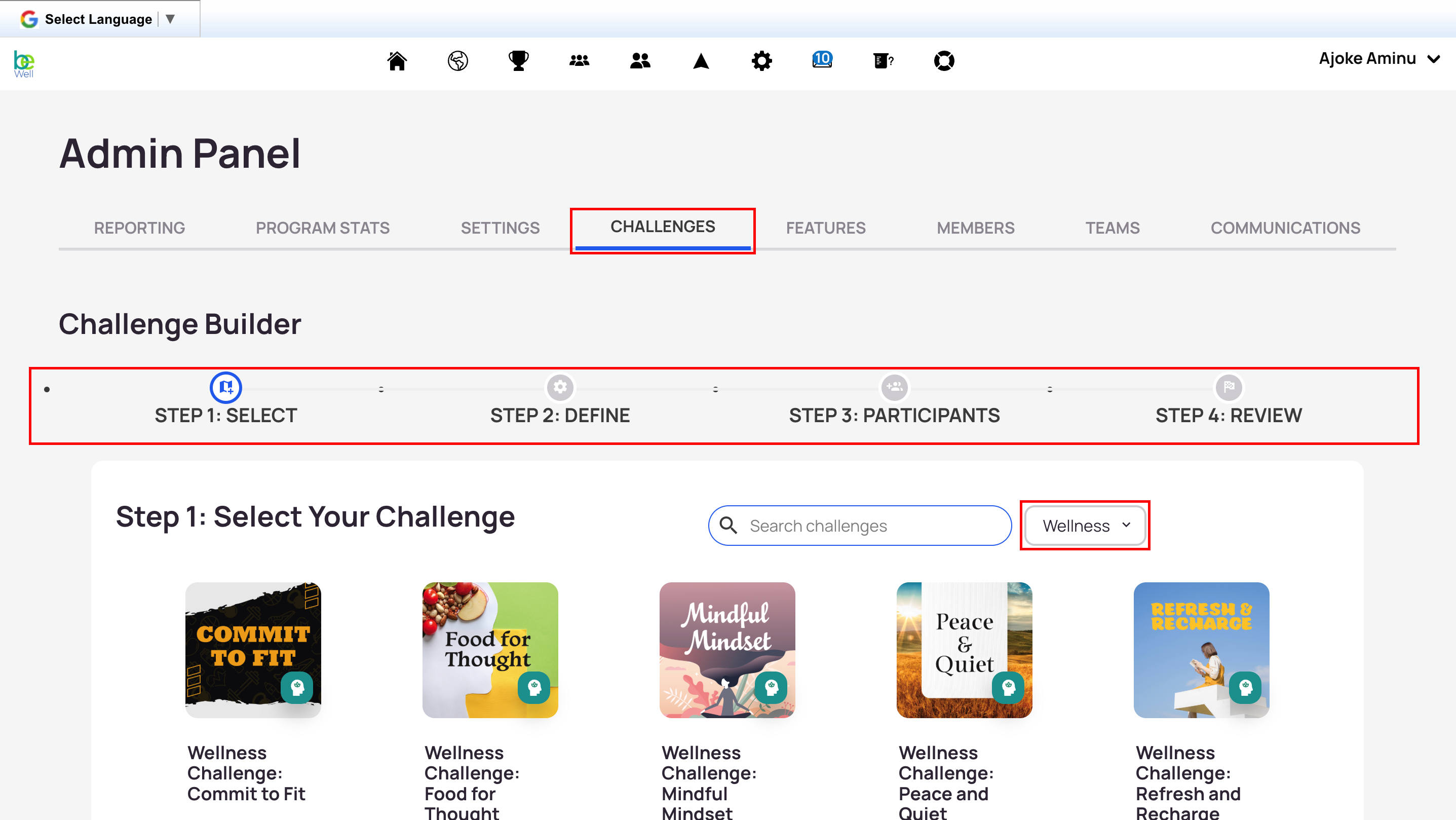
- Navigate to your Admin Panel and open the Challenges tab.
- Click Create a Challenge to open the builder.
- Select a wellness challenge. Click Details to see its tracked metrics and points breakdown.
- Complete the challenge details:
- Name defaults to the challenge type but can be edited.
- Start Date is the one field you set; the challenge automatically runs 42 days from it and cannot be changed. Six weeks is the ideal window for members to recognize and begin adjusting behaviors.
- Reflection (optional) lets members earn 1 XP per day for a journal entry and 3 XP per day for sharing a photo. Including it adds 48 points to the challenge goal.
- Questions (optional) periodically prompt members with a reading excerpt and a wellness question; points are awarded only for correct answers. Including it adds 60 points to the challenge goal.
- Add or invite members, or skip for later, then click Next.
- Click Submit to create the challenge.
To edit a wellness challenge, open the Challenges tab and select the Settings (gear) icon next to its name. The fields you can edit depend on whether the challenge is active or pending.
Create a Custom Wellness Challenge
Create a custom wellness challenge when you want to control which metrics count toward the goal, or need a duration other than the standard 42 days. These are wellness-points-based: each time a member logs an included metric, they earn wellness points toward completion.
Wellness points are not the same as Terryberry redemption or incentive points. When you create a custom wellness challenge, you'll have the separate option to incentivize it with redemption points if you have Terryberry Awards.
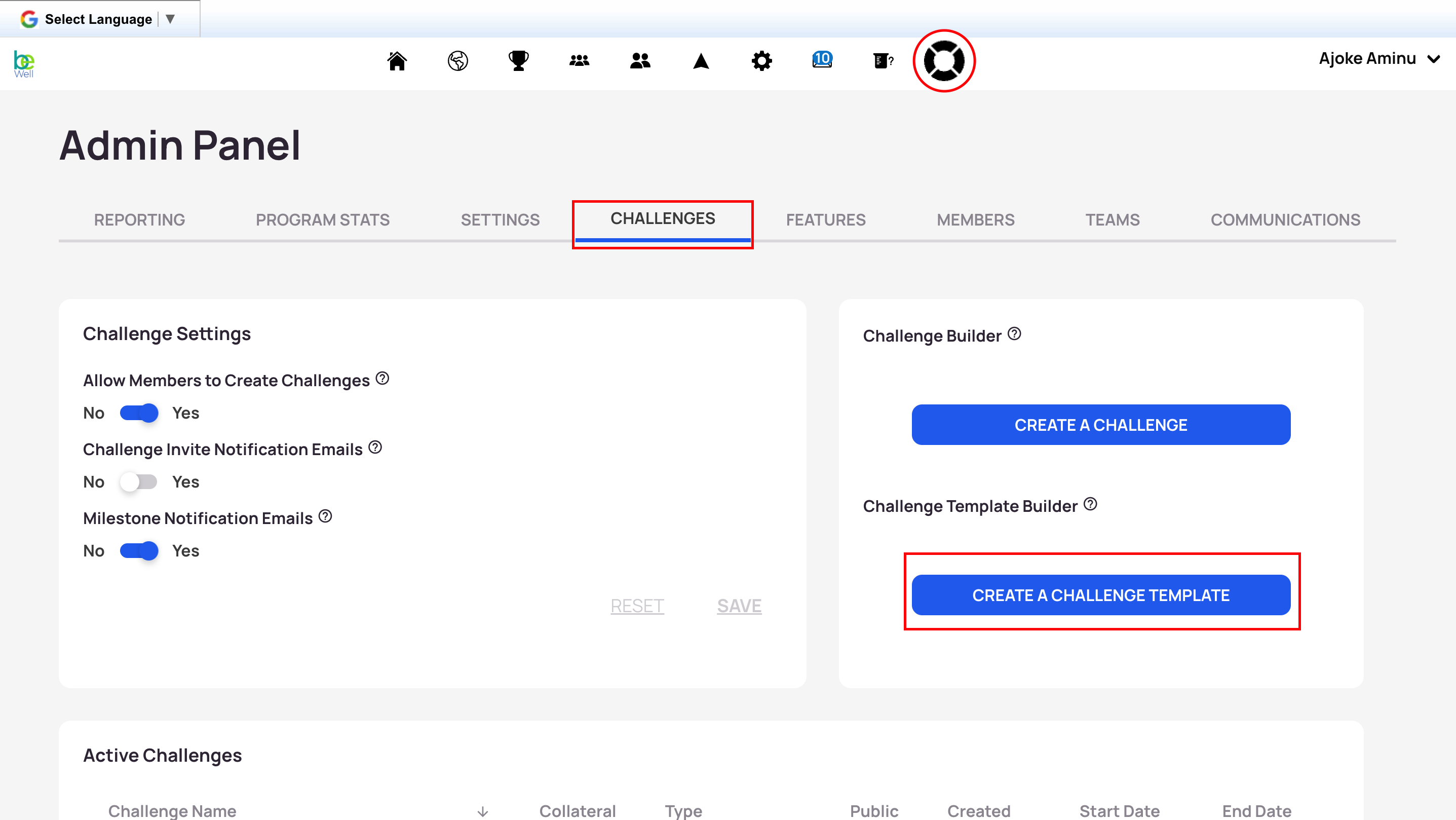
- Open your Admin Panel and select the Challenges tab.
- Select Create a Challenge Template.
- Add a title, and a picture and/or description.
- Select the wellness metrics to track. Options include nutrition, weight, mindfulness sessions, mood, water, heart rate, sleep, steps, and reflection (journal entries and photos).
- Metric point values are fixed; hover the question-mark icon next to a metric to see its value.
- You can't set a step goal in these challenges — if steps are included, members earn full points for logging any amount.
- Select Save, then return to the Challenges tab.
- Select Create a Challenge and search for the template you created.
- Enter the Challenge Settings and the wellness Points Goal Per Day. This goal should equal the total wellness points a participant can earn in a day if they log every included metric (for example, hydration at 5 points plus nutrition at 5 points is a 10-point daily goal).
- Optionally incentivize the challenge with redemption points.
- Select Next, choose to add, invite, or skip members, review, and Submit.
Create a Team Challenge
Team challenges let smaller groups within the program work toward a shared goal, building accountability and friendly competition between teams or departments. Only movement-based challenges can be team challenges; wellness and preventative-care challenges are always individual.
- Open your Admin Panel, select the Challenges tab, and select Create a Challenge.
- Select a movement challenge and press Next to confirm.
- Enter your challenge information, selecting Teams rather than Individual.
- Under How to Track, choose:
- Average (default): best when teams compete against one another; averaging lets teams of any size compete fairly.
- Total: best when teams work toward a common group goal, such as a combined one-million-step target.
- Choose to Add Teams, Invite Teams (which emails each team leader to log in and accept), or skip and let teams join on their own.
- Click Show Teams to search by name or browse, then Add or Invite the correct teams.
- Click Next to complete creation.
Building Your Annual Schedule
There's no single right way to schedule a year of challenges. Outline your existing wellness goals and initiatives first, then align them with the challenge types, side challenges, and other Be Well tools. Whatever mix you choose, build in breaks between challenges, vary the type and theme, and keep communication steady throughout each challenge. Your Customer Success Manager can advise on program design.