
Be Saving User Functionality
Benefits Hub
Most benefits are provided through third-party partners, so selecting a tile either shows details or connects you to a partner site via SSO. The benefits available vary by employer with some schemes including more options, others fewer.
Certain content comes directly from Terryberry’s partners, while others are set up by your employer. The Benefits Hub brings everything together in one place.
Benefits may include:
- Financial Benefits
- Lifestyle Savings
- Ways to Save
- Wagestream / Salary Finance (Salary Sacrifice)
- Cycle to Work Scheme (Salary Sacrifice)
- Home Electronics (Salary Sacrifice)
- Electric Cars (Salary Sacrifice)
- Health Cash Plan
- Financial Wellbeing
- Life Insurance
- Sick Pay Insurance
- Cancer Cover
- Personal Accident Plan / Personal Accident Insurance
- Your Pension / Pensions
- Health & Wellbeing
- Healthy Living
- GP Helpline
- EAP Helpline
- Health Screening
- Wellness Centre
- Lifestyle & Everyday Support
- The Car Benefit Scheme / Green Car Scheme
- Cycle to Work / Cycle2Work / Cycle 2 Work
- Car Maintenance
- Home and Electronics
- Childcare
- Benefits of Employment
- Recognition & Engagement
- Be Recognized
- Reward (Be Rewarded)
Benefits Hub Landing Page
The Benefits Hub is the central place where employees access all benefits made available by their employer. It brings together savings, lifestyle perks, and wellbeing resources in one organized view, making it easy to see what’s on offer.
When you log in, you’ll land on the Benefits Hub page, which is designed to be simple and direct:
- Benefit Tiles: Each tile represents a specific category of benefits (such as shopping discounts, travel offers, or wellbeing support) or a scheme provided by your employer.
- Quick Access: Clicking a tile takes you directly to details of the benefit, including redemption instructions or a link to the provider.
- Tailored Experience: The tiles you see reflect the benefits chosen by your employer, so every hub looks slightly different depending on the Scheme.
Example Tile Landing Page
This is a sample layout showing how a benefit tile looks once selected. Each landing page includes a short overview of the benefit, key details on how it works, and clear instructions on how employees can take part.
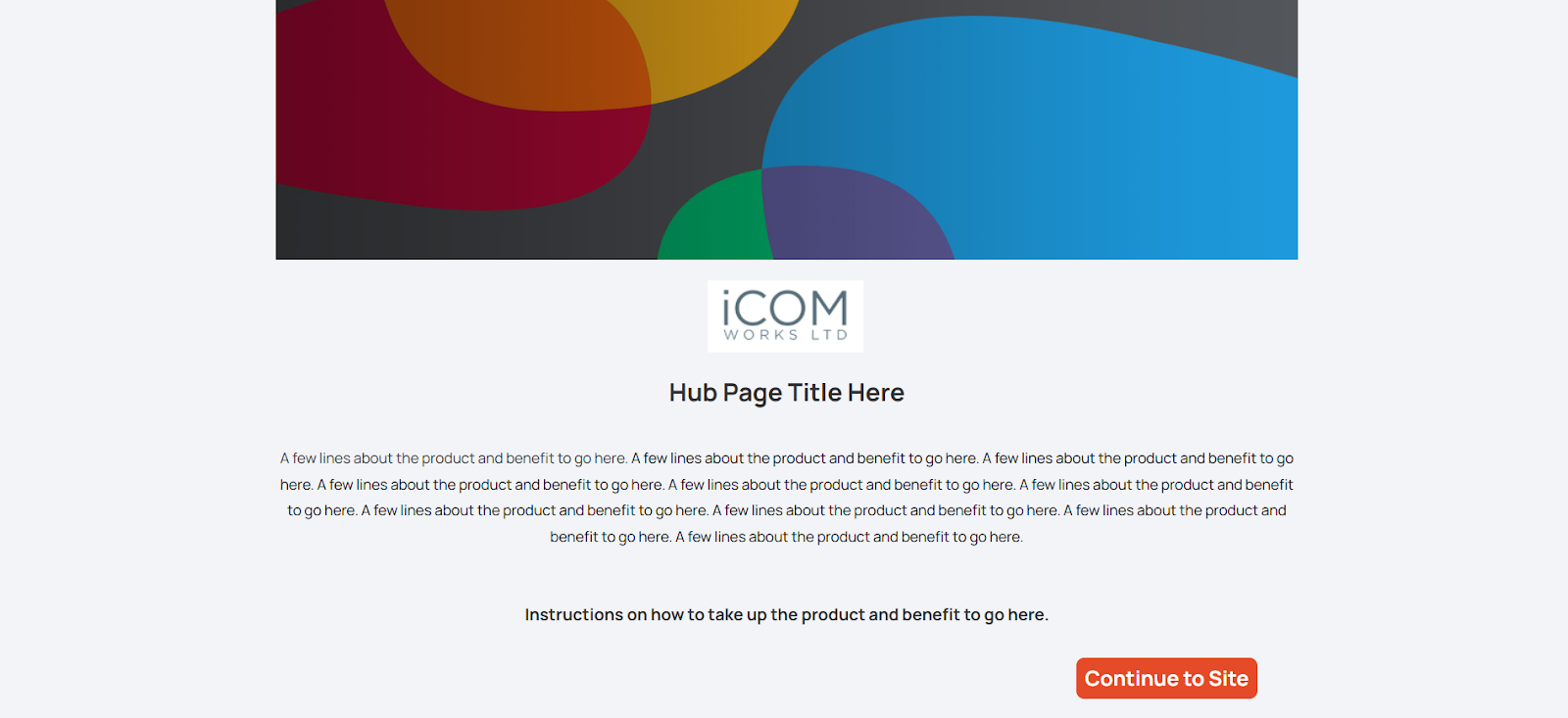
- Logo/Header Area – Company/partner branding.
- Hub Page Title – The benefit/product name (e.g., Health Cash Plan, Cycle2Work, etc.).
- Intro Paragraph – A short, clear explanation of what the benefit is and why it matters.
- Expanded Details – A few lines expanding on features, savings, or how it supports employees.
- Instructions – Simple, direct call-to-action (e.g., Click Continue to Site or Enter your employer code).
- CTA Button – “Continue to Site” for next steps. Or you will see contacts to dial in relevant cases.
Profile Preferences
Location
You can adjust your location at any time to see local offers for in-store redemption.
- Click the User icon at the top of your Benefits Hub page to go to your account settings.
- Enter your preferred location in the appropriate box and click Update.
- Your hub will update to highlight offers from those areas.
Email Opt-In/Out
You’re in control of the communications you receive.
- To subscribe or unsubscribe from marketing emails, click the User icon at the top of your Benefits Hub page to view your profile settings.
- You can opt in to weekly updates on discounts, bi-weekly benefits emails, or choose to receive only essential notifications.
- Changes take effect immediately, so you’ll only get the updates you want.
Favorite Brands
If you have retailers you use often, you can make them easier to find by saving them as favorites.
- On any offer card, click the star icon to mark it as a favorite.
- To remove a brand, click the yellow star again.
- To view all your favorite brands in one place, click the star icon at the top of the home page.
Wallet
The Wallet is where you’ve saved in-store offers for later use. It acts as your personal space for managing discounts and in-store redemptions, and typically includes a code for use at checkout.
- Accessing Your Wallet: Click the Wallet icon at the top of the Benefits Hub homepage. From here, you can view your saved offers and any available discount cards.
- Discount Card: If your employer provides a Discount Card, it will be stored in your Wallet. Open the Discount Card dropdown inside the Wallet to access it.
Redeeming In-Store Offers: To save an in-store offer, click the Add to Wallet button or the Wallet icon on the offer. Once it’s added, visit your Wallet for instructions on how to use the offer when shopping in-store.