
How to Log In to Be Saving
Your employer will make Be Saving available to you by providing you a link to access it.
Your employer will make Be Saving available to you by providing you with a link to access it. If your employer has set up an SSO (Single Sign On), you will automatically be logged in to the platform.
If you do not have an SSO, you will be asked to enter either a Scheme ID, or your email (if pre-registered).
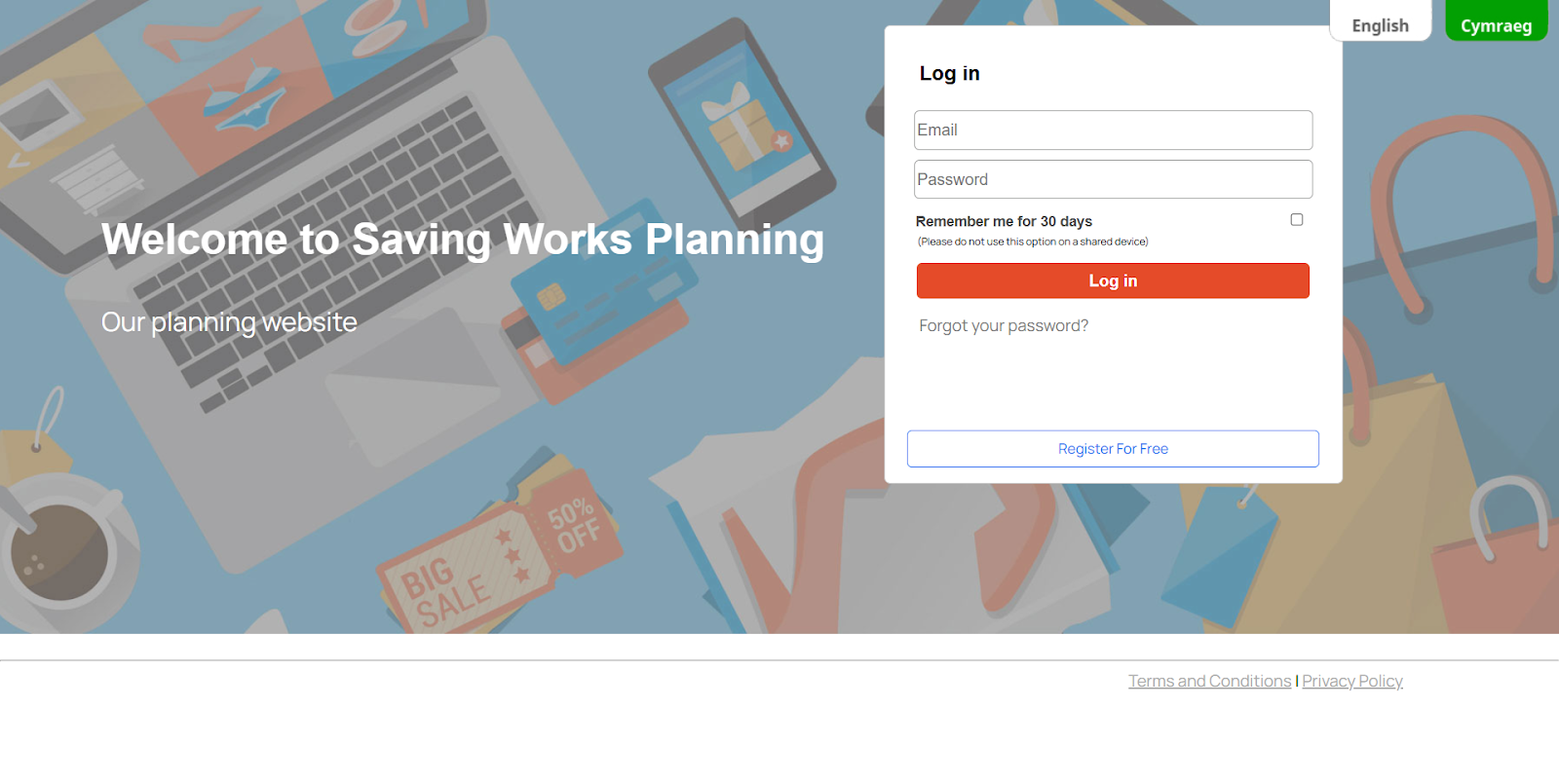
First-Time Login
- Non-SSO
- If requested, Enter your Scheme ID (provided by your employer)
- Enter your first name, last name, and email address.
- Create a secure password and confirm it.
- Choose your marketing preferences, accept the Terms & Conditions, and complete the CAPTCHA before continuing.
- SSO (Single Sign-On)
- If your employer provides SSO, you’ll access Be Saving directly through your company portal.
- On your first visit, you’ll be prompted to confirm your email, accept the terms & conditions, and set your communication preferences.
- After this one-time setup, you’ll log in automatically whenever you use the employer’s SSO.
Returning Login
- Go to the Be Saving login page.
- Enter your email and password.
- Select “Remember Me for 30 days” on a personal device to stay signed in.
- If your employer uses SSO, logging in via your company’s system will take you straight in without requiring you to re-enter your credentials.
“Login Failed!” Error
Your login may fail because the email or password you entered is incorrect, you are not registered on this scheme, or your account may be temporarily locked.
- Troubleshooting Tips
- Double-check your email address and password.
- If your account is SSO-based, please return to your company portal and attempt to log in from there.
- If you’ve forgotten your password, you should reset it.
- If you are not yet registered, contact your HR team for your Scheme ID or registration link.
- If your account is locked, wait a short period or request support from your programme administrator.
How to Reset Your Password
- On the login page, click “Forgot your password?”
- Enter your registered email address, click Submit Request, and complete the CAPTCHA.
- You’ll receive an email with a reset link.
- Follow the instructions to create a new password.
- After setting your new password, you’ll see:
“Your password has been changed successfully. Click here to log in.”
- Follow the login link to sign in with your updated password.
Tip: Passwords must meet the security requirements of a minimum of 8 characters, at least one uppercase, one lowercase, and one number.