Reports - Admin
Reports give administrators visibility into participation, challenge outcomes, question responses, and mental wellbeing data across your program. This article covers the four reporting sections in the Admin Panel, how to access each, and how to download and read them.
This article is intended for program administrators.
Accessing Reports
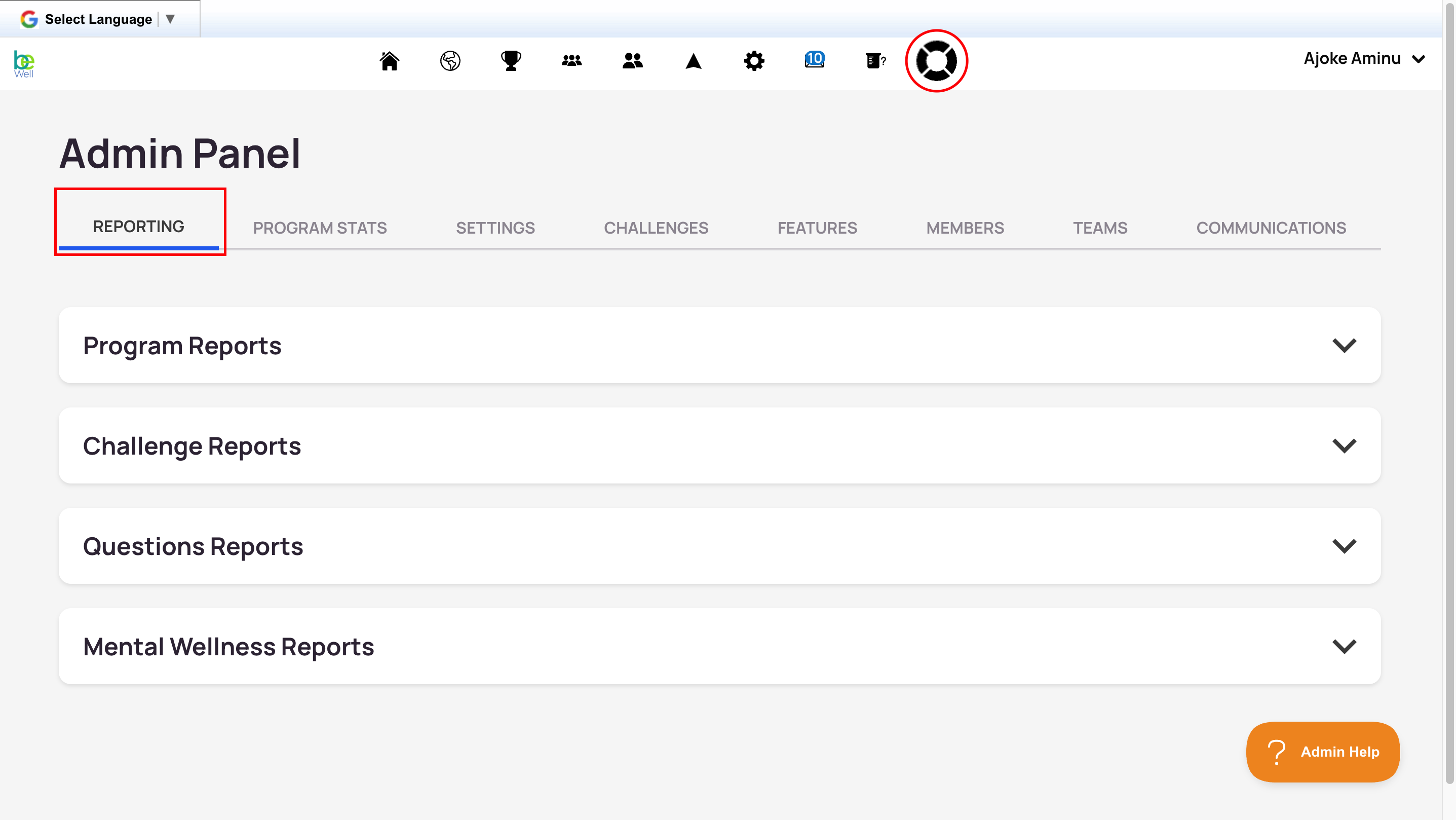
All reports live in the Admin Panel, which defaults to the Reporting tab. Scroll to the section you need: Program Reports, Challenge Reports, Questions Reports, or Mental Wellness Reports.
Program Reports
Program Reports show the status of all participants or teams across your program and are not challenge-specific. Use the date range feature to set the time period you want to view.
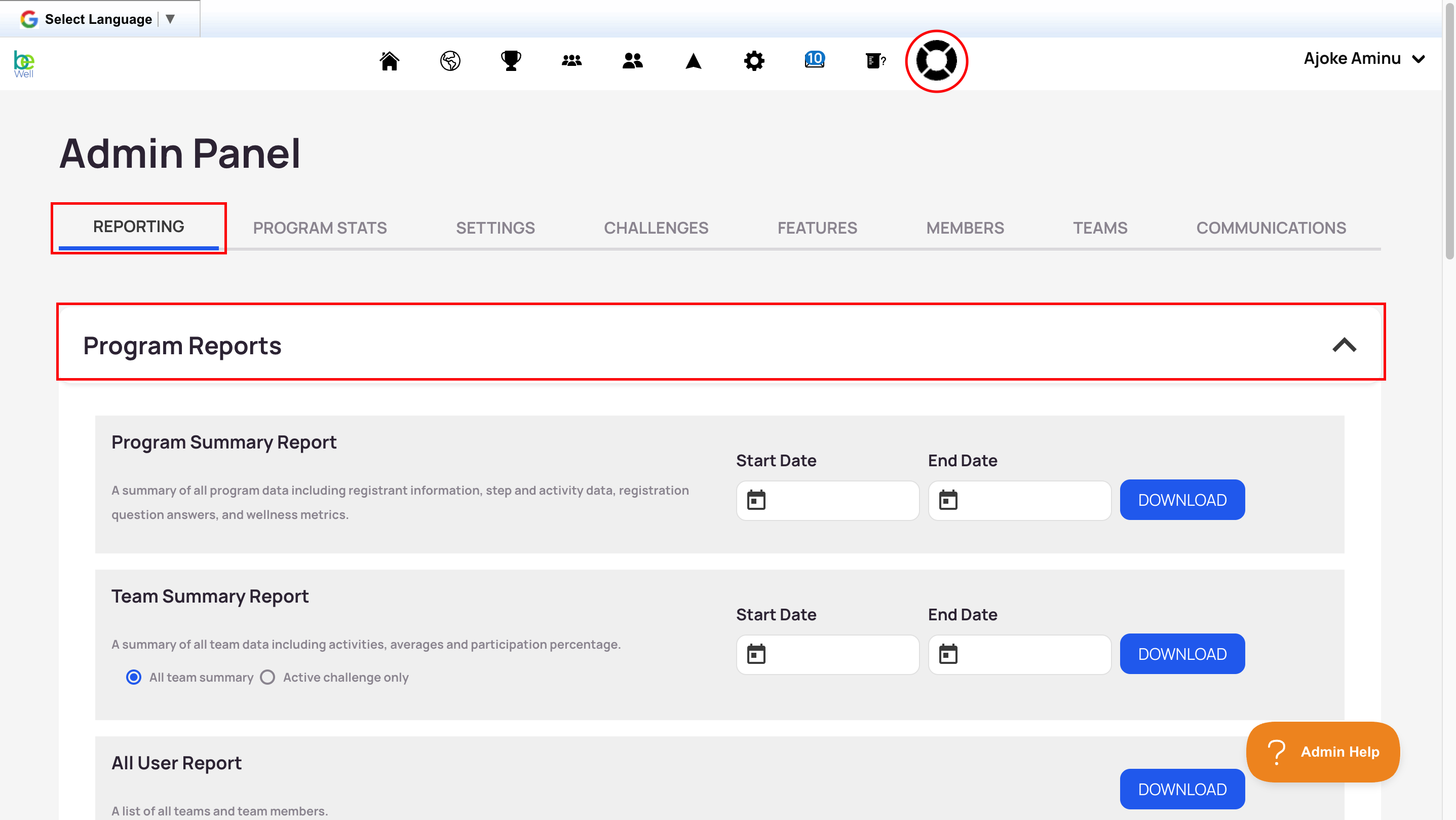
- Program Summary Report: Step data for all participants, plus registration date, last visit, connected device, and whether the participant is in a featured challenge, team, or organization.
- Team Summary Report: Step data for all teams, the number of participants per team, and organization membership.
- All Users Report: All users with their team, connection data, team leader status, and organization.
- Points Summary Report: Participant points for each wellness metric and question, points given by admins, and total points.
- Badges Report: Participants and the date each badge was received.
- Wellness Metrics Report: How many times each participant has logged a wellness metric or answered a question.
Challenge Reports
Challenge Reports show data collected during a challenge. Navigate to Admin Panel → Reporting → Challenge Reports. There are two types.
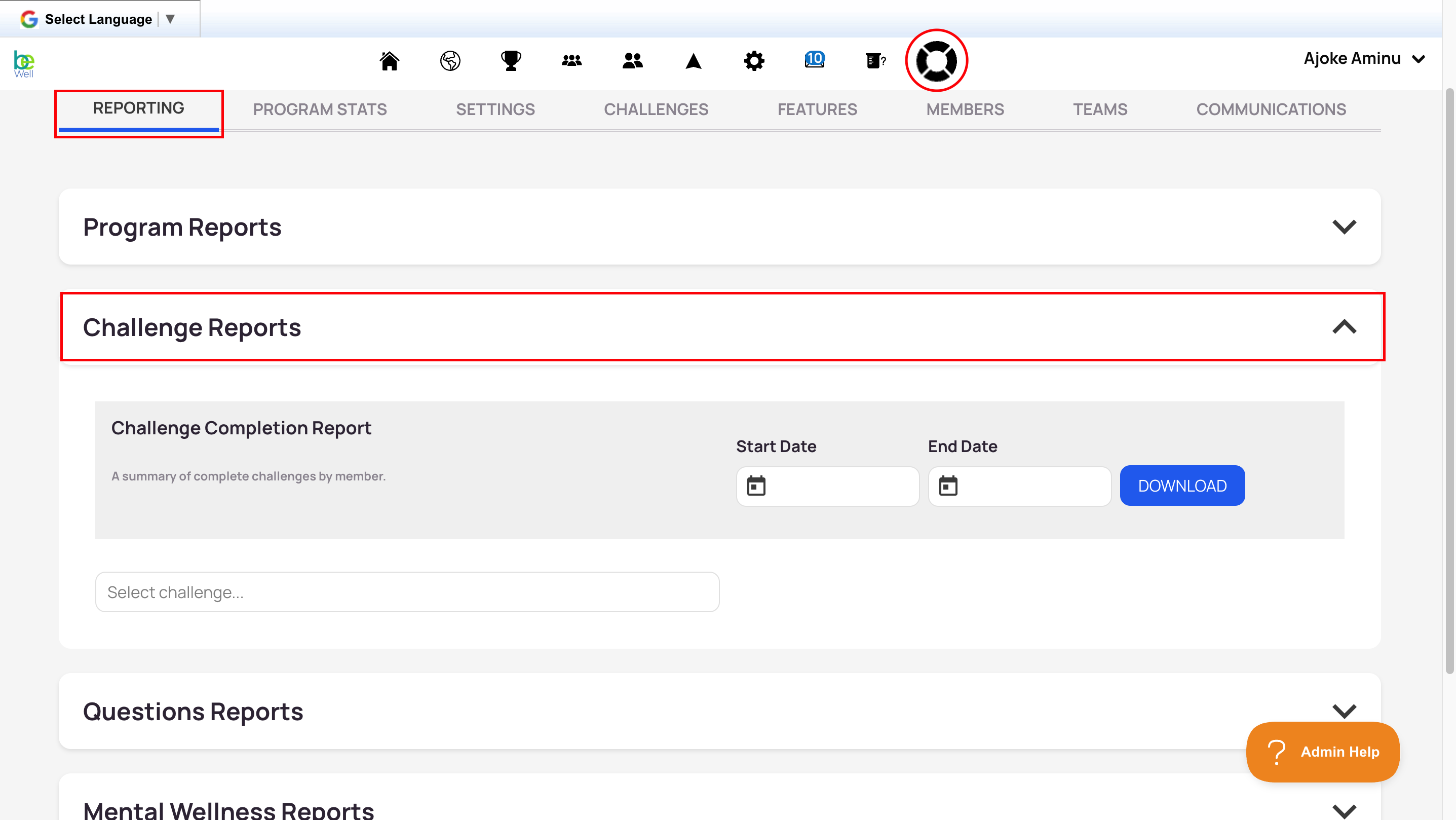
Challenge Completion Report shows all challenges within your selected date range and whether participants completed them, useful for tracking completion status over time.
Specific Challenge Reports are generated per challenge. Click Select challenge, choose the challenge from the dropdown, and a dashboard appears along with the option to download the full report. If you view a report before a challenge ends, it shows data from the challenge start date through your download date. These reports only reflect data collected during the challenge dates.
Final Tally
A final tally of challenge stats is available 48 hours after the challenge end date. If you download the report before this grace period, the stats may not reflect a participant's true step count. The 48 hours give participants time to review entries, log missed days, or resolve sync issues with support. A report with Final Tally stats lists Completed after the challenge name in the dropdown; Active means the Final Tally hasn't occurred yet.
About the Percent Change column: This metric compares the first third of a time period to the last third. A negative number means the participant walked that percentage fewer steps in the final third; a positive number means they walked that percentage more. For example, 100 steps in the first third and 68 in the last third records a 32% decline; reversed, it records a 32% improvement.
Questions Reports
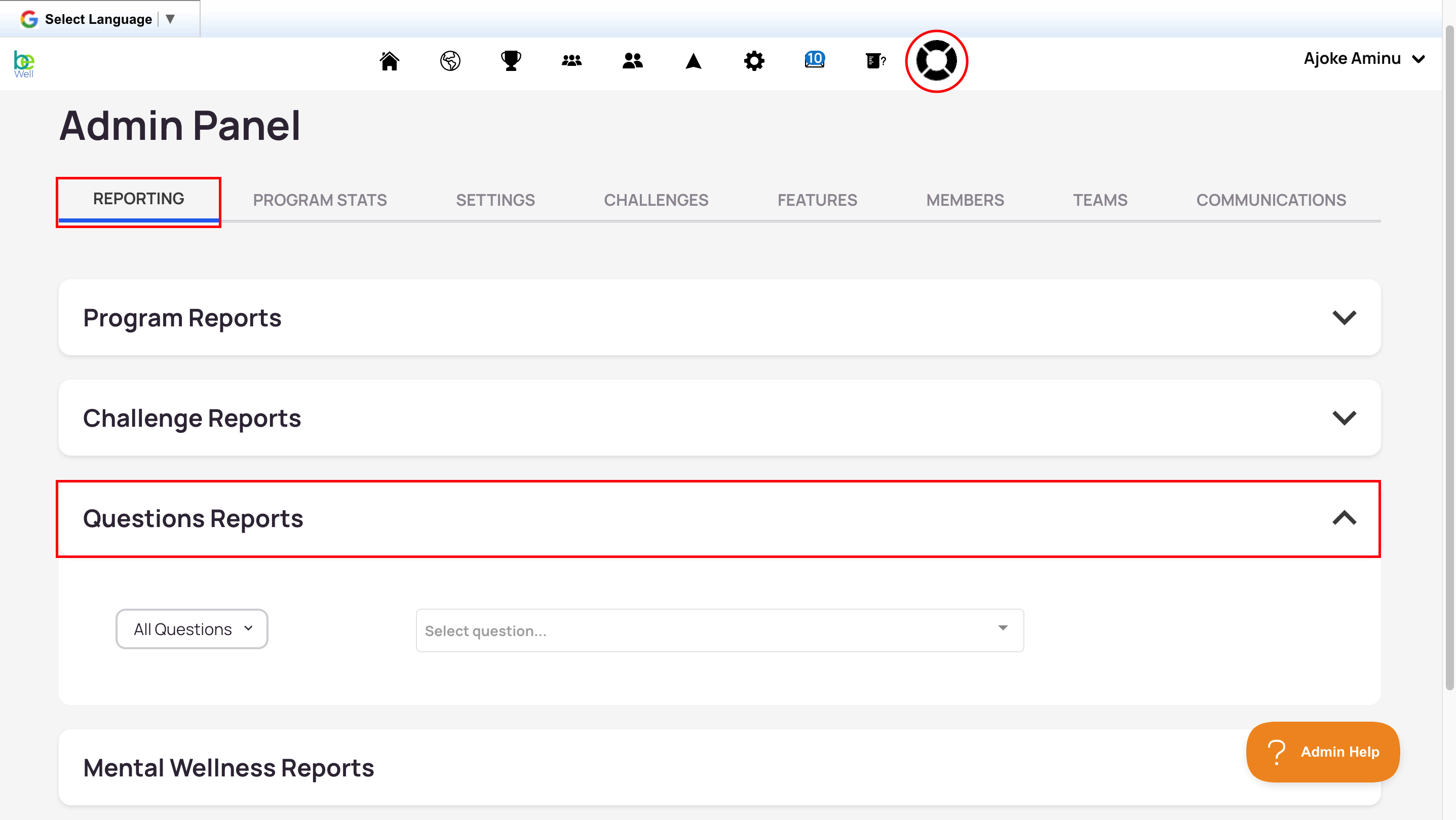
Questions Reports show participant responses to Questions.
- Open the Admin Panel (defaults to the Reporting tab).
- Scroll to the Questions Reports section.
- Select All Questions to expand the dropdown. Choose a specific question, or leave it on All Questions to include everything.
- Select Select Questions to populate the dropdown.
- Choose each question you want by hovering and clicking or pressing Enter. Selected questions turn from green to grey. You can select as many as you like.
- Select Download.
Mental Wellness Reports
Mental Wellness Reports show information specific to the mental wellbeing assessment.
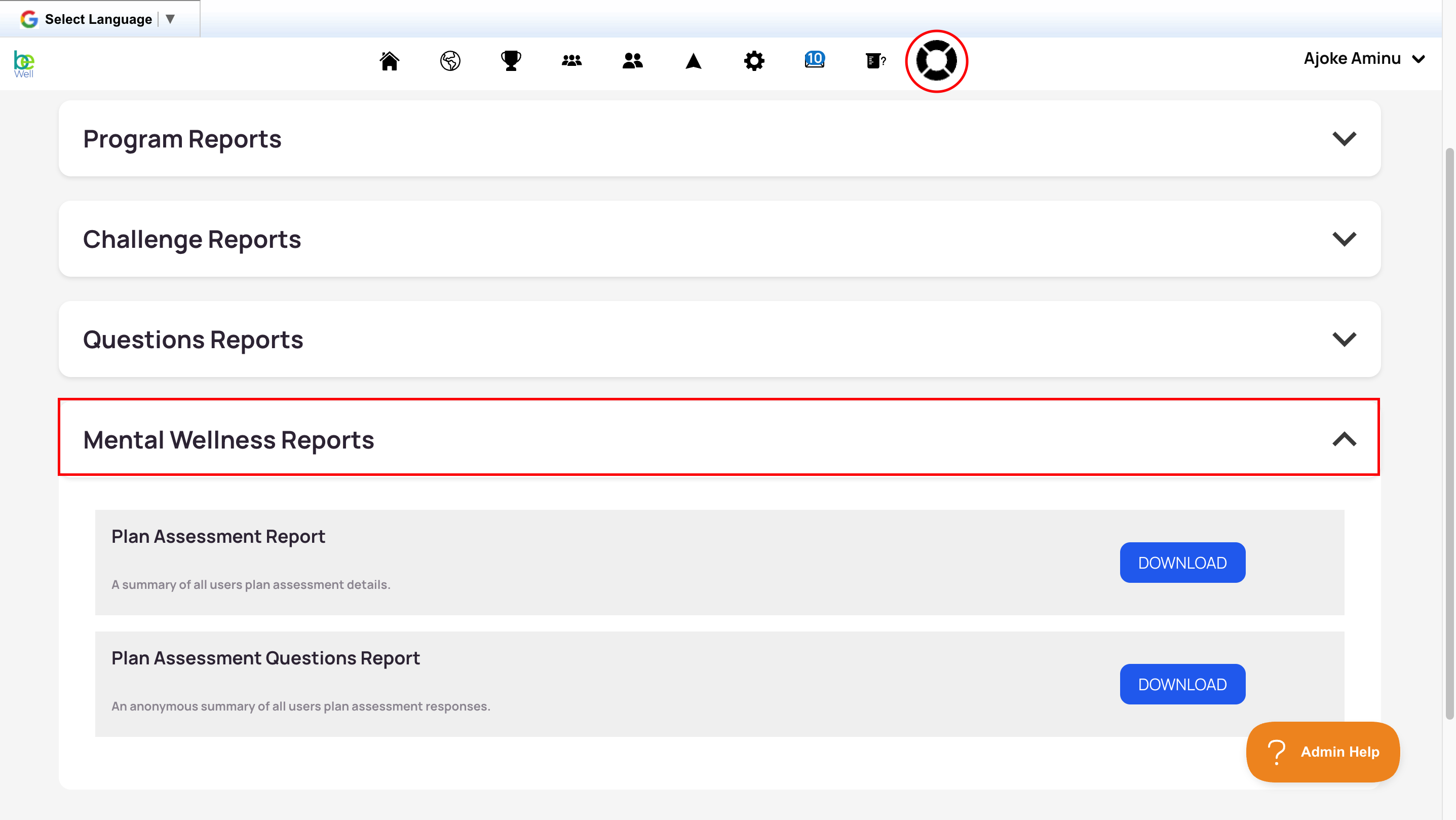
- Plan Assessment Report: A list of all participants and whether they took the wellbeing assessment.
- Plan Assessment Questions Report: A list of all mental wellness topics and how many participants selected each in their personal assessment.
Downloading a Report
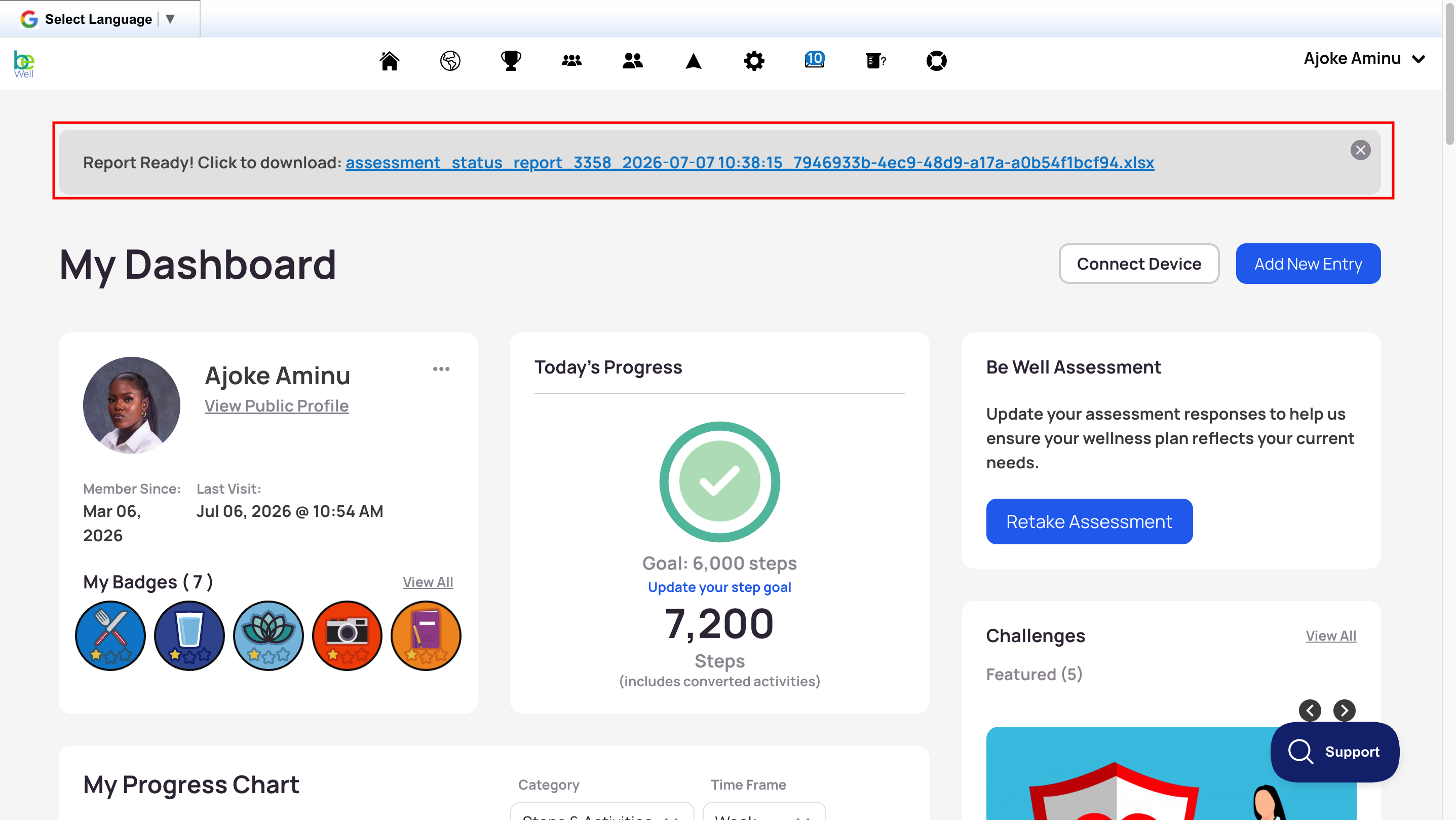
When you download any report, it's sent to you by email, so check your Spam/Junk/Other folder if it doesn't arrive. A download link is also typically posted to the Home tab: after requesting a report, go to the Home tab, refresh the page, and you'll see a notice with the download link. Allow a few minutes for large files.