
Getting Started with Be Rewarded
Be Rewarded allows you to redeem points earned through recognition and engagement for merchandise, gift cards, and experiences. This guide walks you through accessing the platform and browsing the catalog.
Getting Started
The Getting Started guide helps every role use the Be Rewarded platform effectively from day one.
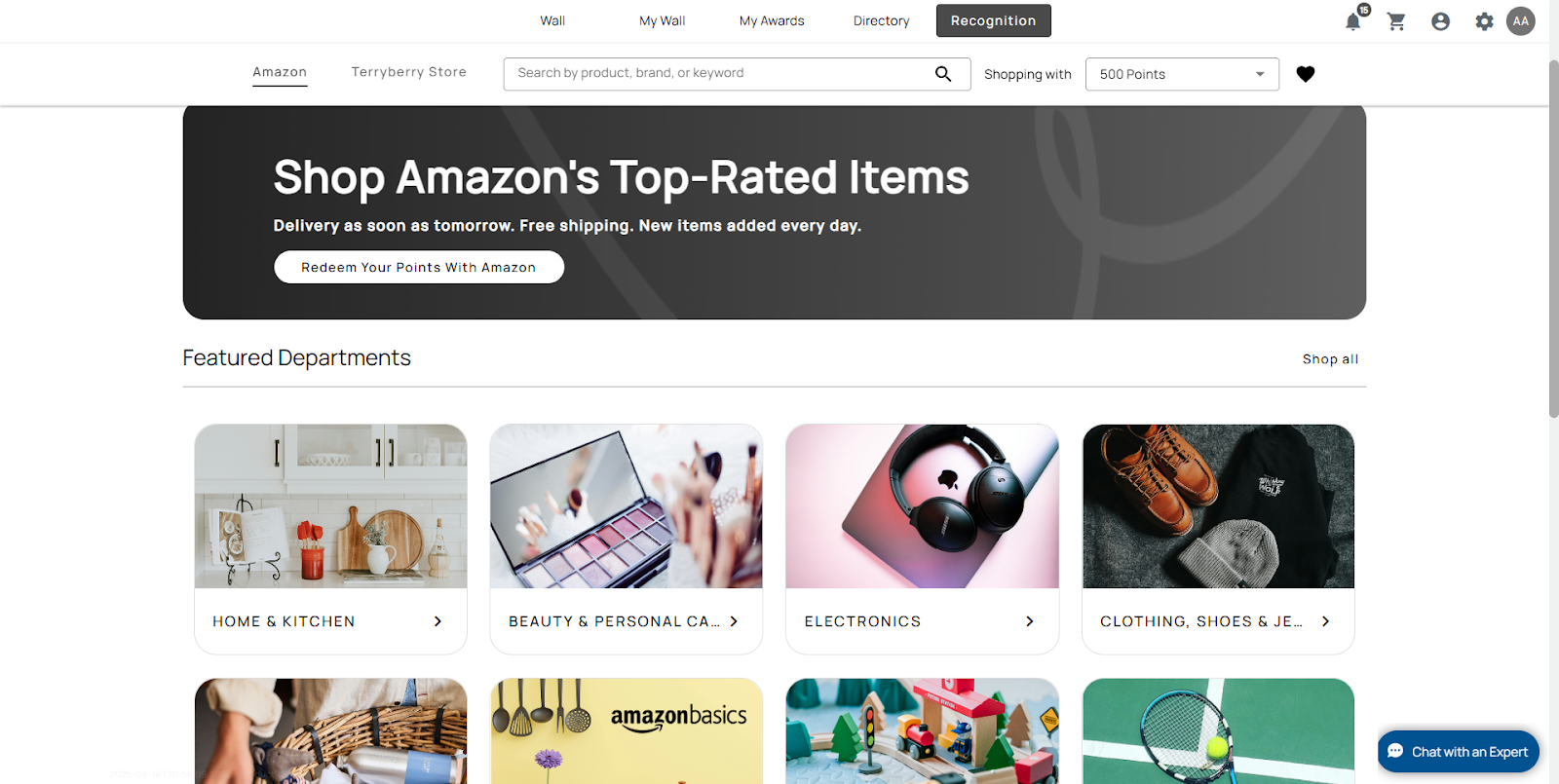
Layout of the Homepage
Top Navigation Tabs
- Wall, My Wall, My Awards, Directory, Recognition
These tabs let users switch between their organization’s recognition areas. Recognition opens the reward redemption environment where users can browse available catalogs.
Right-Side Icons
- Notifications (bell icon)
Shows pending activity, announcements, or updates from the Recognition platform.
A badge number appears when there are unread alerts. - Settings (gear icon)
Opens the user’s configuration area. Available settings depend on permissions. - Profile (initials or profile picture)
Expands a dropdown with account options such as My Profile or Logout. - Cart icon
Displays items added to the redemption cart before the checkout process.
Banner Section
The banner highlights the active reward catalog (e.g., Shop Amazon’s Top-Rated Items).
It contains:
- Promotional text (e.g., “Free shipping. New items added every day.”)
- A call-to-action button (Redeem Your Points with Amazon) that takes users to the redemption flow.
Catalog Tabs
Tabs appear beneath the banner and represent available catalog types:
- Amazon Business – The default redemption catalog is shown to users.
- Terryberry Store – Displays Terryberry’s internal store.
- SWAG or Premium Redemption – Shown if enabled for the program.
Note: Only catalogs activated by the Scheme will be visible.
Search and Filter Controls
Below the tabs:
- Search Bar – Allows searching by product name, brand, or keyword.
- Points Dropdown – Filters available items by points or Service Awards (e.g., “Shopping with 500 Points” or “20 Years of Service”).
- Favorites Icon (Heart) – Opens the user’s saved items list.
Main Content Area
The main content area of Be Rewarded is where users browse, search, and interact with available reward options. While the layout remains consistent across all catalog types, the content displayed varies depending on which catalogs are enabled for the customer’s program.