
Joining a Team Challenge
This guide covers how to join an individual challenge from the mobile app or your browser, and how joining a team challenge differs.
Team challenges are joined through your team, not as an individual. In most cases, your program administrator populates the challenge with teams when creating it, so you only need to join a team to participate.
To join a team, see [Creating & Managing a Team] or [Joining or Leaving a Team]. (from Internal KB links.)
If your team hasn't been added to the challenge automatically, your team leader can add it. Typically the team leader is the first person to join the team; if no one is assigned, a notice appears at the top of the team page and you can choose to become the team leader.
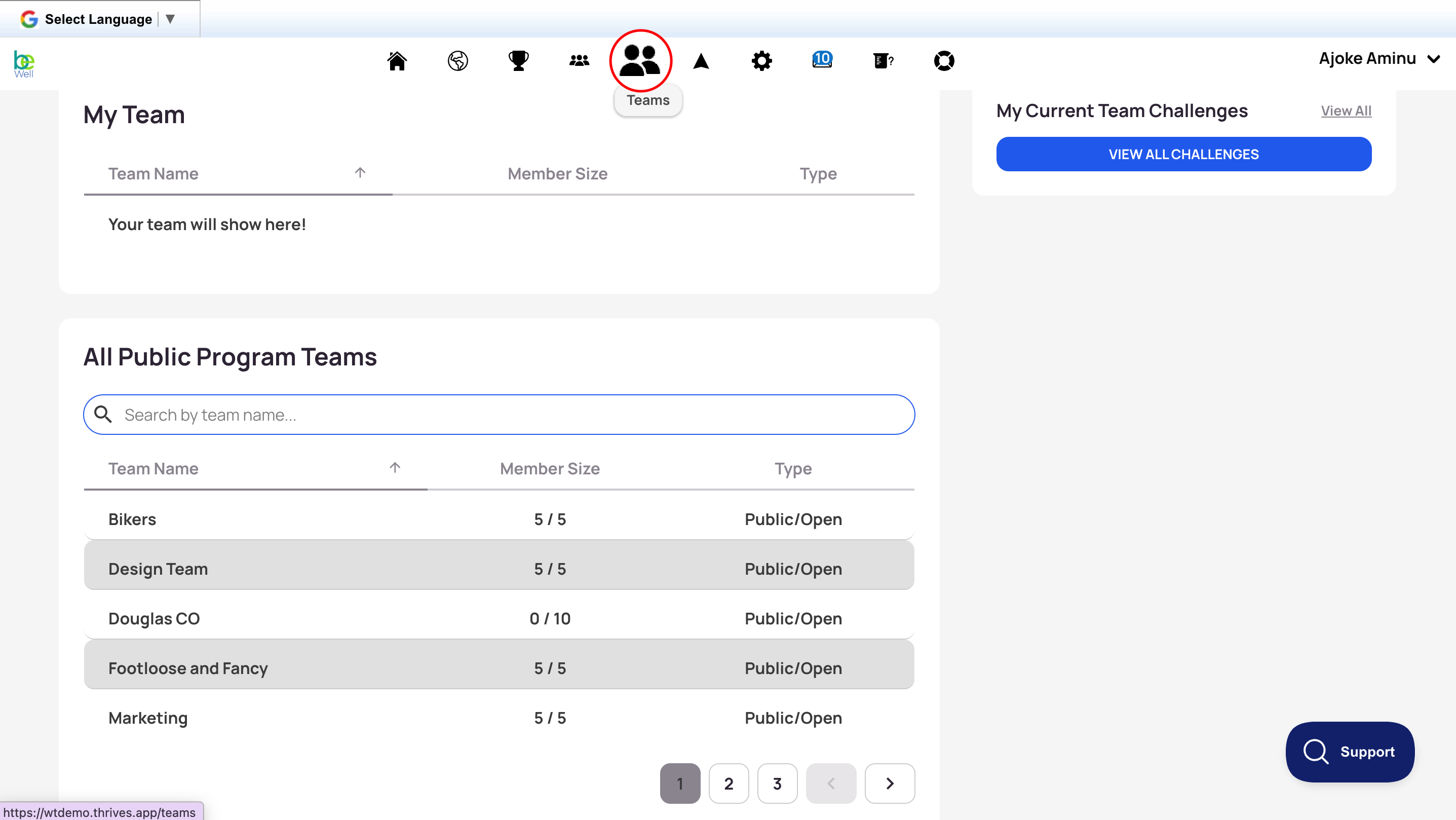
For team leaders adding a team to a challenge:
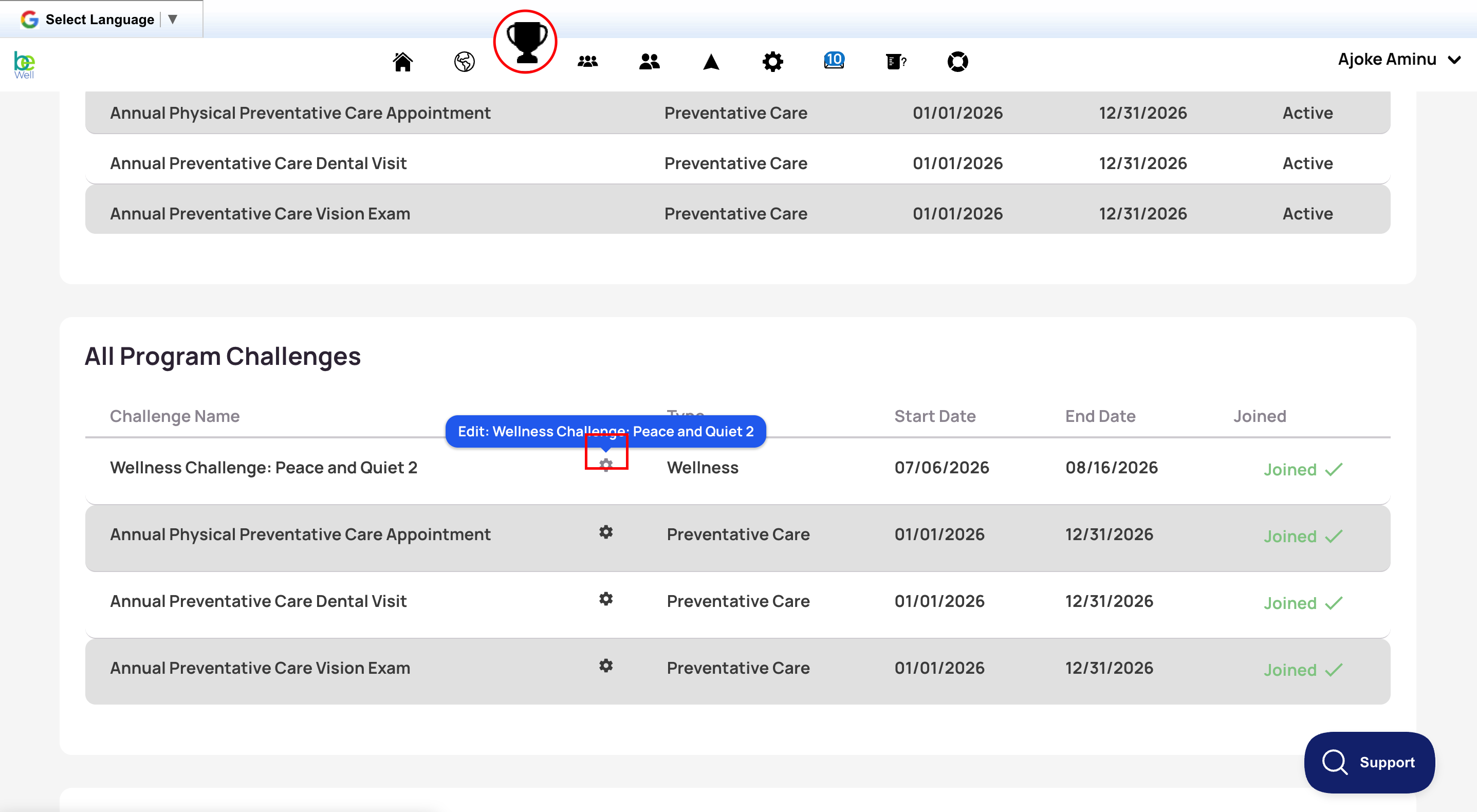
Add your team directly:
- Open your Challenges tab.
- Scroll to the All Program Challenges section and find the challenge you want to join.
- Click the gear icon next to the Challenge title.
- Scroll to the Challenge Members to remove any member(s).
- Scroll to the Include Members to Add or Invite Members.
- Click Save Changes at the bottom of the page.