Troubleshooting Sync Issues
If your steps or activity data aren't appearing in Be Well, or the numbers don't match what your device or app shows, the cause is usually a connection or permissions issue between Be Well and your tracker's account. This page walks through the fixes for the most common devices, plus general steps that apply to any tracker.
Before trying any device-specific fix below, it helps to know how Be Well receives your data: for most trackers, Be Well pulls steps from your device provider's account (for example, your Fitbit or Garmin account), not directly from the device or phone. That means your steps must first reach the provider's account before Be Well can sync them.
Apple Health
Prioritizing data sources (iPhone)
If you use a wearable (like an Apple Watch) that connects to your iPhone, your Health app may be pulling step data from your phone instead of your watch, causing mismatched counts. Here's how to set which source Health uses first:
- Open the Health app on your iPhone or iPad.
- On iPhone, tap the Browse tab. On iPad, open the sidebar.
- Select Steps.
- Scroll to the bottom and select Data Sources & Access.
- Select Edit.
- Touch and hold the reorder control next to a data source, then drag it up or down. The source at the top of the list takes priority.
- To stop a third-party source from contributing data, tap the checkmark next to it.
- Tap Done.
New apps or devices you add are placed at the top of the list automatically, above your iPhone or iPad.
iPhone 5 and older models
If your iPhone 5 or an older model isn't recording steps, it's because those models lack the motion co-processor (accelerometer) that tracks steps — this component wasn't included until the iPhone 5s. You can't track steps directly through Apple Health on these models. Apple recommends using a separate step-tracking app and importing that data into Apple Health. Contact Apple support for guidance on which app pairs best with Apple Health on older devices.
Fitbit
If you've connected a Fitbit device but it isn't syncing correctly, there are two common causes.
If you're connected but no steps are showing,
This usually means your Fitbit device isn't registered to your Fitbit account.
- Disconnect your device from Be Well.
- Log in to your Fitbit account at fitbit.com (use the website, not the mobile app).
- Select the Settings icon (gear) in the upper-right corner. A drop-down menu should list your Fitbit device. If your device isn't listed, that's why Be Well can't receive your steps.
- Once your Fitbit is connected to your Fitbit account and you've confirmed steps are syncing there, reconnect your Fitbit to Be Well.
After reconnecting, Be Well runs a refresh so that older steps are brought over to your account. If you have trouble connecting your device to your Fitbit account, contact Fitbit support directly.
If steps are syncing but are incorrect
This is usually a permissions issue in your Fitbit account.
- Disconnect your device from Be Well.
- Log in to your Fitbit account at fitbit.com (website, not the app).
- Select the gear icon in the upper-right corner of the dashboard.
- Select Settings from the menu.
- Select Applications from the left-hand menu.
- Select Revoke Access next to Be Well and/or Human API in the applications list.
- Log out of fitbit.com.
- Reconnect your device. During the process, you'll be prompted to enter your Fitbit login and approve the permissions between Be Well and Fitbit.
- Once permissions are approved, reconnect Fitbit to your Be Well account.
If you're still having issues after this, contact support and describe the problem you're experiencing.
Garmin
Be Well supports Garmin devices by connecting to your Garmin Connect account.
- Disconnect your device from Be Well.
- Log in to your Garmin account at garminconnect.com using a web browser (not just the app, so this confirms your steps are reaching your account, instead of just sitting in the app).
- Verify that the correct device is connected and that your steps are syncing on that page.
- Once everything is confirmed on Garmin's website, reconnect to Be Well.
If your device appears in your Garmin account but steps still aren't syncing to Be Well, contact support with your username and a description of the syncing issue.
General sync troubleshooting
If your data isn't matching or steps aren't appearing and the device-specific fixes above didn't help, work through these three steps in order.
1. Check your account
For many trackers, Be Well pulls steps from your provider's account rather than the device itself. Log in to that provider's site (fitbit.com for Fitbit, connect.garmin.com for Garmin) and confirm your device is registered and your steps are showing there. If they aren't, follow the manufacturer's instructions to register your device to your account.
2. Reset permissions
Be Well needs certain permissions to receive data from your device's account. To reset them on mobile:
- Disconnect your step-tracking option from Be Well.
- Uninstall both the Be Well app and your step-tracking app.
- Reinstall both apps.
- Reconnect your step-tracking option, accepting all permissions when prompted.
If a permissions problem was the cause, your steps should come through on the next sync.
3. Contact support
If none of these steps resolve the issue, there may be another problem affecting your connection. Contact support and let them know what issue you're experiencing and which troubleshooting steps you've already tried, so the team can diagnose and repair the connection faster.
Disconnecting a device
You may need to disconnect a device to switch trackers or enter steps manually.
On mobile
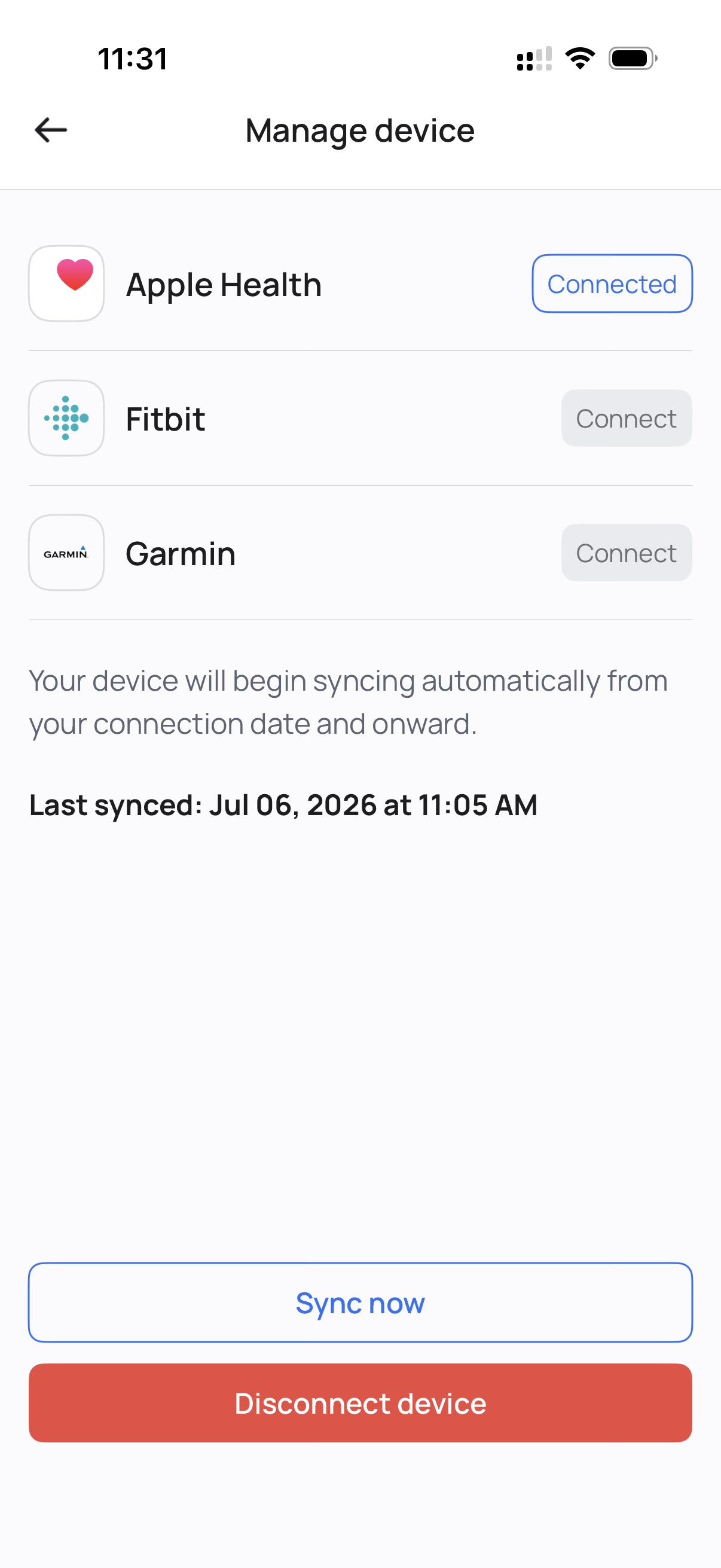
- Tap the left sidebar.
- Tap Manage device.
- Under your connected device, tap Disconnect.
On web
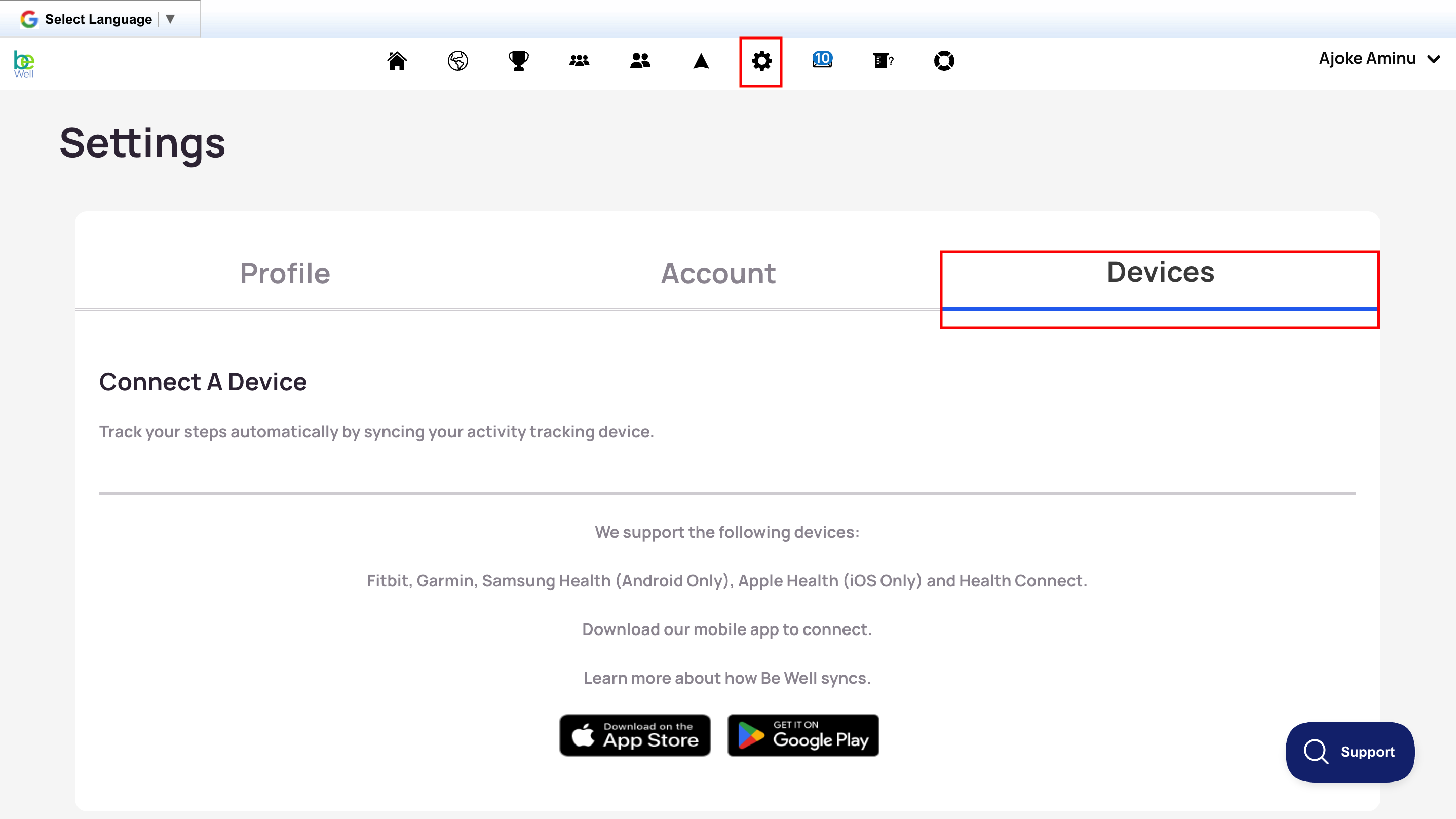
- Open Settings by selecting the gear icon.
- Select the Devices tab.
- Select Disconnect Device to clear your current connection.