
How to Export Data in Be Saving
The Export tab allows you to download data from any page within Benalytics for offline analysis or reporting.
This gives you flexibility to share results with leadership, track trends outside the platform, or build custom reports.
Step 1: Choose the page you want to export from
Navigate to the tab in the sidebar (e.g., Users, Offers & Discounts, Wellbeing, Hub, Communications, or Savings).
Step 2: Apply filters if needed
Use the dropdown menus (time period, supplier, category, etc.) to refine your data before exporting. The export will reflect whatever filters are active.
Step 3: Click “Export” in the sidebar
The button is located at the bottom of the left-hand menu.
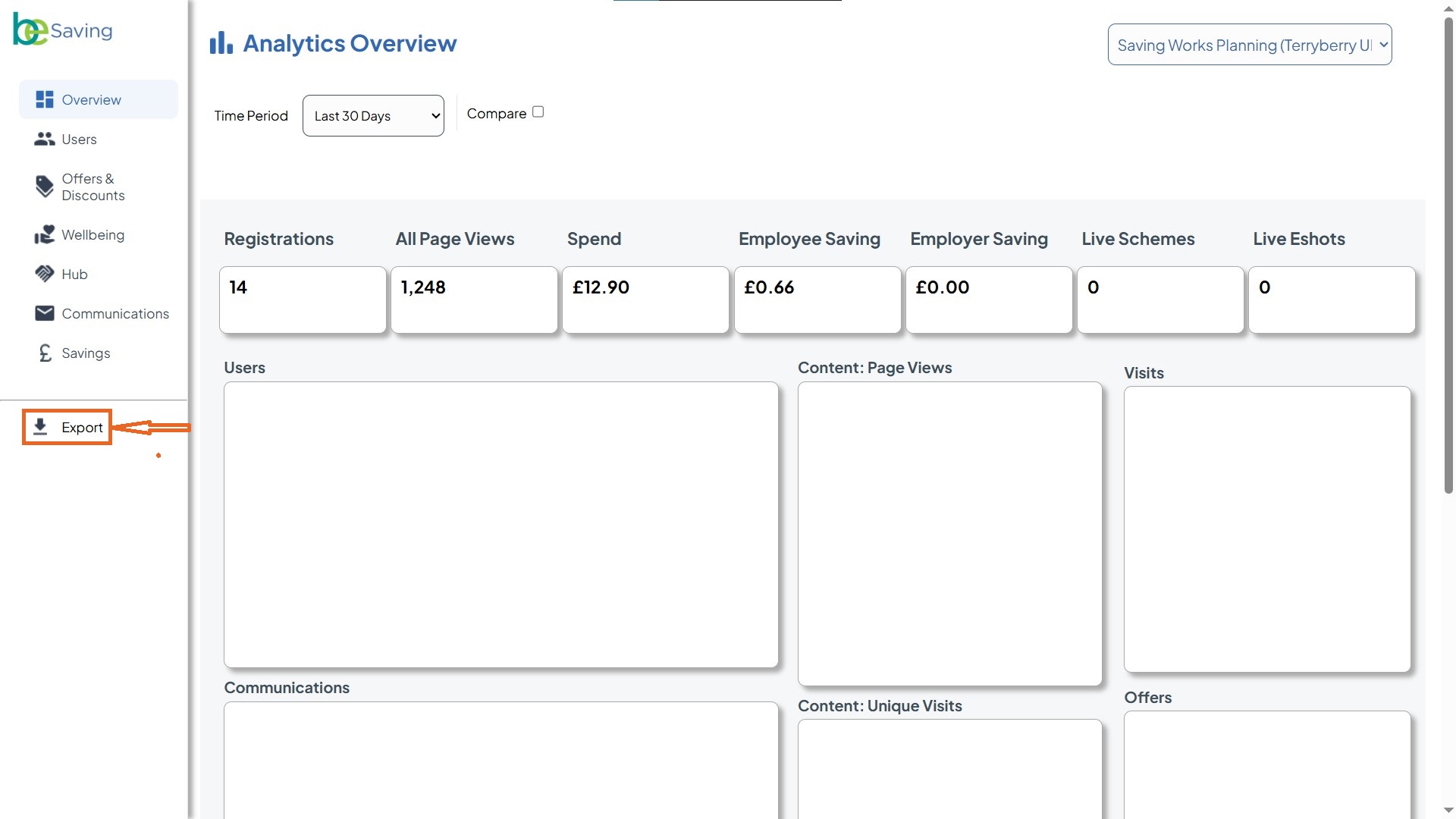
Step 4: Download the file
A .csv file will automatically download to your device. Open it in Excel or another spreadsheet tool to review and analyze the data.