
Benefits Hub Tile Inspiration
It showcases the kinds of benefits that can be included—from lifestyle savings and wellbeing support to financial protection and recognition, helping you shape a package that meets the diverse needs of your workforce. Use these examples as a starting point when deciding which benefits to provide and how to present them to employees.
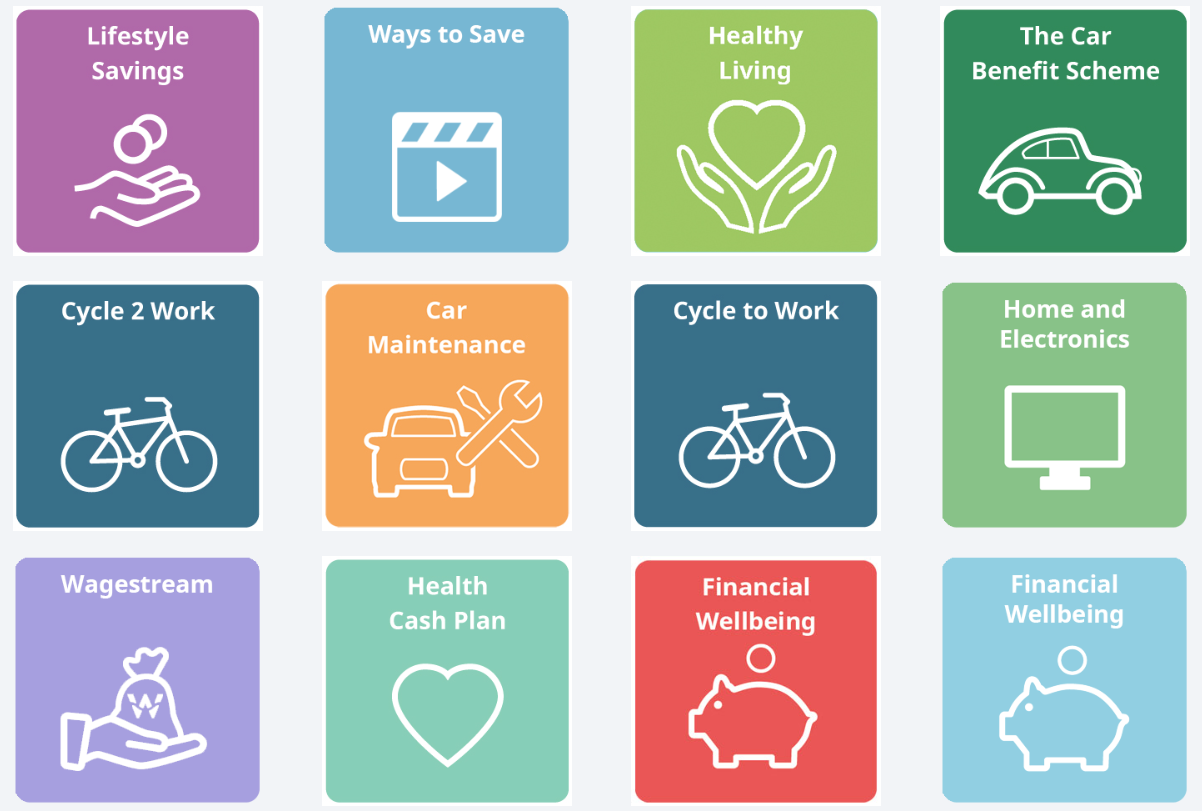
Lifestyle Savings
The Lifestyle Savings tile is the entry point to a wide range of everyday discounts and special offers. It is designed to help employees stretch their income further by providing access to exclusive savings across popular categories.
When employees click the Lifestyle Savings tile from the Benefits Hub, they are taken into a dedicated portal showcasing discounts across hundreds of brands. The Home page is organized to make finding and redeeming offers simple.
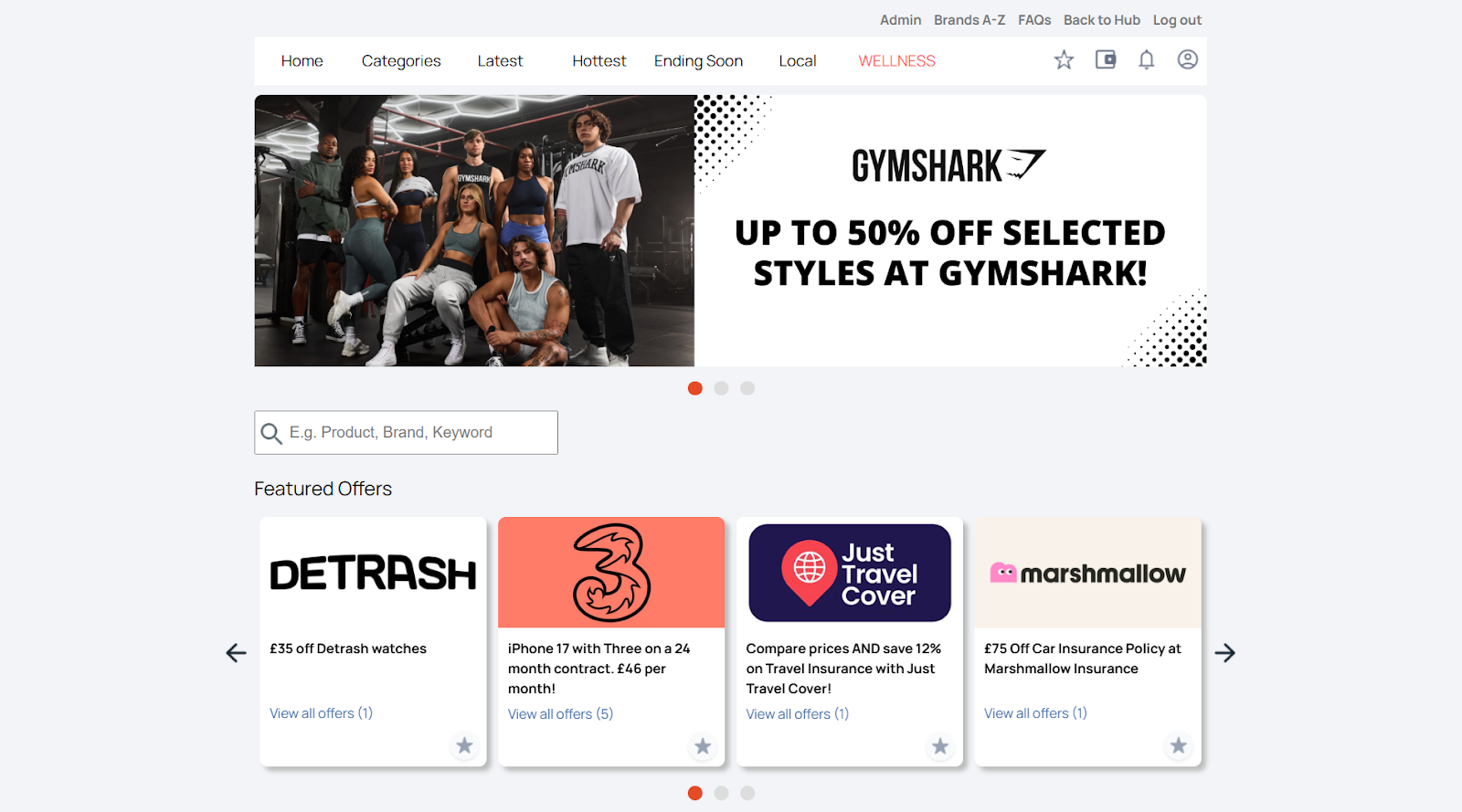
Offer cards display each retailer or product with a logo, discount headline, a link to view all offers from that brand, and a favorite icon employees can click to save for later.
Top Navigation:
Categories → Latest → Hottest → Ending Soon → Local → Wellness
Hero Banner
A rotating banner highlights major promotions and limited-time campaigns from leading brands.
Search Function
A search bar allows employees to quickly locate offers by product, brand, or keyword.
Curated Offers
The page showcases deals in themed sections:
- Featured Offers: Specially selected promotions at the top of the page.
- Hottest Offers: Big-name savings drawing high engagement (e.g., Cineworld, Apple, Samsung, Tesco).
- Ending Soon: Urgent offers employees should act on quickly.
Categories
How it works:
- Hover over Categories in the Home page to use the dropdown menu.
- The menu lists all groups (e.g., Fashion, Travel, Food & Beverage) with the number of offers available in each.
- In the left-hand sidebar (LHS), you can select:
- Category – choose one or more groups of offers.
- Offer Type – refine by how the discount is redeemed (Digital Gift Cards, Gift Cards, Online Discounts, In Store, On the phone, Reloadable Cards).
- Apply Filters — button at the bottom of the LHS. Click to update results. The page refreshes with matching offers.
On the Category page:
- A banner image highlights the theme of the selected category.
- A search bar lets you refine by product, brand, or keyword.
- A filter toggle allows you to view:
- All offers
- Online offers
- In Store offers
- Featured Offers appear at the top of the page.
- Offer cards display available discounts with brand logo, headline, and “View all offers” link.
Using multiple categories:
- If you choose more than one category or offer type and apply filters, the page updates to Your Results, showing a combined list of all matching offers.
Tip: Scroll to the bottom of the page to view results. Select Load More to keep browsing additional offers.
Latest
The Latest tab shows newly added discounts across all categories.
How it works:
- Select Latest from the top navigation to open a page listing the most recent offers.
- In the left-hand sidebar (LHS), you can refine results by:
- Category — choose one or more groups such as Fashion, Food & Beverage, or Travel.
- Offer Type — pick how the discount is redeemed (Digital Gift Cards, Gift Cards, Online Discounts, In Store, On the phone, Reloadable Cards).
- Click Apply Filters at the bottom of the LHS to update results.
On the Latest page:
- A search bar lets you look up a product, brand, or keyword.
- A toggle filter above results allows you to switch between All, Online, or In Store offers.
- Offers display in card format, showing the brand logo, headline discount, “View all offers” link, and a favorite icon to save the deal.
Using filters:
- Apply one or more Categories and/or Offer Types in the LHS, then click Apply Filters.
- The page refreshes to show only the most recent offers that match your selections.
Tip: Scroll to the bottom of the page to view results. Select Load More to keep browsing additional offers.
Hottest
The Hottest tab highlights the most popular and trending offers across the platform.
How it works:
- Select Hottest from the top navigation to see deals with the highest employee engagement.
- In the left-hand sidebar (LHS), refine results by:
- Category — e.g., Supermarkets, Travel, Fashion.
- Offer Type — e.g., Online Discounts, Gift Cards, In Store.
- Click Apply Filters at the bottom of the LHS to update results.
On the Hottest page:
- A search bar is available to look up products, brands, or keywords.
- A toggle filter above results lets you switch between All, Online, or In Store offers.
- Offers appear in card format showing brand logo, discount headline, “View all offers” link, and a favorite icon to save deals.
Tip: Scroll to the bottom of the page to view results. Click Load More to keep browsing trending offers.
Ending Soon
The Ending Soon tab lists offers that are about to expire, giving employees a final chance to redeem them.
How it works:
- Select Ending Soon from the top navigation to view time-limited deals.
- In the left-hand sidebar (LHS), refine results by:
- Category — choose one or more groups such as Fashion, Food & Beverage, or Travel.
- Offer Type — choose how the discount is redeemed (Digital Gift Cards, Gift Cards, Online Discounts, In Store, On the phone, Reloadable Cards).
- Click Apply Filters at the bottom of the LHS to update results.
On the Ending Soon page:
- A search bar allows you to find offers by product, brand, or keyword.
- A toggle filter above results lets you switch between All, Online, or In Store deals.
- Offers appear in card format showing brand logo, discount headline, “View all offers” link, and a favorite icon.
Tip: Scroll to the bottom of the page to see more expiring offers. Click Load More to continue browsing.
Local
The Local tab shows in-store offers available near a specific location, helping employees take advantage of savings in their area.
How it works:
- Enter an address or postcode in the search bar to view nearby discounts.
- Results are automatically filtered by proximity, with store details and distance shown under each offer card.
- In the left-hand sidebar (LHS):
- Radius — adjust the search distance (e.g., 5, 10, or 20 miles).
- Category — refine offers by group such as Food & Beverage, Fashion, or Health & Beauty.
- Select your options and click Apply Filters to update results.
On the Local page:
- Offers display in the standard card format with brand, discount details, and the store address.
- A favorite icon allows employees to save local deals for quick access later.
- All results are marked In Store, confirming they can only be redeemed at physical locations.
Tip: Use a smaller radius for hyper-local results or expand it to discover more participating retailers within driving distance.
Wellness
This section highlights seasonal campaigns and curated offers focused on health and well-being. At the top, you’ll find a campaign banner with supporting text that frames the theme and encourages healthy lifestyle choices.
How It Works
- Campaign Banner: Each wellness campaign begins with a banner and a short introduction that sets the theme (e.g., seasonal fitness, self-care, or healthy living).
- Offer Cards: Discounts are shown in the same card format as other pages, including brand logos, headline savings, and links to view all available offers.
- Visual Content Blocks: Interspersed with the cards are larger promotional images and text panels. These highlight specific wellness ideas or partner promotions in more detail.
- Browse & Save: Larger promotional images and text panels appear between the offer cards. These highlight wellness themes or partner promotions in more detail.
What Happens When You Access an Offer Link
When you click on an offer card, the landing page opens with the following layout:
- Hero Banner: A large image or promotional graphic at the top of the page that highlights the brand or campaign (e.g., seasonal promotions or lifestyle imagery).
- Brand Logo & Offer Summary: The retailer’s logo is displayed prominently alongside a short description of the discount or promotion. If the offer is time-limited (e.g., a flash deal), this is highlighted here.
- Redemption Options:
- Get Code (Some offers provide a unique, one-time code).
- Use Offer (direct link to the partner’s site).
- Terms & Conditions: A button to expand or read full details before redeeming.
- Favorite Icon: A star icon lets employees save the offer to their “My Favourites” list.
- Expiry Date: Shown where relevant, directly under the main description.
Scrolling further down, you may also see:
- “You May Also Like” Section: Recommended offers from other retailers displayed as clickable cards.
- Additional Context: Some offer pages include extra visuals or campaign messaging to give context to the deal.
Tip: When you click Get Code, your personal discount code is revealed in the box, which you have to click to copy. Paste the copied code at checkout to apply your discount. This ensures each user can redeem the offer only once, as set by the partner.