
Getting Started with Be Well
Once your account is set up, Be Well helps you track your activity, connect with others, and take part in wellness challenges. This guide walks you through the first steps: setting up your profile, choosing how to track your steps, logging entries, adding friends, and joining a challenge.
[Vimeo walkthrough placeholder — Be Well onboarding overview]
Set Up Your Profile Photo
Adding a profile photo helps others recognize you in challenges and social features.
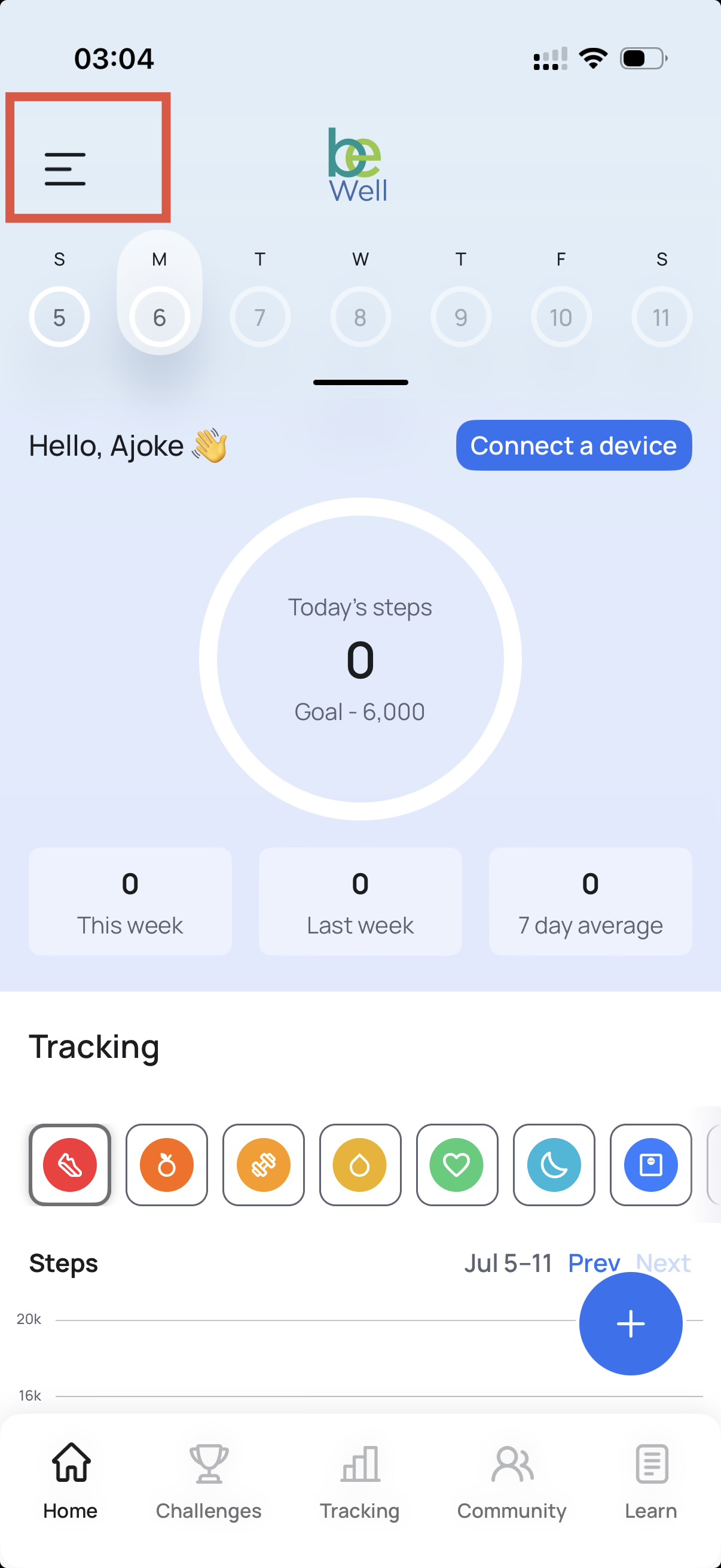
On mobile: Open the menu from the top-left corner of the screen, then tap your profile image. You can take a new photo or choose one from your library.
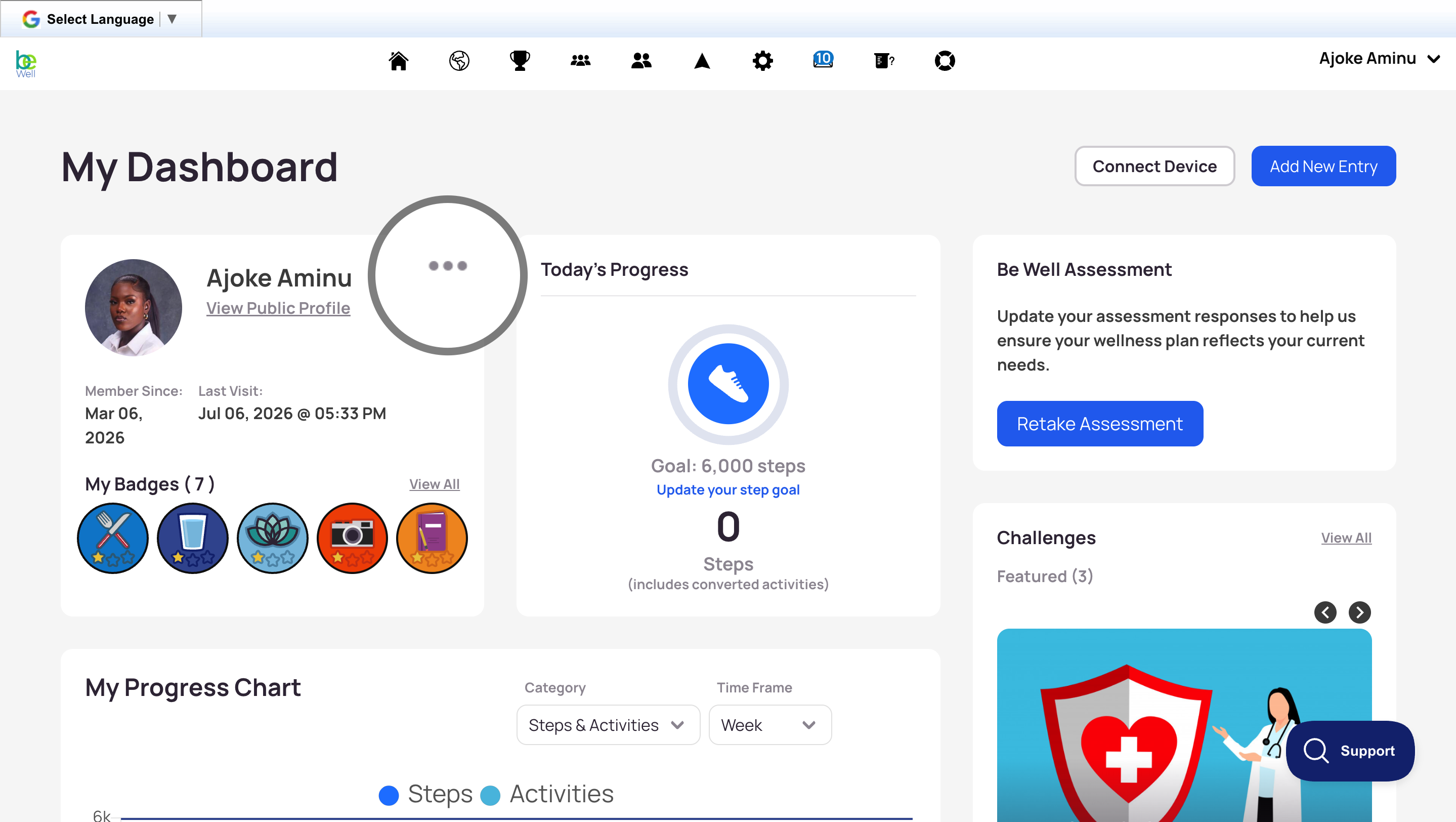
On web: On your dashboard, click the menu button in your profile card to open your settings. Under your profile photo, click Edit.
Choose a Step Tracking Option
You can track your steps in one of two ways:
Connect a device or app to automatically sync your steps. See Connecting Devices & Apps for setup instructions for your specific device.
Enter steps manually if you prefer, as long as no device or app is connected to your account.
Note: Manual step entry isn't available in all programs. Check with your program administrator to confirm whether this option is available to you.
Create a Daily Entry
Entries are how you add data to your account. Depending on what your program tracks, you can log steps, activities, wellness metrics, journal notes, and photos.
You can enter steps manually if no device is connected and your program allows manual entry. If you're in a Points challenge, you'll earn points by logging wellness metrics through your entries.
See Making a Step or Wellness Entry for detailed instructions.
Add Friends
Adding friends lets you engage with other participants through Be Well's social features.
On mobile: Tap the Groups icon (two people) to open your social options, search for a username, and tap Add Friend.
On web: Follow the steps in Adding Friends to search for and add other participants.
Join a Challenge
If you didn't join a challenge during registration, you can join one at any time. For team challenges, you'll join by joining a team associated with that challenge.
Check with your program administrator to confirm how your challenges are organized and when they're available to join.
See Joining a Challenge and Joining a Team Challenge for step-by-step guidance.
Remember: every challenge has a date range that determines which days count toward it. Entries made before the challenge starts won't affect your challenge total.
Get Moving, View, and Share Your Progress
Once you're comfortable making entries and you've joined a challenge, the focus shifts to the main goal: being active!
Spend some days walking, sharing trail photos, and logging your activities. Once you've built up some data, check your dashboard to see a chart of your progress over time.
- Access a challenge page by tapping the Trophy icon (mobile) or the Challenge tab (web), where you'll see a leaderboard of participants across different activity levels.
- If you're on a team, open your team's page from the Groups icon (mobile) or Teams tab (web). Select your team name to view your team's average and leave encouraging comments for your teammates.