
Create a Survey from Scratch
Use this option when you need a fully customized survey that doesn't fit an existing template or when your feedback needs are unique to a specific situation or audience.
Creating a survey from scratch gives you complete control over question types, flow, and content. Here is how to do it:
Step 1. Start a New Survey
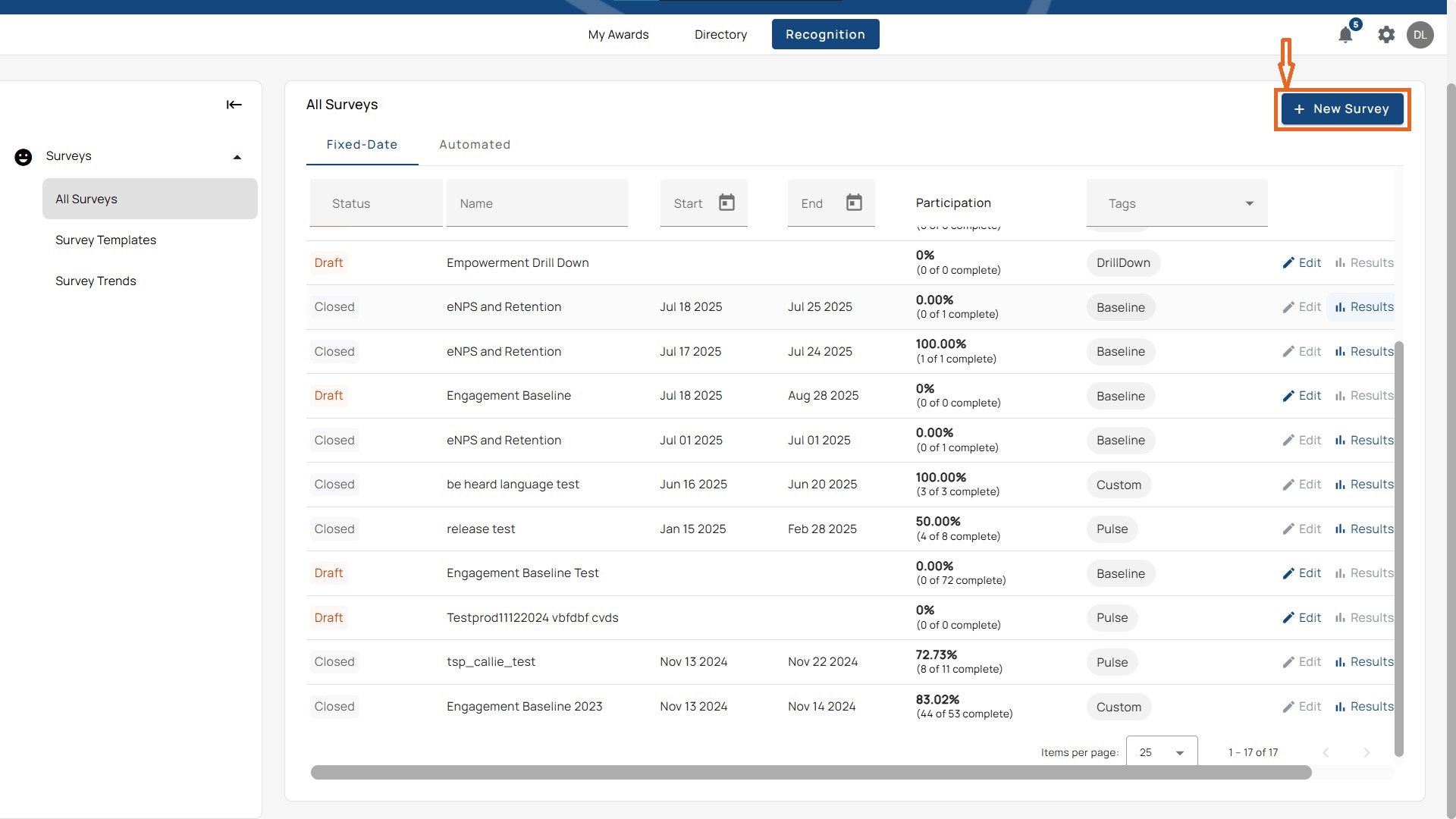
- From the All Surveys page, click + New Survey.
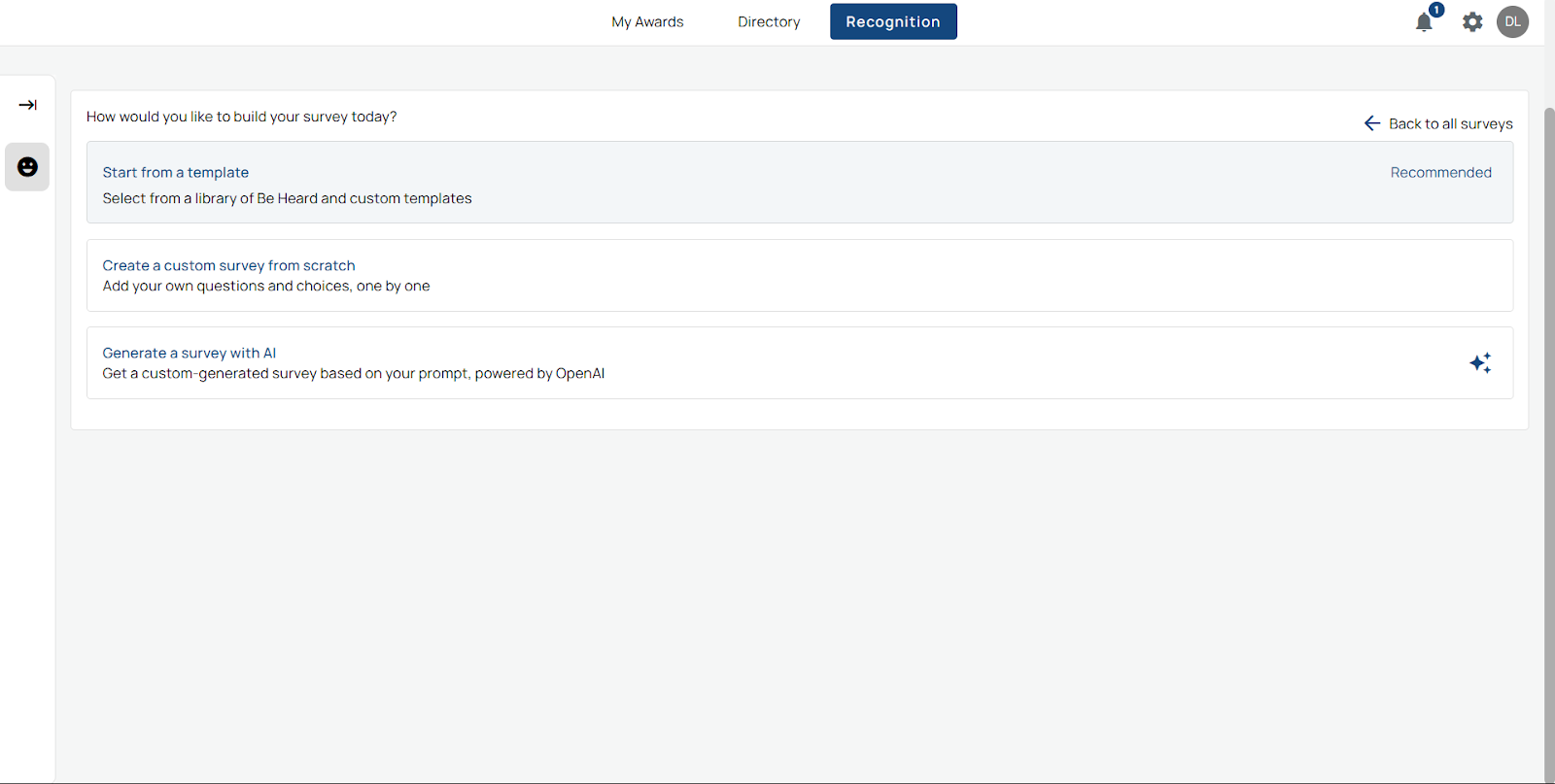
- You’ll see three options:
- Start from a template (recommended)
- Create a custom survey from scratch
- Generate a survey with AI
- Select Create a custom survey from scratch.
Step 2. Enter Survey Details
- Provide a Survey Name (required).
- Select a Survey Type:
- Custom – Build your own questions without a predefined format.
- Pulse – Create a short, quick-turnaround survey for rapid insights.
- Click Continue to move forward.
Step 3. Build the Survey
Question Builder
- Reorder or add new questions (Left Panel): Once you’ve chosen a template (like eNPS and Retention), your survey will already include a set of questions. These can be reordered, edited, or expanded.
- Add new questions by clicking + New Question. Select a type (e.g., single choice, multi-select, scale) and enter your options.
- Main Area: Edit question text, select question type (e.g., scale, multiple choice), and make required at your discretion.
- Translations: Use the translations button if needed.
Note: all edits are autosaved.
Add Participants
- Go to the Participants tab.
- Use the Filter panel on the right to target groups. Filters include attributes such as manager, department, location, country, tenure, gender, and Is Manager (Yes/No), among others. Select the values you want, or use Select all within a filter.
- Participants appear as a card grid in the main area. Each card shows the employee's name, role, email, hire date, and org path.
- Add or remove individuals directly on their card using the + or − in the top corner. To add everyone matching your current filters, use Add all.
- Search for a specific person using the Search people bar above the grid.
- Click the Participants button to open a preview of your current selection, where you can review everyone added and Remove individuals or Remove All before finalizing.
Note: You can also add employees manually by name or sync your list from an HRIS integration.
Schedule Survey
- Go to the Schedule tab to decide when the survey will be sent out.
- Specific Date and Time: Choose start and end dates.
- Automatic by Event: Trigger surveys based on individual events (e.g. 7 days after hire). This option is often used for New Hire or Exit surveys.
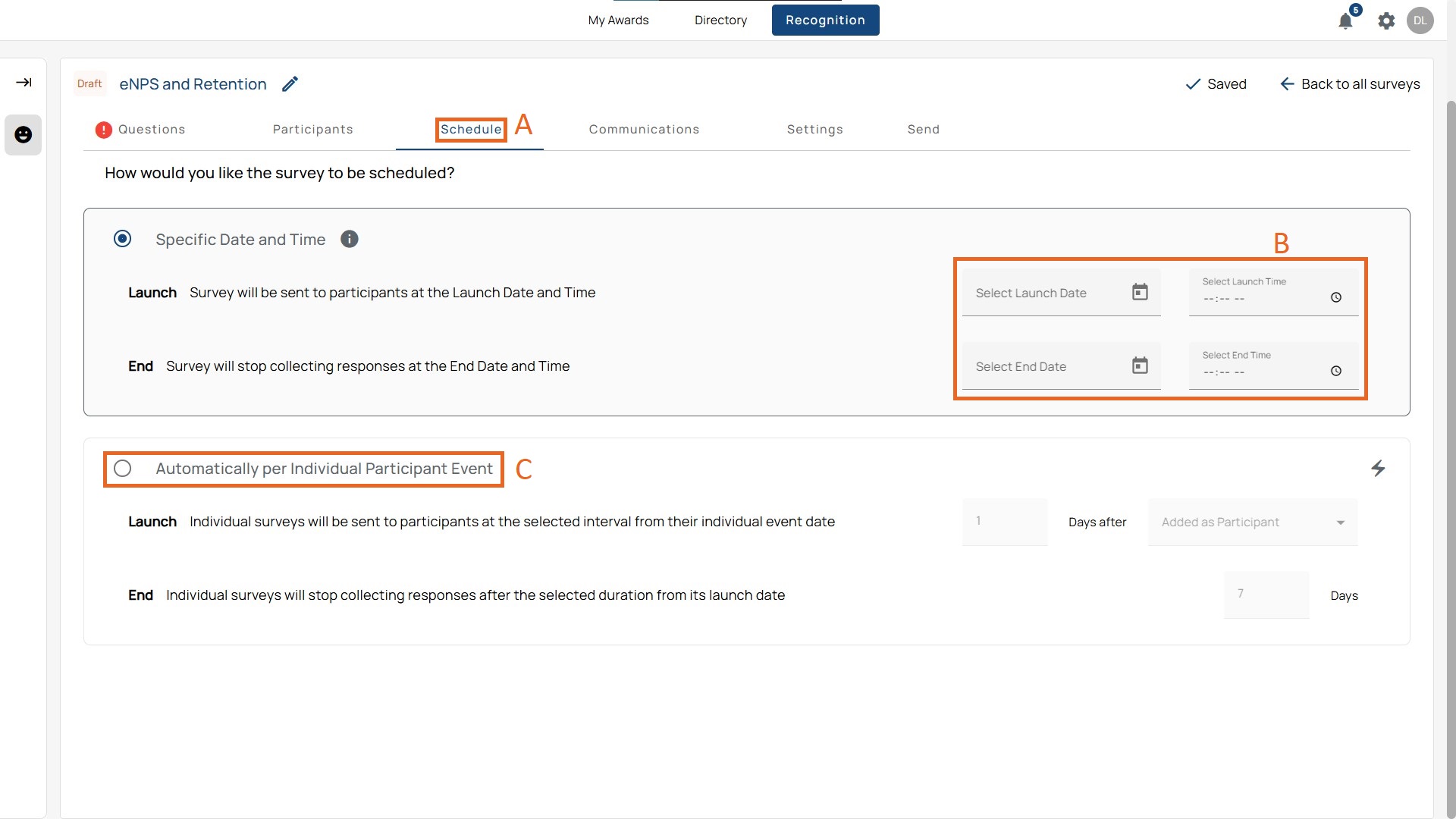
Tip: The platform auto-generates reminders based on your schedule, so make sure your timeline allows enough time for reminders and responses.
Configure Communications
- Open the Communications tab.
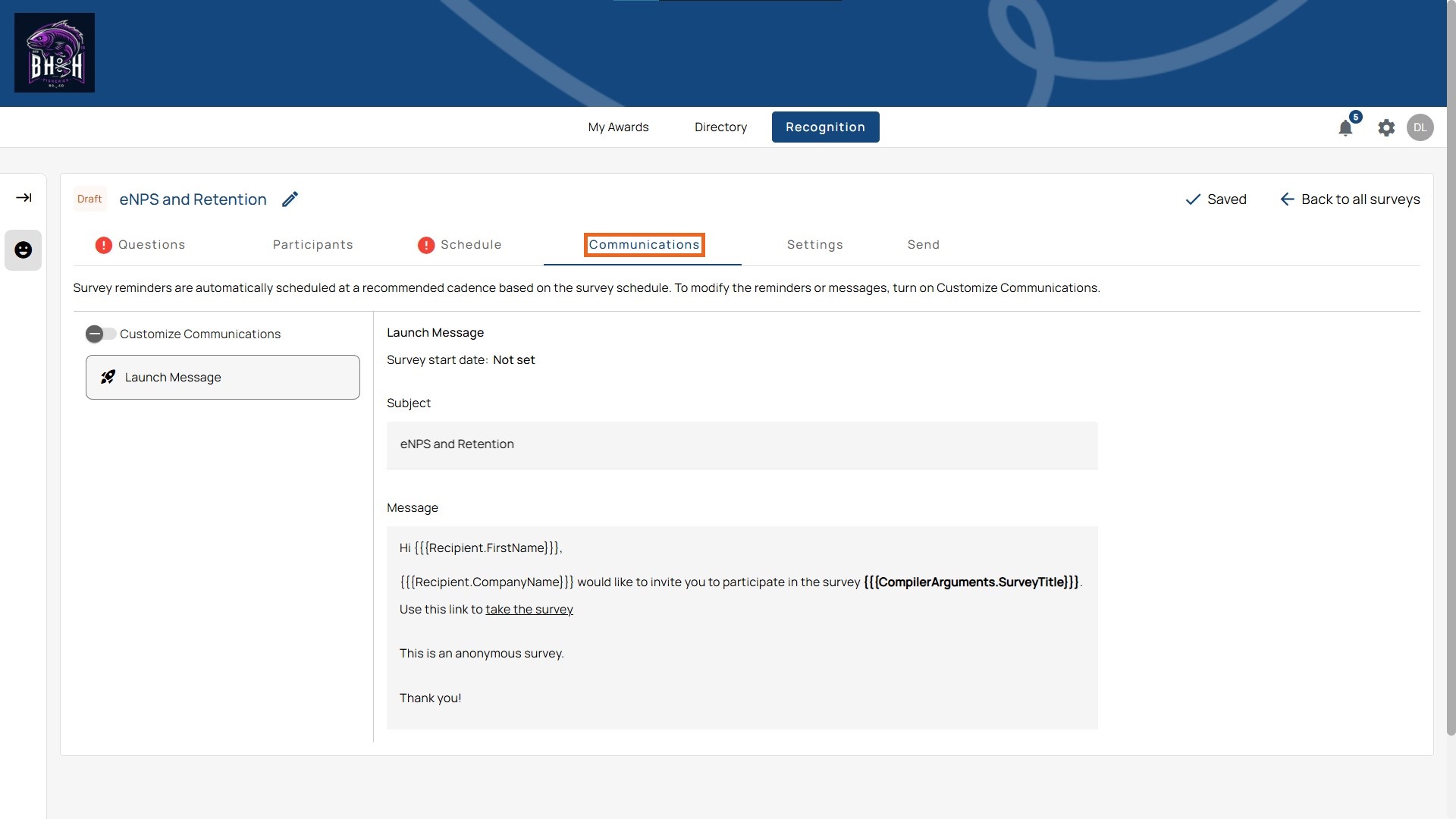
- Review default launch and reminder messages. The number and spacing of reminders adjust based on your survey timeline.
- You can customize subject lines and message text by clicking Customize Communications. The system keeps standardized openings and closings intact, but the body of the message is editable.
- If needed, adjust reminder timings or reset to default.
Adjust Settings
- Click the Settings tab.
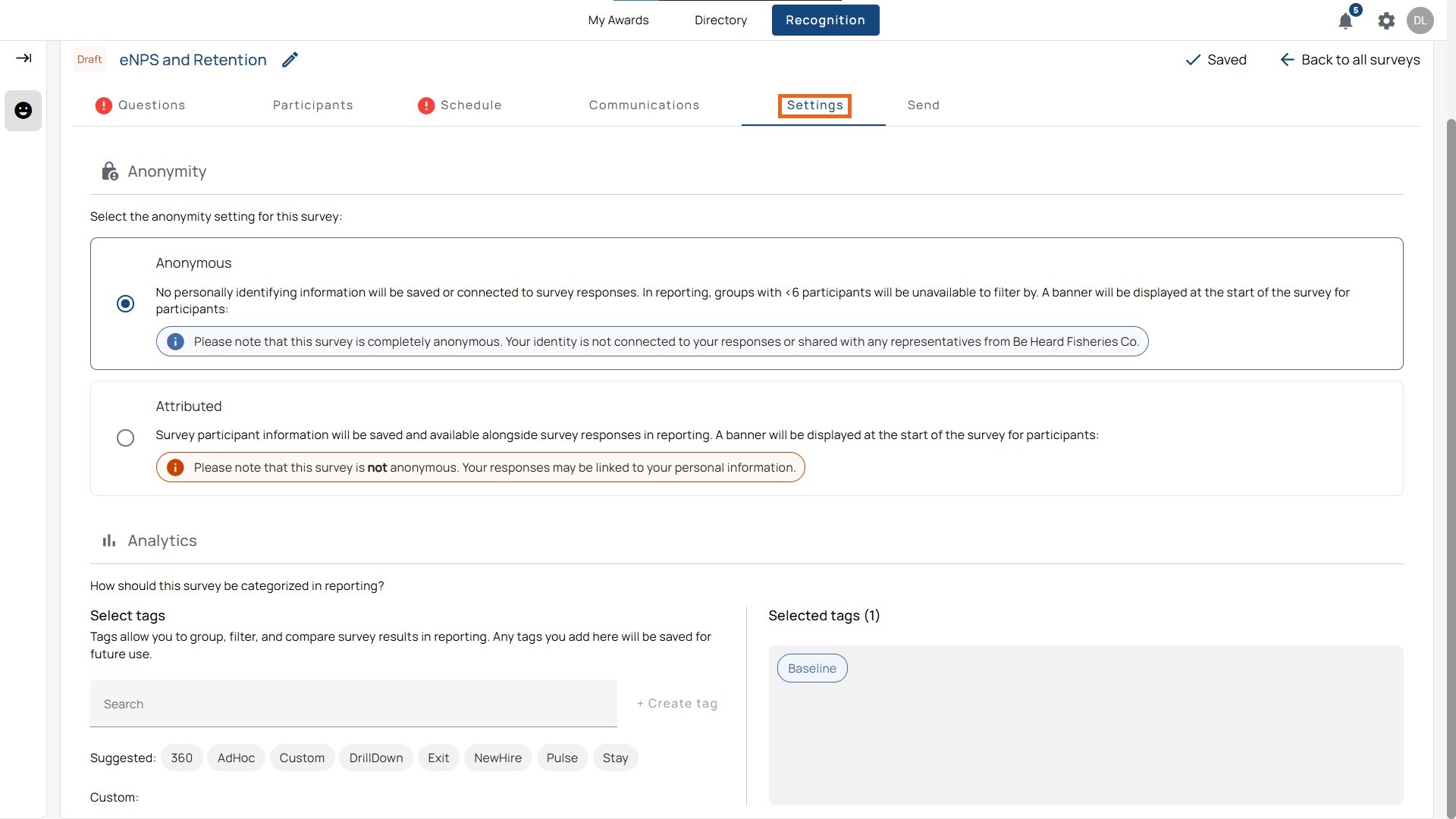
- Anonymous
- No personally identifying information is stored or connected to responses.
- Reports cannot display groups smaller than the minimum threshold (default: 6 participants).
- A banner at the start of the survey confirms anonymity for participants.
- Attributed
- Participant information is saved and linked with responses.
- Reports can show individual-level data.
- A banner at the start of the survey alerts participants that responses are not anonymous.
- Auto-Scheduling Per Event: To have a survey automatically launch for events (e.g., onboarding, exit), select Attributed in the Settings tab. This setting is required for event-based automation.
- Analytics
- Surveys can be categorized by applying tags that group them for reporting.
- Common tags include:
- Baseline – First or foundational survey, used for comparison over time.
- Pulse – Short, frequent surveys to measure changes quickly.
- eNPS – Focused on employee Net Promoter Score.
- DrillDown – Targeted surveys exploring specific topics (e.g., Leadership, Equity, Empowerment).
- Custom – Organization-defined tags for unique needs.
- Selected tags appear in the right-hand panel under “Selected Tags.”
Finalize and Send
- Click the Send tab.
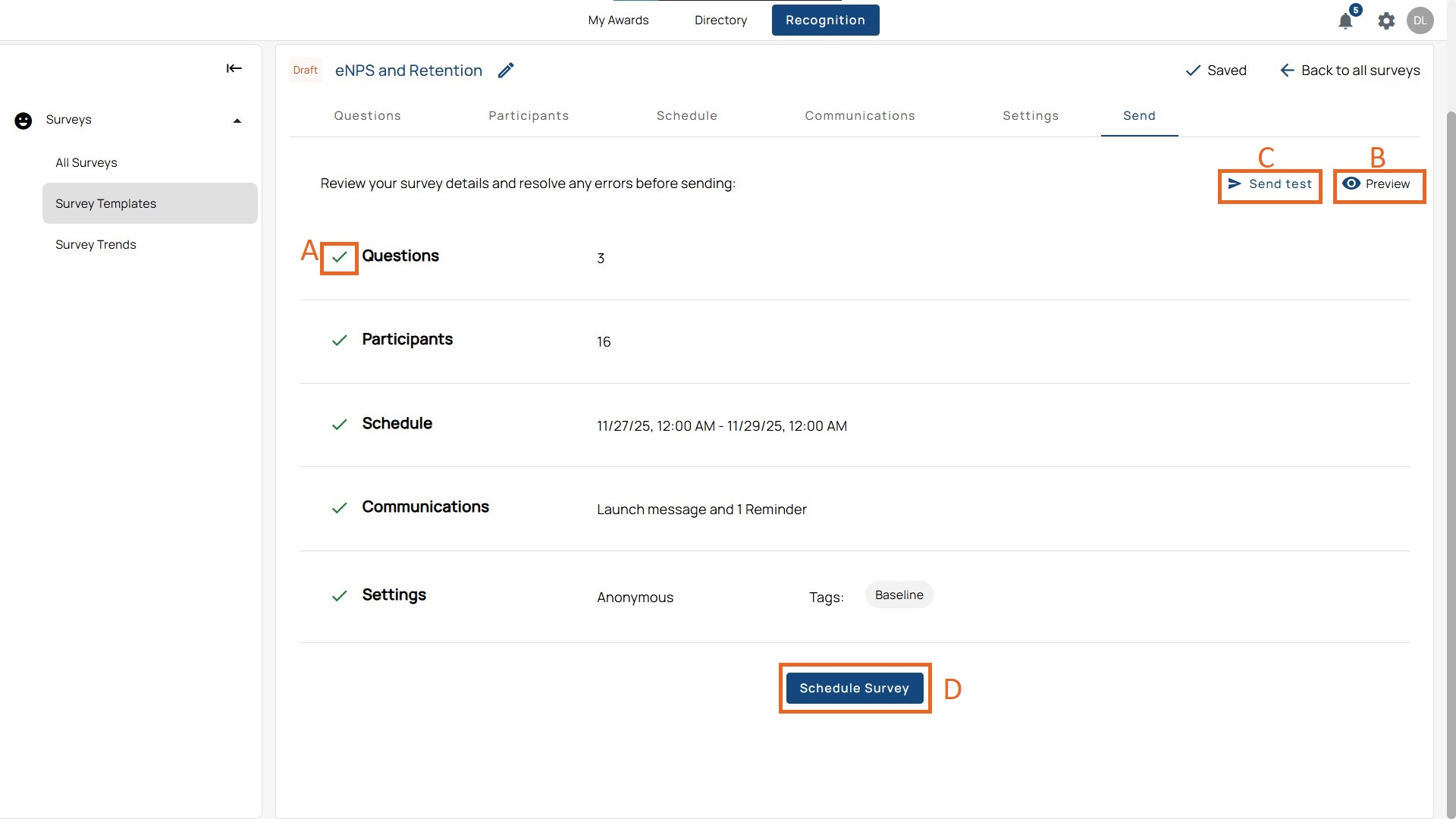
A. Error Check
- Go to the Send tab. This tab summarizes everything you’ve set up. It displays your choices across the five previous tabs: number of questions, participants, schedule, communications, settings, and tags.
- Red exclamation marks on tabs (e.g., Participants, Schedule) indicate incomplete setup. Once each section is completely filled, the indicator changes to a green check sign.
- Fix errors flagged with a red exclamation mark.
B. Preview & Test
- Use Preview to see the survey across devices (web, tablet, mobile).
C. Send a Test Survey
- Click Send Test Survey to open the modal.
- Adding Users:
- Click Add Users to bring up your organization’s user list.
- Use the search bar to quickly select specific users.
- Test Restrictions:
- Test surveys are not live and will not collect participant data.
- They can only be sent to users within your organization (no external test recipients).
D. Schedule Survey
- Once ready, click Schedule Survey. The survey will move from draft to scheduled, and you can still unschedule it before launch if needed.