
Making a Step or Wellness Entry
Be Well lets you log your activity manually, convert exercises into steps, and record wellness metrics like sleep, water, or mood. Whether you're on the web or the mobile app, this guide walks you through creating an entry and managing your privacy for each one.
Manual step entry is only available if your health or fitness account is not synced with Be Well. If you have a device synced, your steps are recorded automatically and the manual step field will be unavailable. Activity conversions, wellness metrics, journal entries, and photos can be logged regardless of your sync status.
On the Web (Browser)
Add a manual step or convert an activity
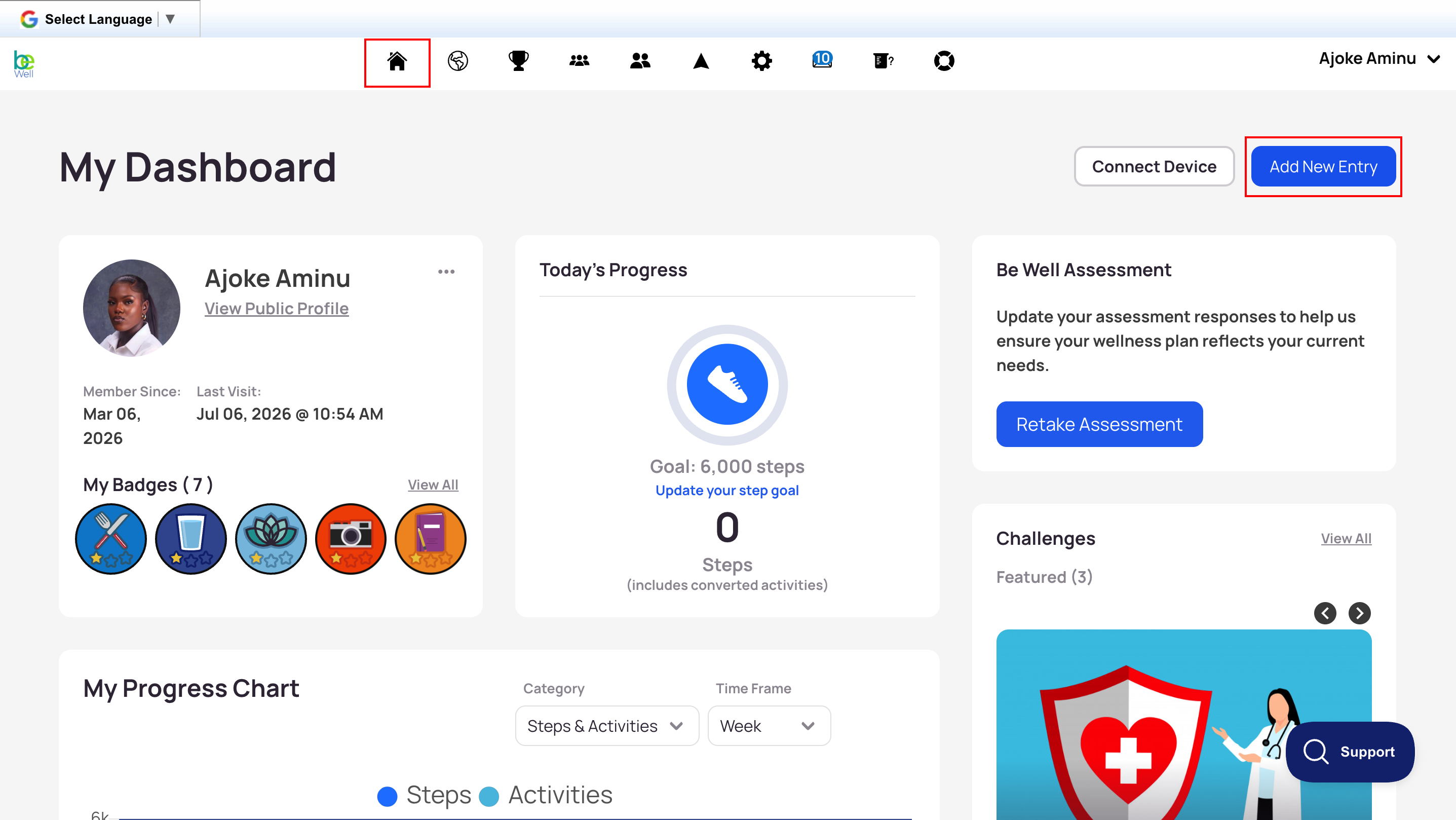
- From the My Dashboard tab, select Add An Entry in the top-right corner.
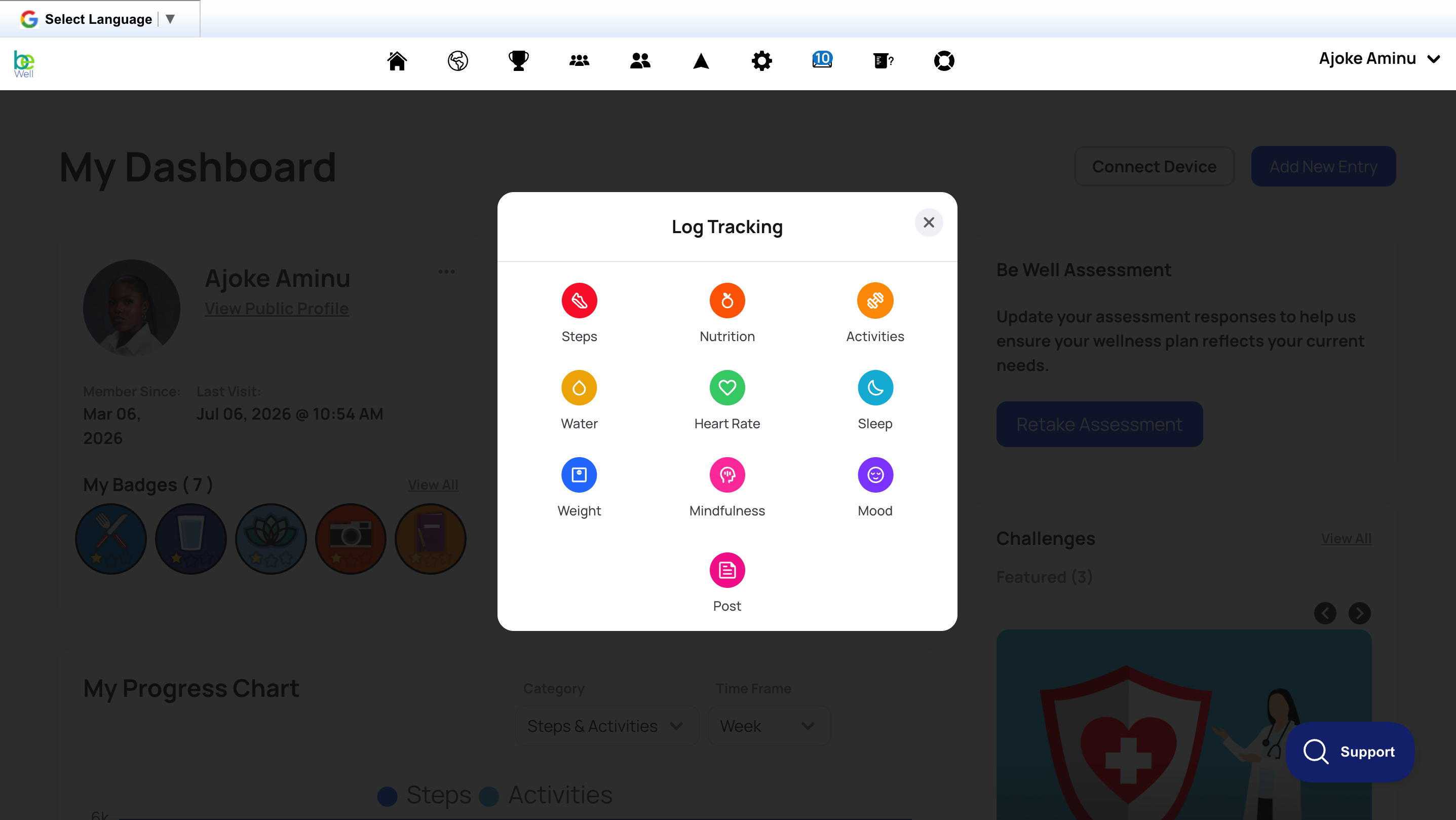
- Select Activities.
- If your program allows manual entry and you don't have a device synced, enter your steps in the Steps field.
- To convert an activity, use the dropdown to select the activity, enter the number of minutes you spent on it, and select Convert.
- Select Save.
Add a journal entry or photo
- From the My Dashboard tab, select Add An Entry in the top-right corner.
- Select Photo to add a photo, or Journal to add a written entry.
- Set who can see the post using the visibility dropdown on the right. Posts set to Anyone or Friends Only appear in the Newsfeed on the Sitewide page and on your public profile.
- Select Save.
Add a wellness metric
- Select any of the available wellness metrics.
- Complete the entry and select Save.
Wellness metrics are always private. Other members and program admins cannot see these entries. Admins can run a report showing whether you made an entry, but never the value you recorded.
On the Mobile App
From the mobile app you can log an activity (converted to steps), record a wellness metric (sleep, nutrition, water, weight, mindfulness, mood, or heart rate), add a photo, or write a journal post.
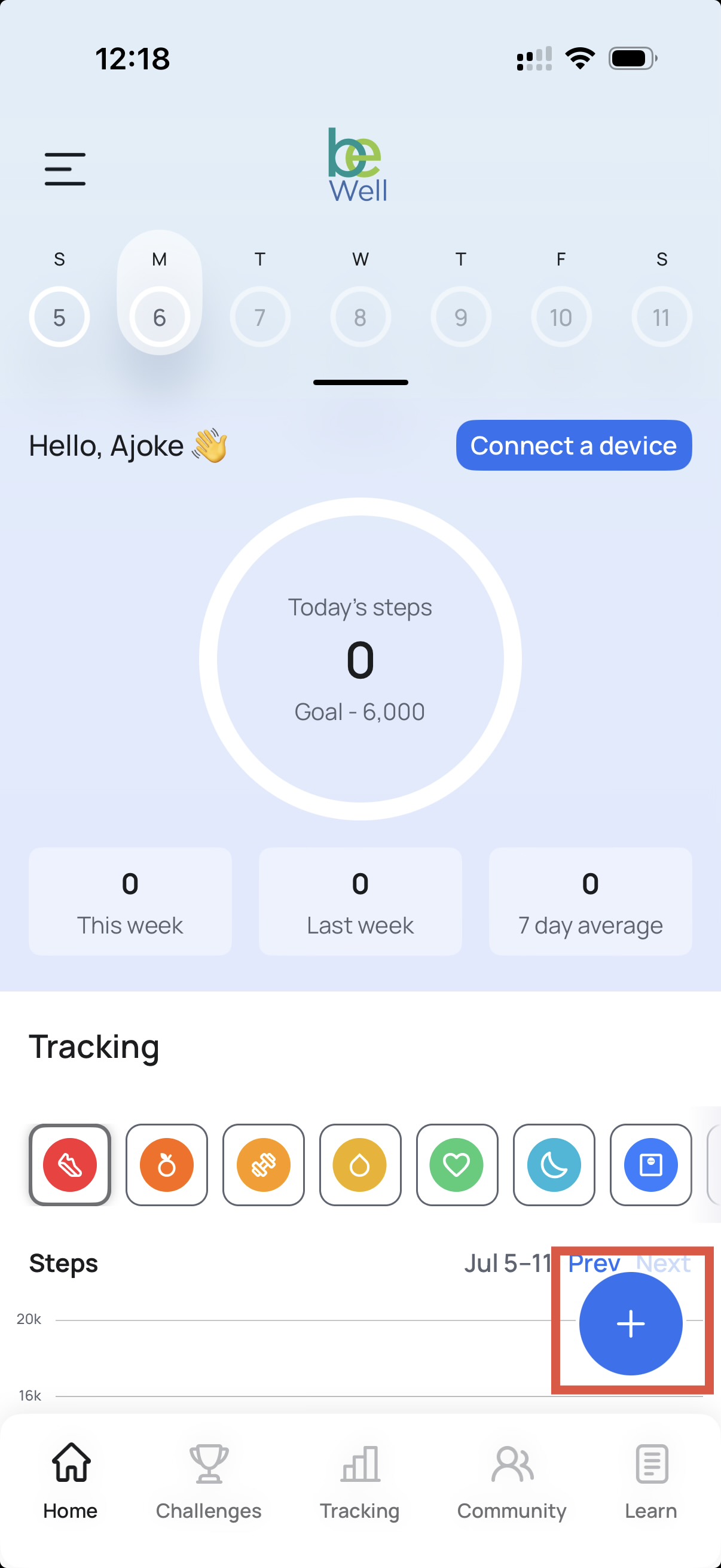
- From the Home tab, select the blue + icon in the bottom-right corner of the screen.
- Select the type of entry you'd like to make.
- Follow the prompts to complete your entry.
- You can include a post with your entry. If you'd rather not, skip to the next step.
- Select Submit.
Each metric is saved as you enter it and appears in your activity log, marked with an icon for its entry type.
Privacy settings on mobile
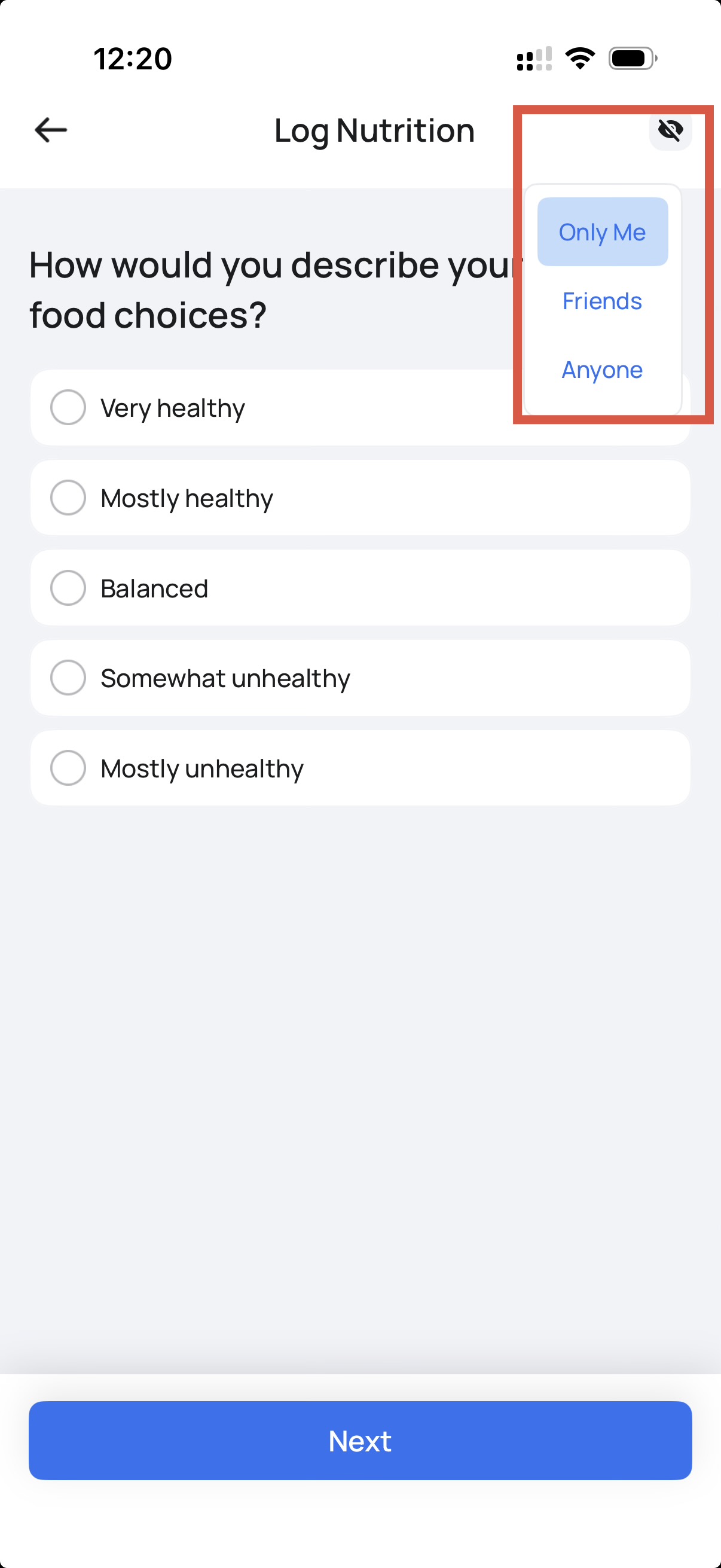
Set your visibility using the eye icon in the top-right of the screen:
- Wellness metrics (nutrition, water, heart rate, sleep, weight, mood, mindfulness) default to private.
- Posts default to public and can be changed.
- Step entries and converted activities are always public, to maintain accountability throughout the program.
Edit an entry
- Select the Tracking tab.
- Scroll to the date you want to edit and find the entry.
- From here you can change the entry's privacy setting, edit the post, or delete it.