
Creating/Updating Recognition Levels
Recognition Levels define the types of awards or acknowledgments available in the platform (e.g., Employee of the Month, Shout Out, High 5!).
As an Admin, you can create new levels, edit existing ones, assign categories, and control who can access them.
Step 1: Navigate to Recognition Configuration
- Click the Admin Gear in the top right
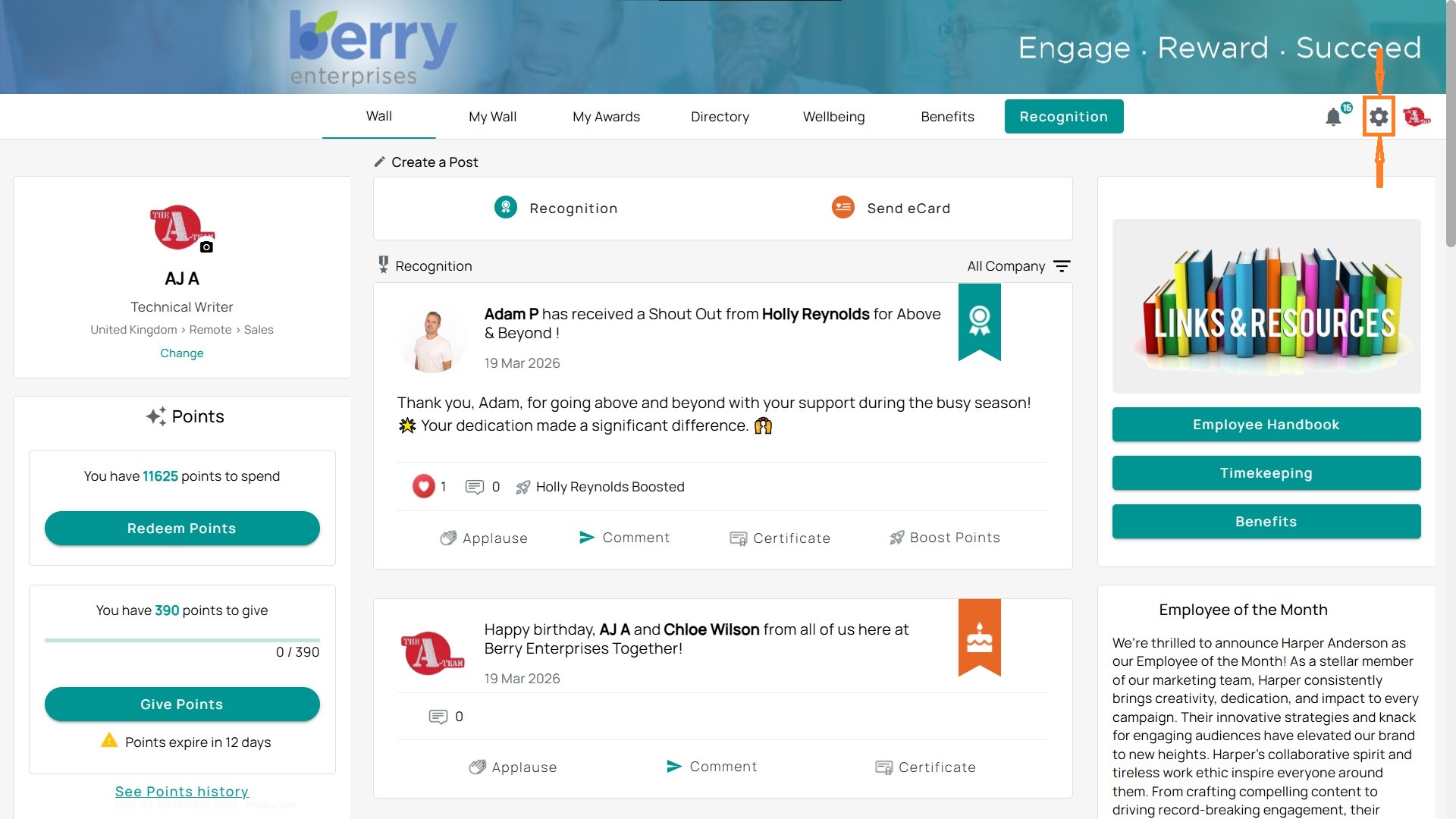
- From the left-hand menu, expand Recognition.
- Select Recognition Configuration.
Step 2: Add a New Recognition Level
- On the Recognition Levels tab, click + Add Level.
- A setup form will open where you can define:
- Name: Title of the recognition level (e.g., “Big Idea”).
- Access: Who can use it (User or Approver).
- Workflows: Assign a workflow if approvals or routing are required.
- Level Group: Organize levels under groups if applicable.
Show Categories: Select which categories (like Innovation, Customer Service, etc.) this level applies to.
Step 3: Reorder Recognition Levels
- Click Reorder Levels to adjust the sequence in which recognition options appear to users.
Step 4: Editing an Existing Level
- Use the pencil icon next to a level to edit its details.
- Use the trash icon to remove it (only if it’s no longer in use).
Toggle the Enabled switch to activate or deactivate a level without deleting it.
Note: Once a recognition level has been used (sent to an employee, wallpost created, etc.), it can no longer be deleted from a program.
Step 5: Configure Categories (Optional but Recommended)
- Scroll to the Categories section.
- Click + Add Category to create categories (e.g., Innovation – 100 points, Customer Service).
- Assign categories to recognition levels to make them measurable and meaningful. However, this is optional and only needed if you want to use different categories per Recognition Level. If all Recognition Levels will use the same categories, you can skip this step, and all categories will be used by default.
- Use Reorder Categories to adjust their display order.
Step 6: Level Groups (Optional)
- Click + Add New Level Group if you want to group multiple recognition levels under one umbrella (e.g., all Innovation awards).