
Creating & Managing a Team
Teams let you and other participants take part in team challenges together. This guide covers everything you need to create a team, join or leave one, invite members, update your team's details, and track how your team is performing. Some team actions depend on your program's settings, so a few options described here may not be available in every program.
A quick note on team membership: You can only be on one team at a time. To join a different team, you'll need to leave your current team first.
Joining a Team
Available in the browser interface.
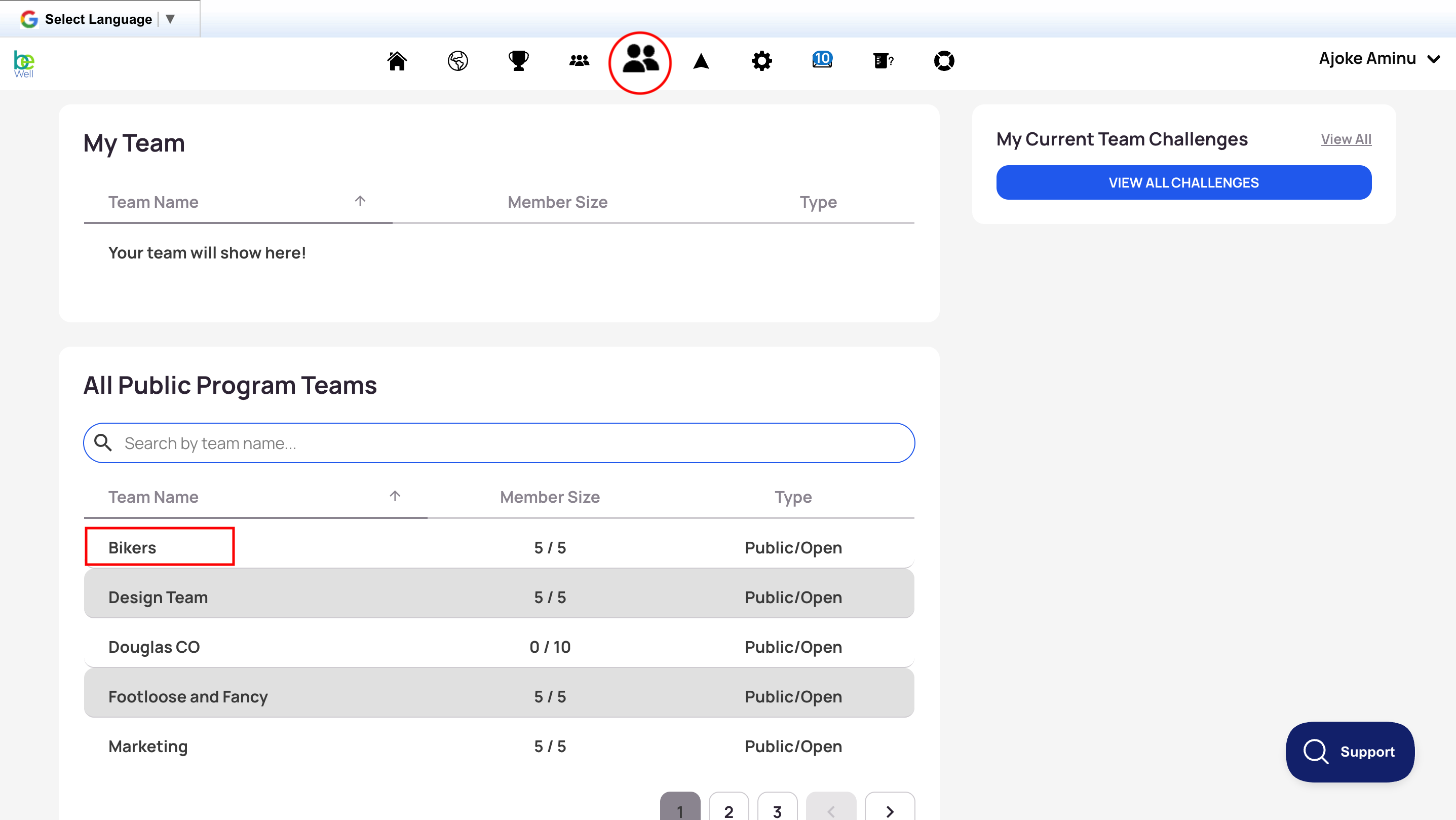
- Select the Teams icon in the top toolbar.
- Browse the teams listed under All Public Program Teams. Click any column heading to sort by that value.
- Find the team you want to join.
- Click Join.
Your program may not allow participants to join teams. If you don't see this option, reach out to your program administrator.
Creating a Team
You can create a team so that you and others can join team challenges together.
In the browser
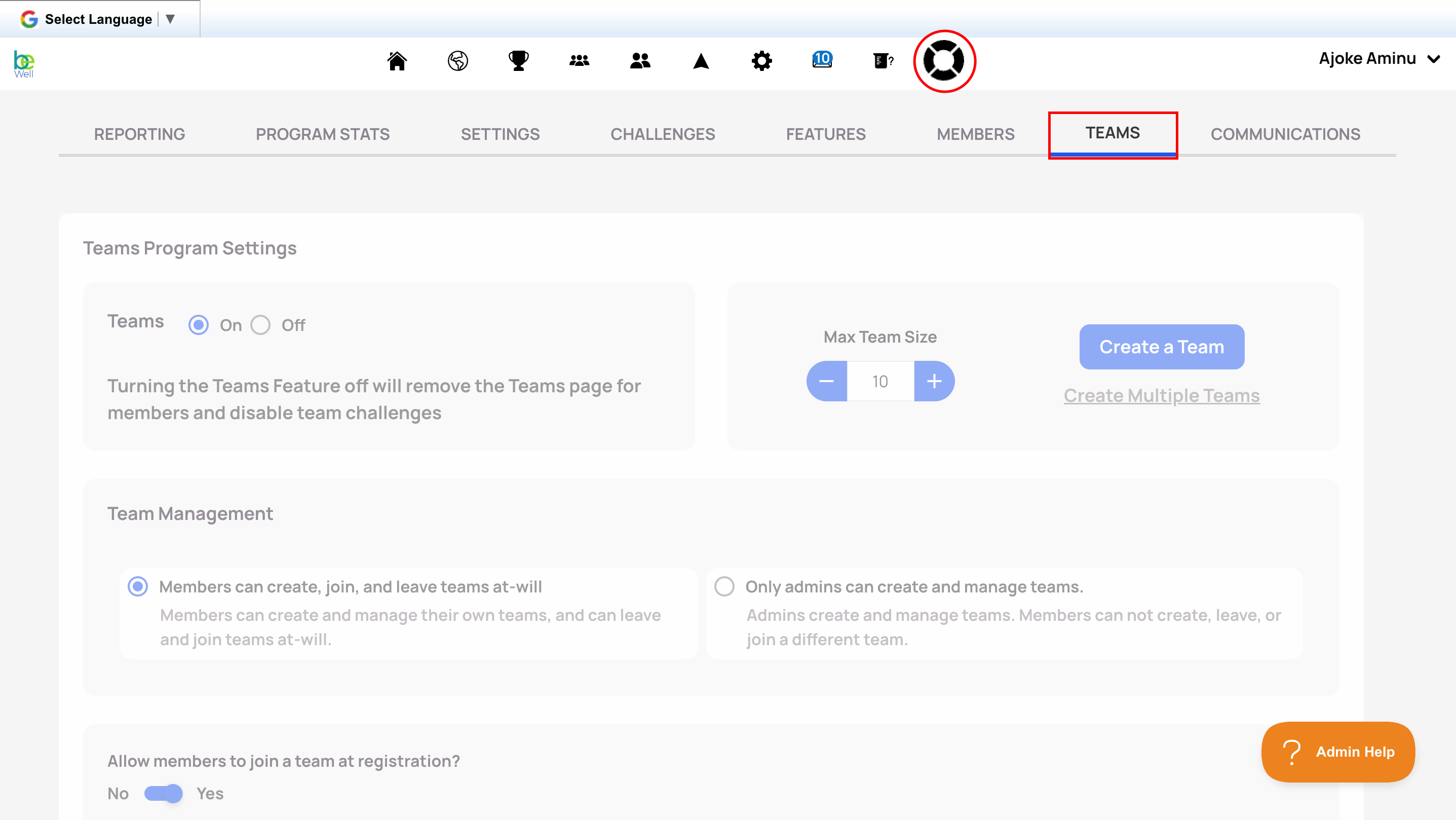
- Select the Admin Panel icon in the top toolbar.
- Select the Teams tab.
- Toggle your preferences, such as max team size and overall team management. Then click Create a team.
- Enter a team name. Optionally add a photo and description, then select Next.
- Choose to add members, invite members, or skip this step to leave the team open for anyone to join.
- Review your settings, make any edits, then submit.
In the mobile app
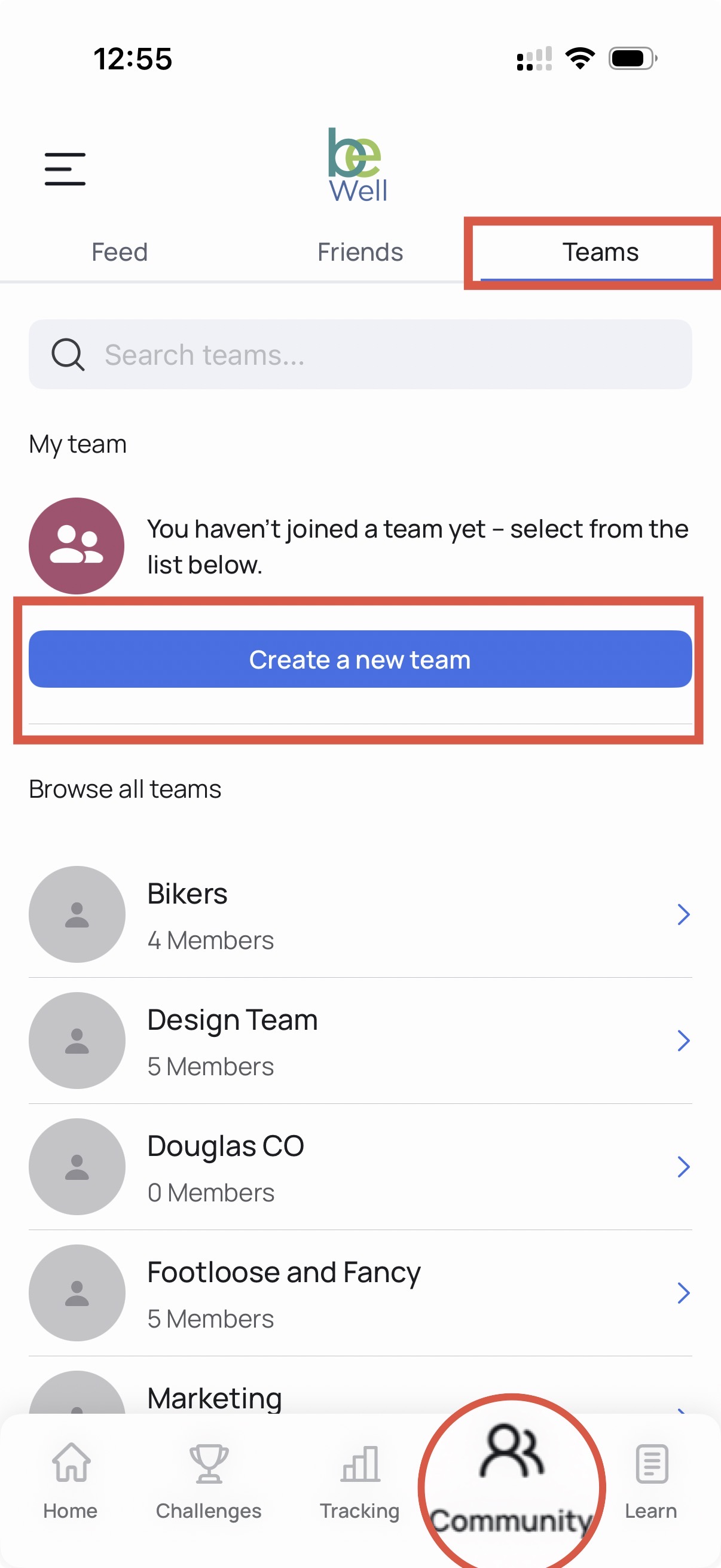
- Select the Community tab in the bottom of your screen.
- Select the Teams tab at the top of the page.
- Select Create a new team.
- Enter a unique team name and select Create. Your team name must be different from any existing team.
- You'll now appear as the leader of your newly created team, which others can join.
Note: Inviting members and editing team settings aren't currently available in the mobile app. Use the browser interface for those actions.
Your program may not allow participants to create their own teams. If you're unable to, reach out to your program administrator.
Doing More In Your Team Settings
Updating Your Team's Description and Photo
Once a team is created, the Team Leader can edit the team's description and add a display photo.
- Open your Team's tab.
- Select the Gear icon next to your team to open your team's settings. Only Team Leaders can see this option.
- Enter a description for your team.
- Click Edit below your team's logo to open photo selection.
- Drag an image onto the selection space, or click to browse for a file. For best results, use a photo as close to square as possible.
- Click Save Changes to finalize your edits.
Inviting Members to Your Team
Team Leaders can invite members to a team that isn't full. Members must already be registered for an account in your program before you can invite them. Invited members receive a notification they can confirm to join.
- Open your Team's tab.
- Select the Gear icon next to your team to open your team's settings. Only Team Leaders can see this option.
- At the bottom of the page, select Invite More Team Members.
- Enter the username of each member you want to invite and click Invite next to their name.
- When you've selected everyone, click Send Invites.
Leaving a Team
- Select the Teams icon in the top toolbar.
- Click your team name under My Team.
- Click the three dots next to Team Overview and select Leave Team.
Your program may not allow participants to leave teams. If you don't see this option, reach out to your program administrator.
Switching Teams
Because you can only belong to one team at a time, switching teams means leaving your current team and then joining another.
Keep in mind how steps are counted when you move:
Teams calculate steps from the date the team is created onward. If you join a team partway through a challenge, only the steps you've accumulated from the date you joined will count toward that team. If you're removed from a team, the steps you earned while on the team remain with the team for every day you were a member, except for the date you were removed.
Viewing Your Team's Progress
To see how your team is doing in a team challenge, view the challenge leaderboard. If the challenge has a map, you can also select your team's icon on the map to see your team's steps.
Most team challenges track your team's average steps. To confirm what a specific challenge is tracking, scroll down the challenge page to the Challenge Overview section.
Your team page shows stats tracked from the date your team was created, which is usually not the same as the date the challenge started. To see how individual members are contributing during the challenge timeframe:
- On your team's page, open the chart view.
- Select Team Members Steps Over Time.
- Set the date range to match the challenge's dates.
- Select Show Date Range.
From there, you can add up each member's steps and divide by the number of members to calculate the team average.