Adding Friends & Commenting
Adding friends in Be Well makes it easier to interact with the people you care about, follow their progress, and cheer each other on. Once you're connected, you can view their activity in your feed, comment on their entries, and share your own progress along the way.
Adding a Friend
On the Mobile App (Android & iOS)
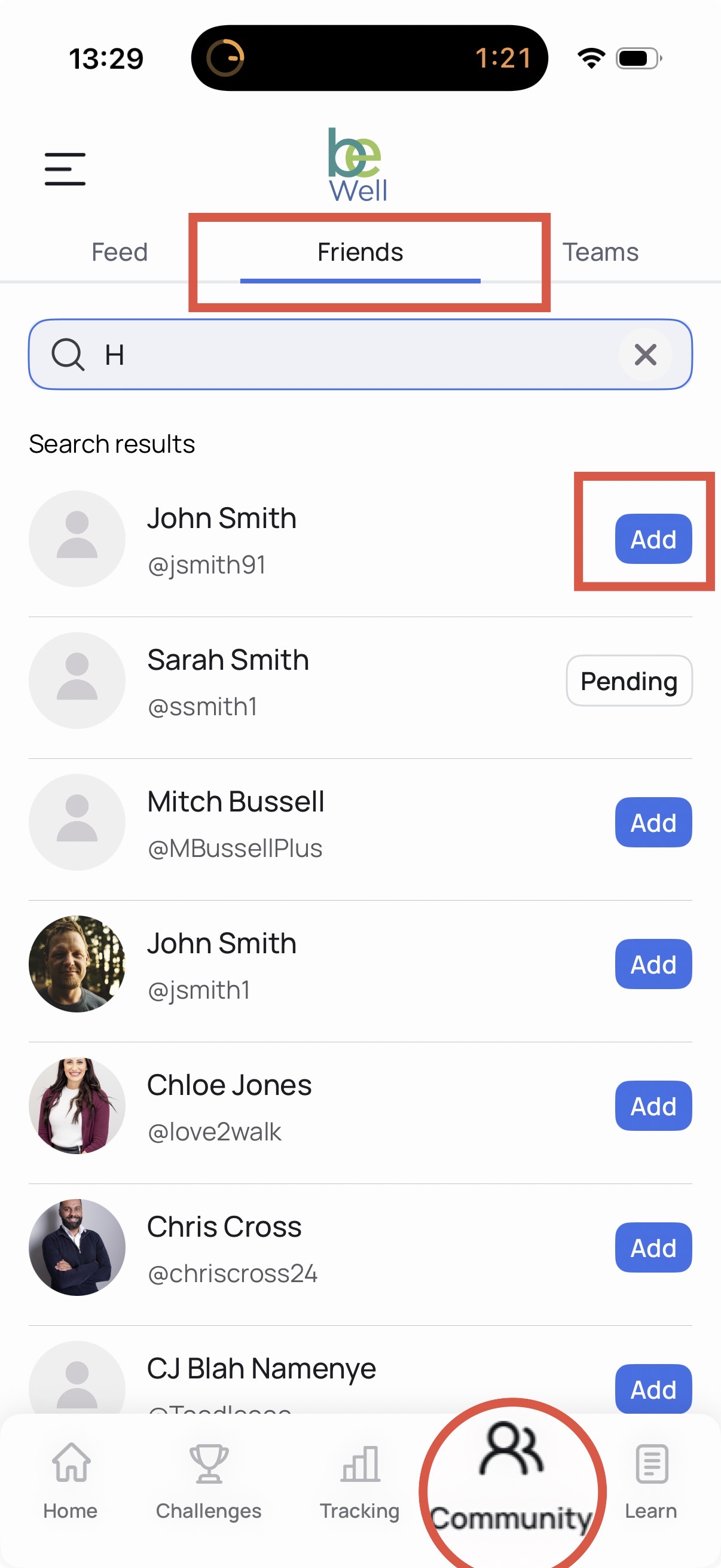
- Select the Community tab in the bottom of your screen.
- Select the Friends tab at the top of the page.
- Search for an existing user.
- Click Add. After, the button will switch to Pending.
On the Web
- In the My Dashboard page, scroll downwards to the My Friends card.
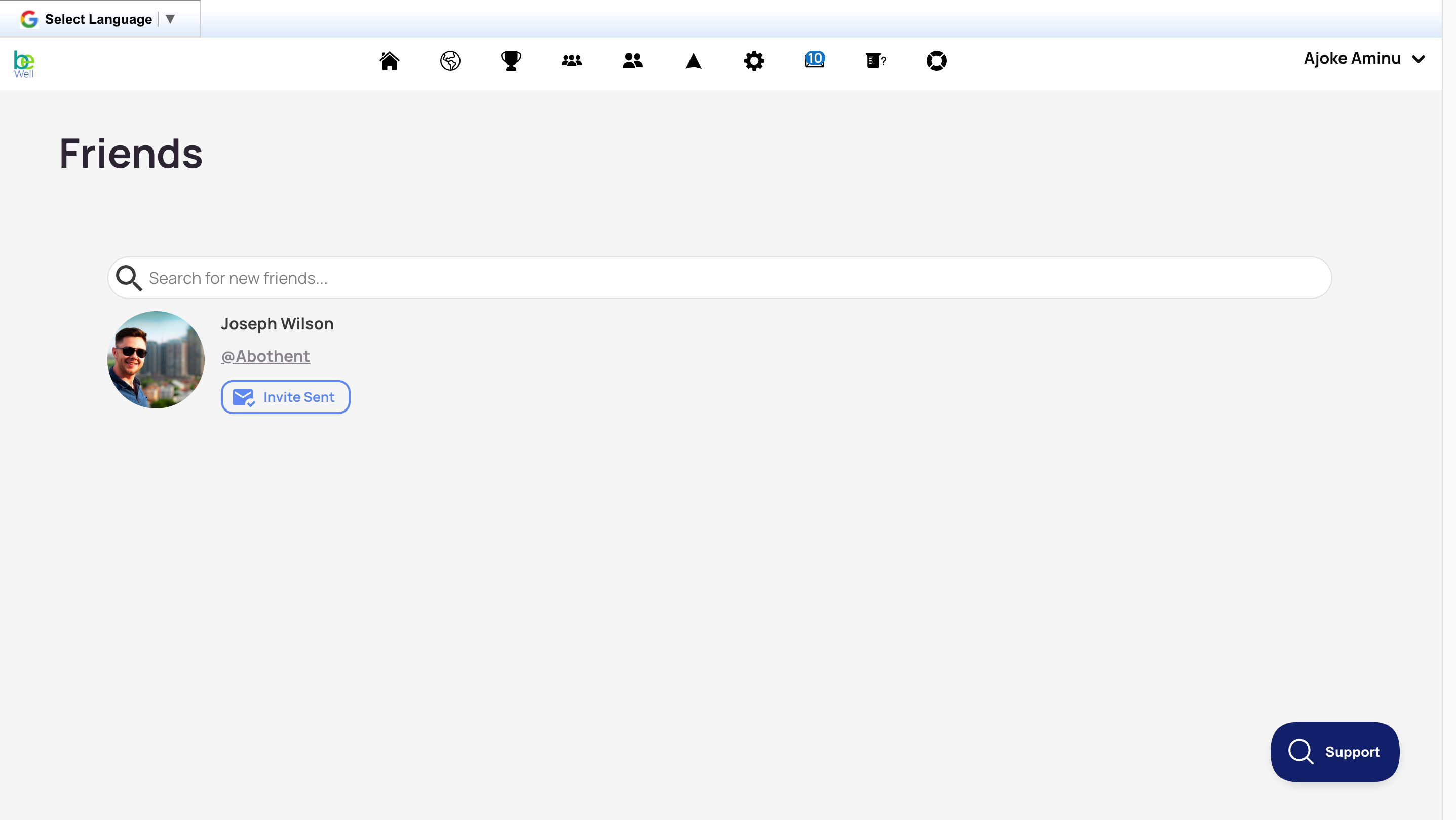
- Click Discover New Friends.
- Search for an existing user.
- Click Add. After, the button will switch to Invite sent.
Commenting and Engaging with the Activity Feed
Your Activity Feed (the Sitewide view) is where you see the ongoing progress of others in your challenge and interact with them. Encouraging one another helps everyone perform better.
Viewing the Activity Feed
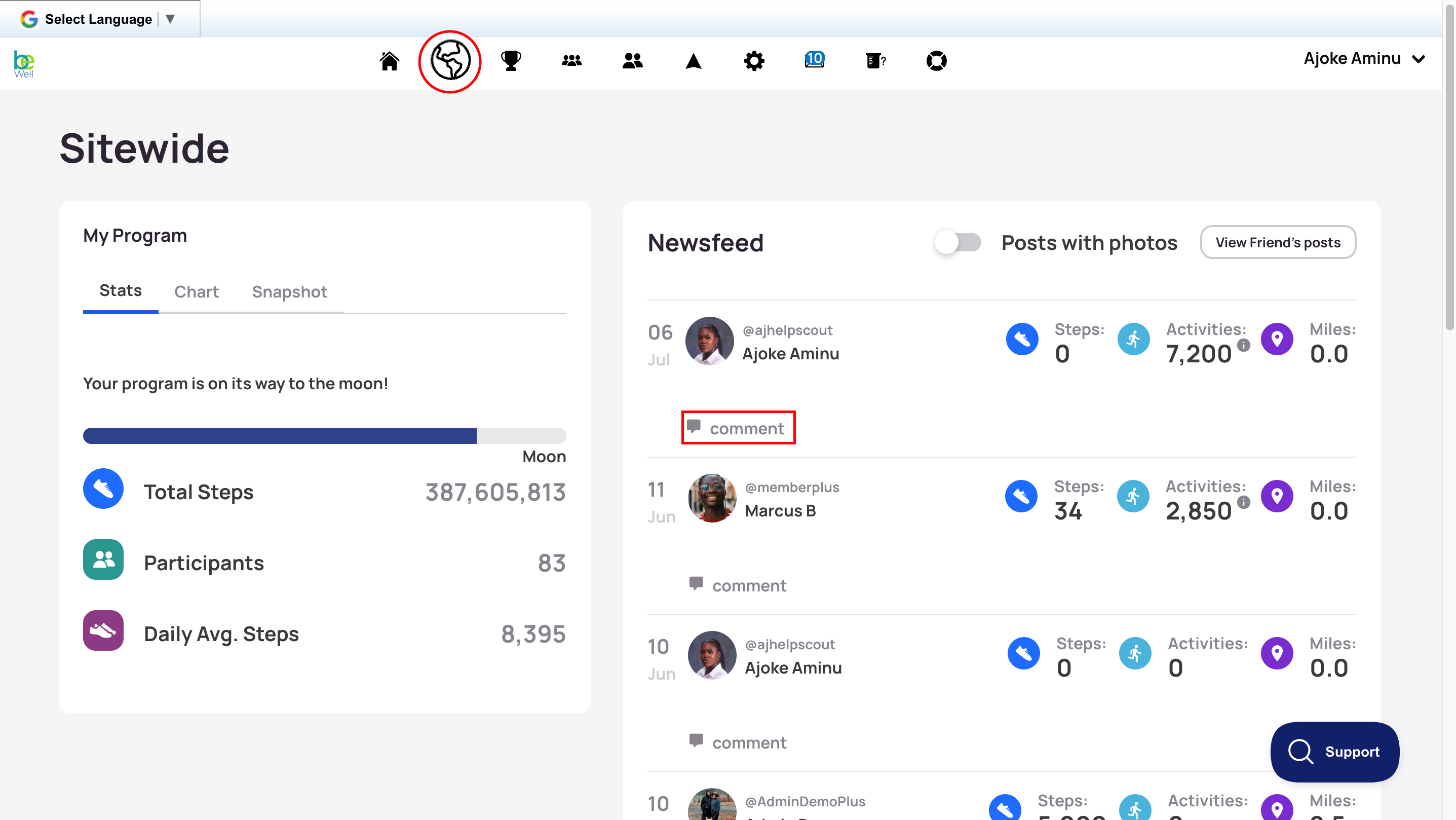
- Open the Sitewide option (the globe icon) in your program menu.
- In your feed, you'll see usernames alongside their steps, activities, distance, and journal entries for a given date.
- Use the buttons above your feed to refine what you see — for example, showing only entries with photos, or only entries from friends.
The My Program summary gives you program-wide statistics, including a seven-day rolling average of steps for your five most active members and a chart of average performance over time.
Leaving a Comment
To comment on someone's entry, click the Comment button beneath their name and add your message. Then click Submit.
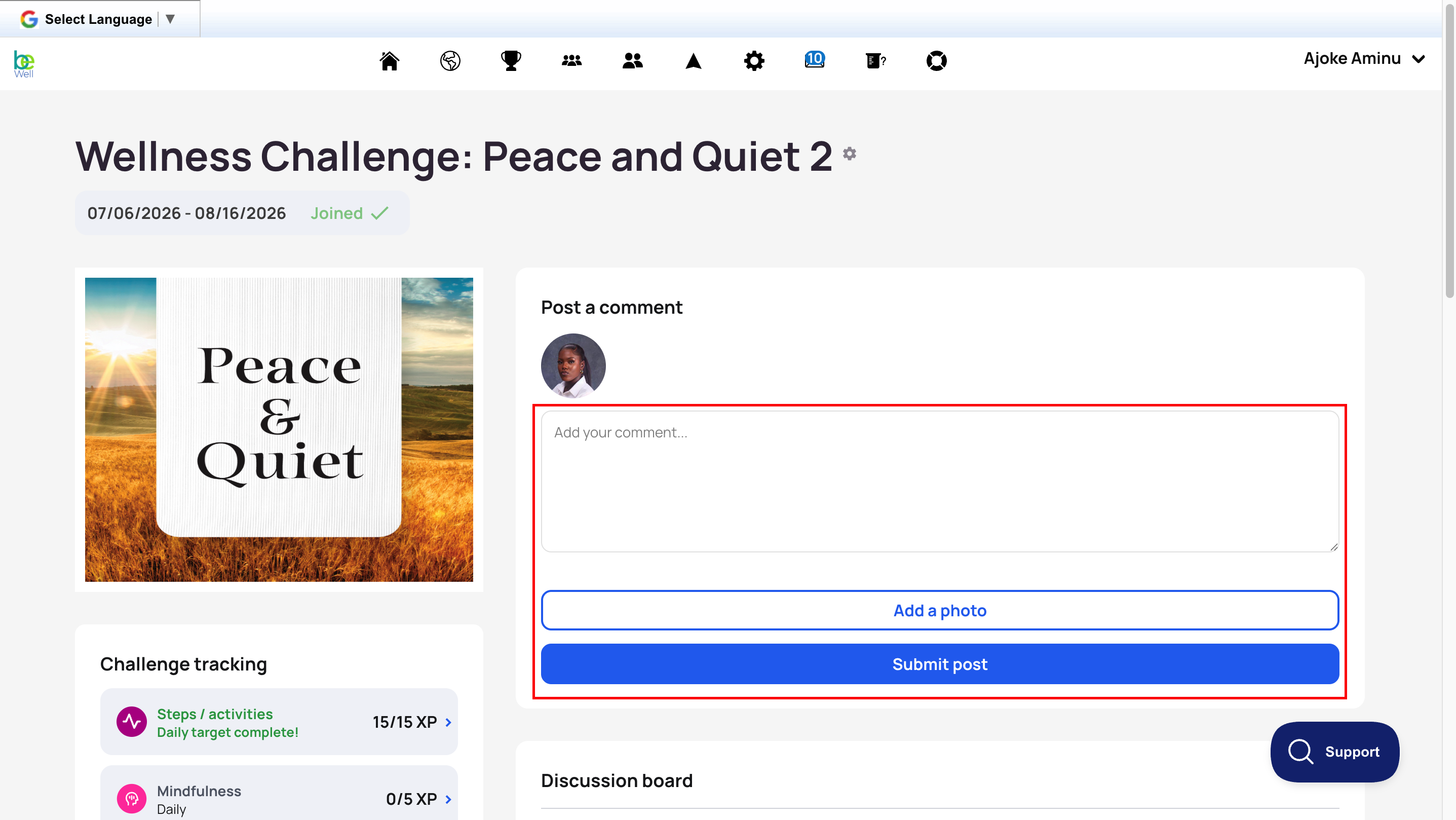
Adding a Photo to a Challenge Discussion
You can add photos to your challenge posts to share your progress and the sights along the way.
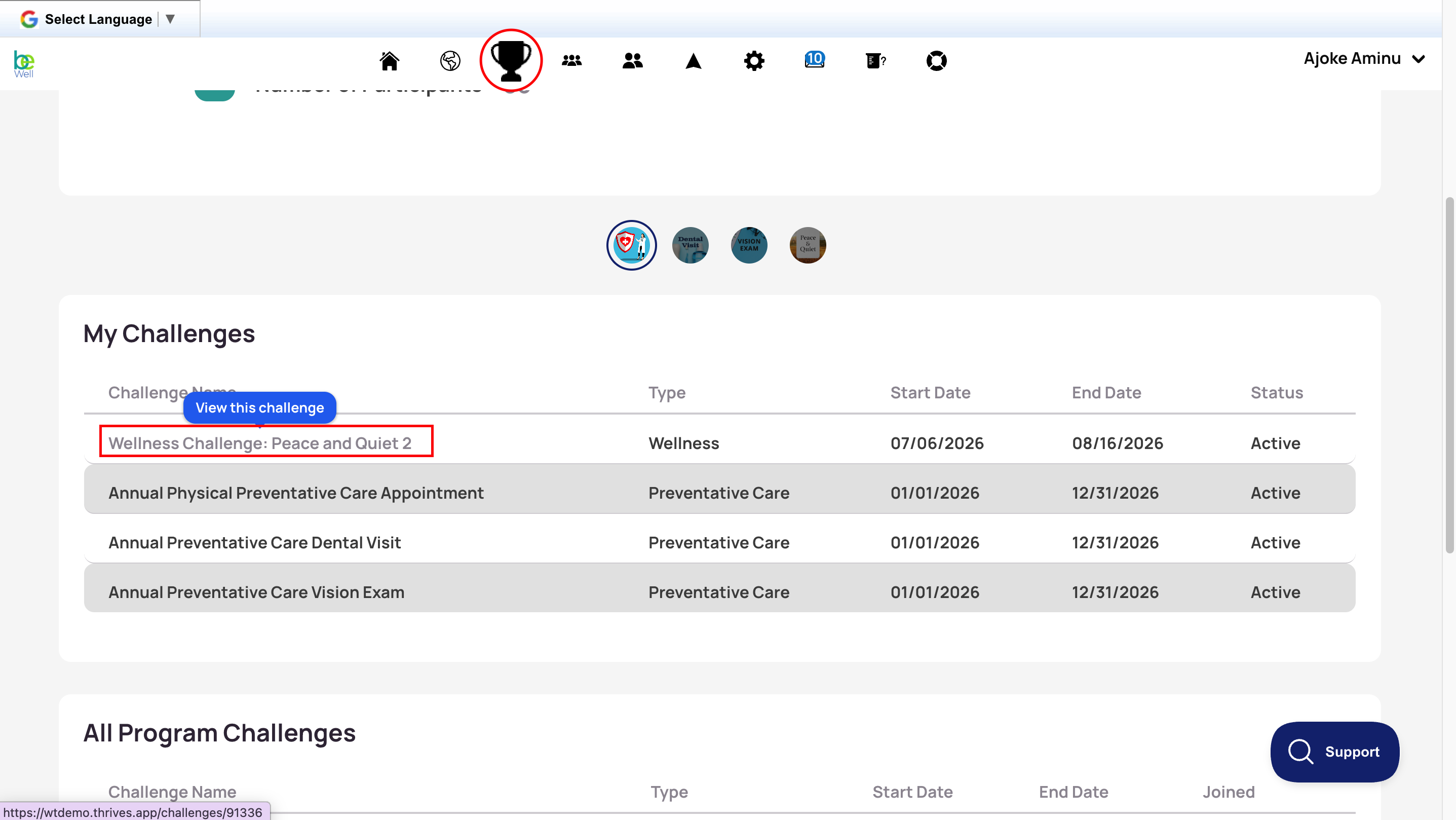
- Open the Challenges tab by tapping the trophy icon.
- Scroll downwards to My Challenges.
- Select your challenge.
- Tap Add A Photo, then click the Drop your files here or click to upload box. Choose from the three options that appear: Photo Library, Take Photo, or Choose Files. Then take or select your photo.
- Type your comment in the Add your comment field and tap Submit.