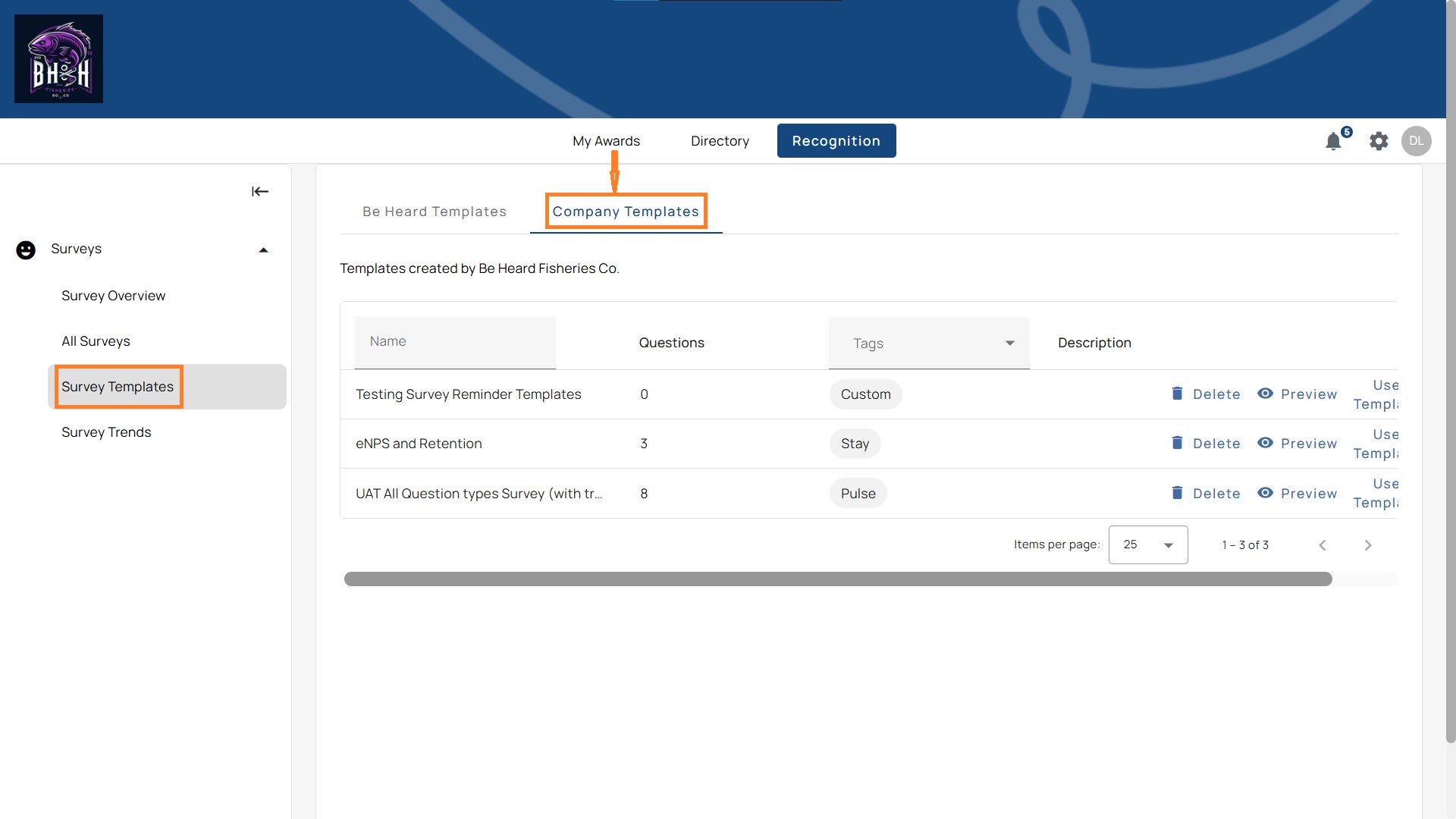
How to Create a Company Template
Company templates allow you to standardize surveys across your organization, ensuring consistent questions, branding, and data collection.
Creating templates saves time when launching recurring surveys and helps maintain alignment with your company's engagement strategy. Here is how to create one right away:
Step 1. Go to All Surveys
- From the left menu, select All Surveys.
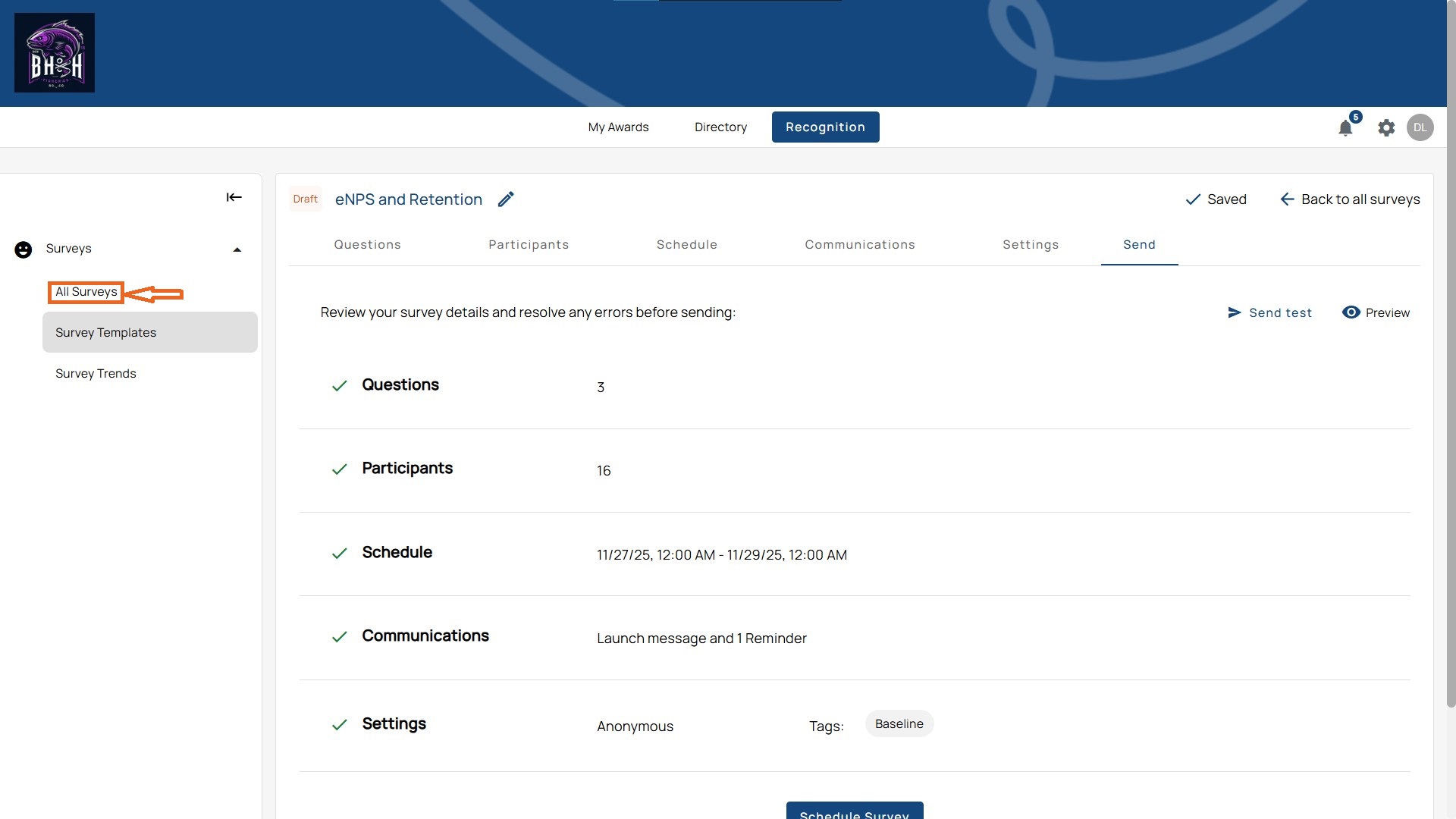
- Locate the survey you want to save as a template.
Step 2. Select Save as Template
- Click the three-dot menu (…) next to the survey.
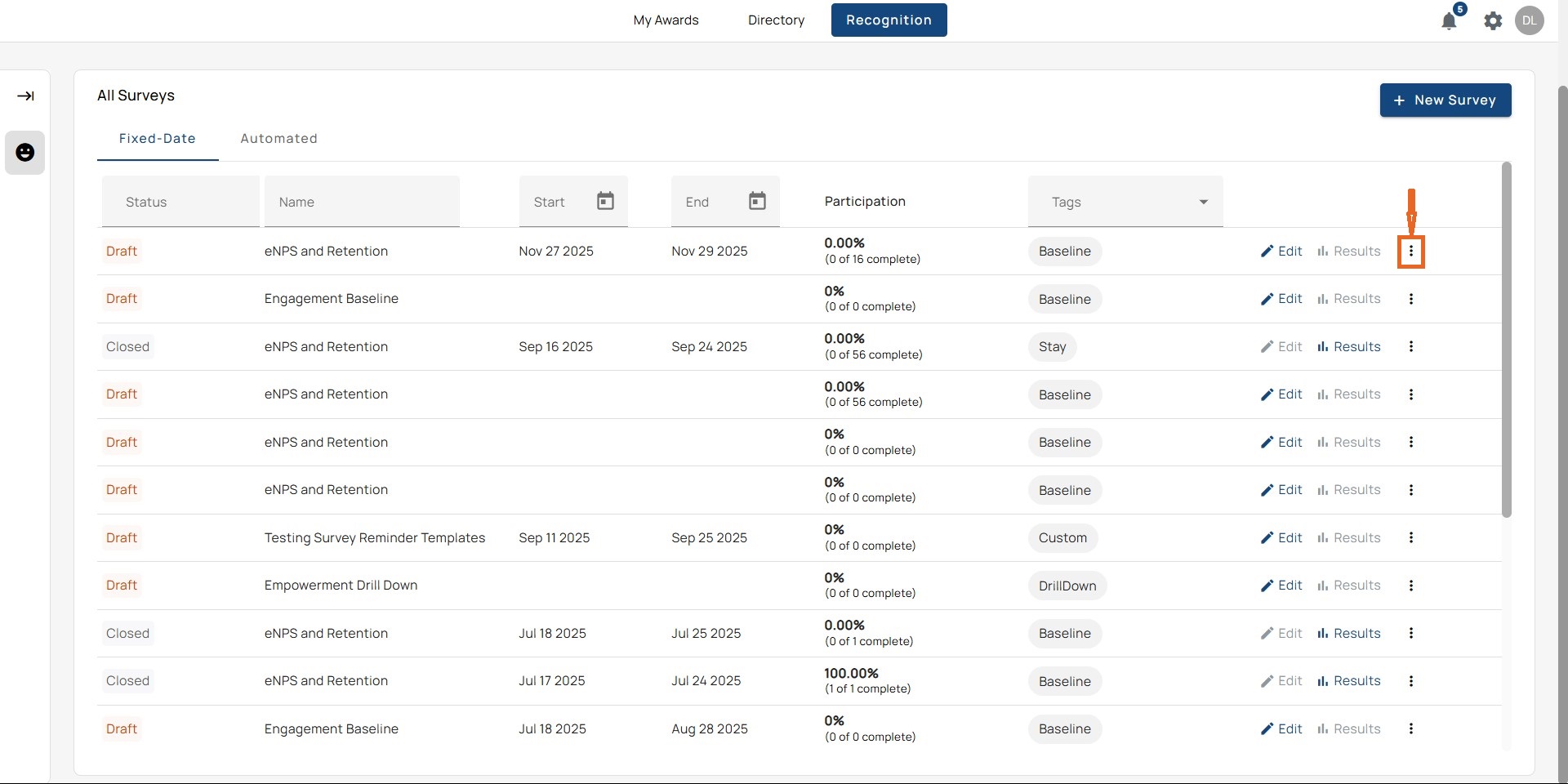
- Choose Save as Template.
- Name Your Template
- A pop-up will appear asking you to confirm the template name.
- Adjust the name if needed and click Continue.
Step 3. Confirmation Message
- A confirmation message will display:
Created template from "Template title"
Step 4. Access the Template
- Navigate to Survey Templates in the left menu.
- Your new template will appear under Company Templates for future use.