
Broadcast
Recognition Broadcast turns internet-enabled monitors and TV screens in your workplace into a live news feed of recognition activity. It surfaces recognition happening across your organization alongside custom announcements, upcoming milestones, birthdays, and site widgets, so employees who don't spend their day at a desk still have visibility into your recognition program.
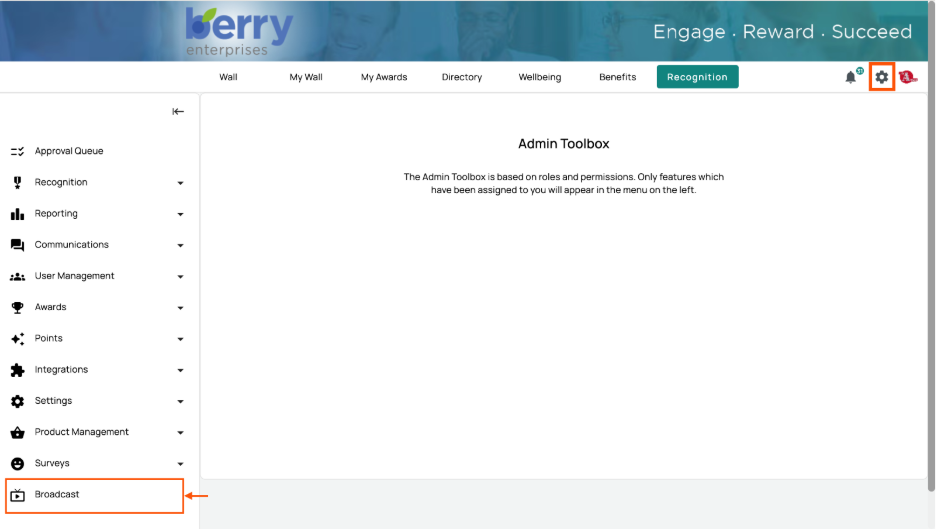
To access Broadcast, open the Admin Toolbox and select Broadcast from the left sidebar.
Use Cases
Common areas and shared spaces. Mount a feed on a monitor in a break room, lobby, or main hallway so recognition is visible to everyone passing through, not just those logged into the platform.
Reaching deskless employees. Employees who don't work at a computer have limited visibility into recognition activity. A broadcast feed puts that activity in the physical spaces where they already are, such as manufacturing floors, warehouses, kitchens, and staff rooms.
Location-specific feeds. Because audience is configurable per broadcast, each site or department can run a feed showing recognition relevant to that location, rather than a single company-wide stream.
Company announcements and events. Use custom slides for things like company lunches, BBQ days, turkey trots, volunteer hours, other planned events, and any communication you want in front of employees.
Celebrating milestones in the moment. Surface upcoming birthdays and work anniversaries on-screen so colleagues can acknowledge them in person, not just on the wall.
Viewing Your Broadcasts
The Broadcasts page lists every feed configured for your program. Each broadcast card shows its name, status (Live), a short description, its appearance theme, and its audience reach.
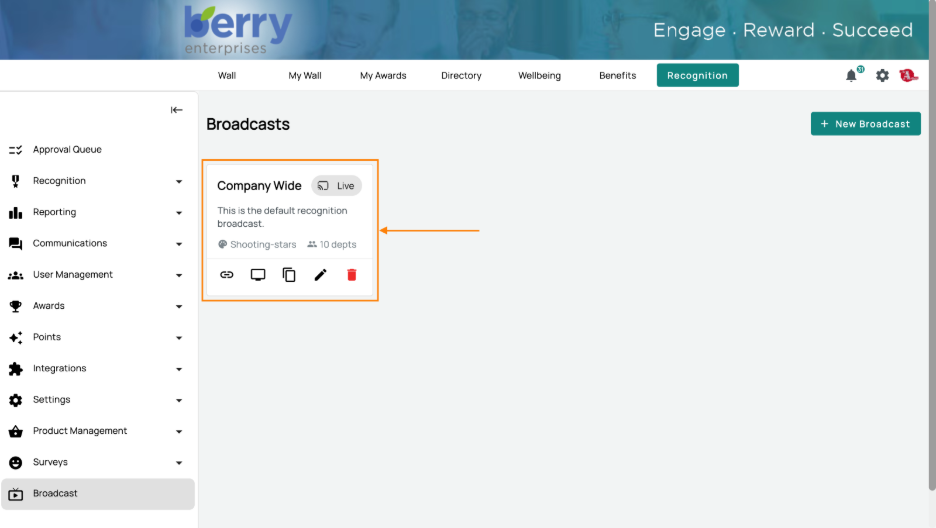
Each card provides five actions:
Copy play link generates a URL for the feed. Paste this into a browser on the display device to run the broadcast. This link is how the feed reaches a TV or monitor.
Play on TV opens the feed directly for immediate display.
Duplicate copies an existing broadcast with all its settings intact, then walks you back through customization. Use this when you want the same configuration for another location with only the audience or a few preferences changed.
Edit reopens the broadcast for changes.
Delete removes the broadcast on demand.
Tip: There is no limit on how many broadcasts you can create. Set up as many feeds as you have locations or audiences.
[Image placeholder — Broadcasts list showing a live broadcast card with its five actions]
Creating a Broadcast
Select + New Broadcast to open the setup flow. The flow is organized into seven tabs, completed in sequence.
Basics
Name your broadcast and add a description so it's identifiable in the list.
Audience
Define who and where the broadcast covers. A broadcast can target multiple locations or be scoped to one specific location.
Content
Choose which non-recognition content appears between wall posts. Each content type can be toggled on or off and given a Frequency setting that controls how often it surfaces in the rotation.
Available content types:
- Birthdays
- Work Anniversaries
- Widgets, when enabled, select which widgets to display (for example, Employee of the Month)
[Image placeholder — Content tab showing Birthdays, Work Anniversaries, and Widgets toggles with Frequency settings]
Custom Slides
Add your own slides for announcements and events, such as company lunches, volunteer drives, planned activities, or any message you want in the rotation.
Appearance
Set the visual theme for the feed.
Timing
Configure how the feed cycles.
Review
Confirm your settings before saving.
Select Save to create the broadcast, or Play on TV to preview it immediately.
Displaying a Broadcast
Broadcast runs through a generated link rather than dedicated hardware or software. To display a feed:
- On the broadcast card, select Copy play link.
- Open a browser on the display device or any internet-enabled monitor or TV.
- Paste the link into the address bar and load it.
The feed runs from that URL. You can also share the link with another device or send it to a colleague to display elsewhere.
Note: Cosmetic improvements to the on-screen display are in progress, including font sizing for readability at a distance. Expect refinements to the visual presentation.