
Award Uploader
The Award Uploader lets administrators issue awards to recipients in bulk from a file without running a full data-file upload through User Management. It's designed for programs that distribute awards on a periodic basis, monthly, quarterly, or annually, rather than maintaining a continuous employee census. You prepare a file of recipients and award levels, upload it, preview the result, and issue the awards.
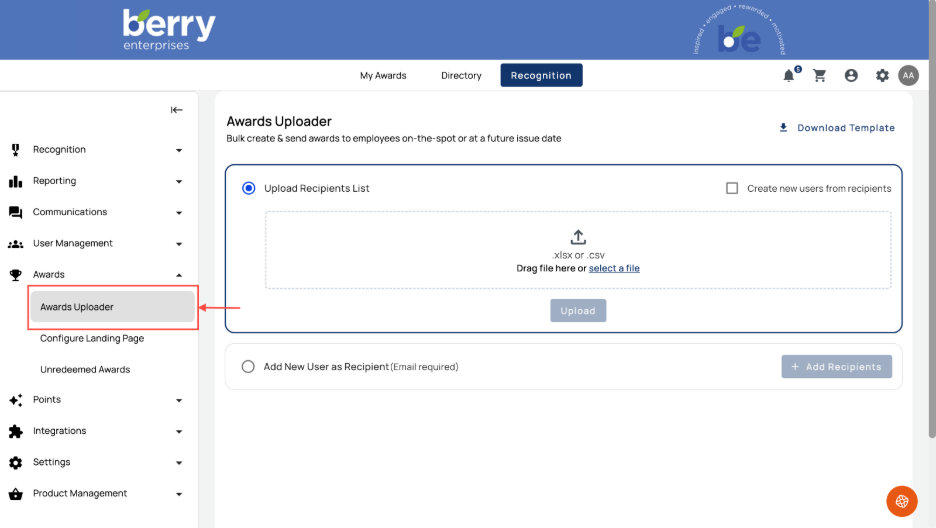
The Award Uploader is found in the Admin Toolbox, under Awards.
Two Permission Levels
Access to the Award Uploader is governed by two separate permissions, and what you see depends on which you have:
Awards Upload grants access to the Award Uploader itself, uploading a file of existing recipients and issuing their awards.
Awards Upload: Create Users grants everything above, plus the ability to create new users directly from the upload. This permission is intended for award-tier sites, where the uploader doubles as the way participants are added to the platform.
Note: The Create Users capability is used only on award-tier sites. On other tiers (Plus, Pro, and so on), users are added through the standard user management upload because those programs capture additional fields, such as demographic data used for surveys, that the Award Uploader doesn't map.
Why Award-tier programs rely on the uploader
Award-tier programs don't use automated data files — there's no secure FTP feed or background merge syncing your organization's full census on a schedule. Instead, administrators upload only the recipients they need, on their own cadence. A company with thousands of employees but only a small number of award recipients uploads just those recipients, not the entire organization.
This is why the Award Uploader is the primary tool for Award-tier sites. Administrators can still choose to run a full manual data-file upload through User Management if they prefer, but for most Award programs, the uploader is how recipients are added and awards are issued in a single step.
Downloading the Template
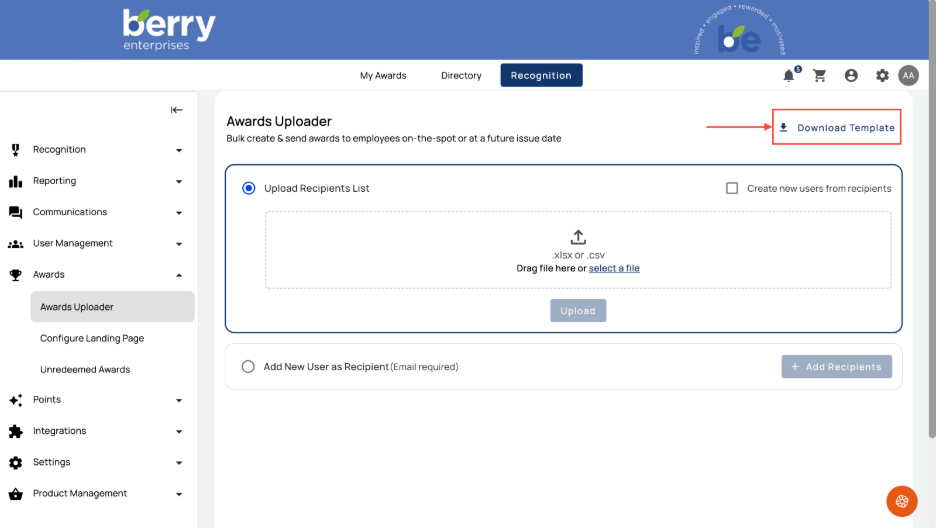
Select Download Template to get a CSV tailored to your site. The template is customized to your program's configuration:
Org unit columns reflect how your site manages org units. For example, country, location, and department, or country and cost center. This structure is set during implementation before launch.
Award level dropdown lists all award providers available on your site. Award levels must match the exact language and spacing configured on the site, so the dropdown lets you select valid levels rather than typing them. If several recipients receive the same award, you can apply it across them without selecting individually each time.
Issue date (optional) controls when the award is sent. Leave it blank to send immediately, or enter a future date to schedule it.
Tip: The issue date means the uploader, not the system's automatic date logic, dictates when awards go out. This lets programs prepare a quarter's awards in advance and have them release on the date specified in the file.
Uploading and Issuing Awards
- Complete the template with your recipients, award levels, and any issue dates.
- Return to the Award Uploader and upload your file.
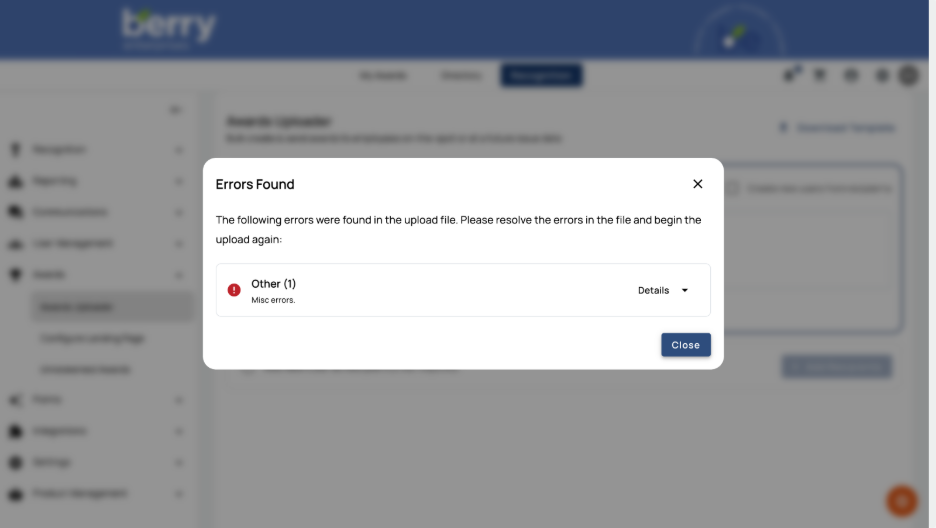
- Review the preview. It confirms how many recipients are on the file, how many users will be created, and how many awards will be created, along with the award levels and recipients.
- Select Cancel to go back without sending, or Create Awards to proceed.
On success, the awards are created and queued according to their issue date. Awards with a future issue date are held until that date, when they are sent and the recipient is notified.
Managing Issued and Queued Awards
After uploading, you can manage awards from the award pages:
Queued awards are those with a future issue date. On the queued view, the Date Created reflects the issue date, and the date the award will actually be sent and created. From here you can adjust the send date, in bulk or individually, or delete a queued award so it never sends.
Active awards are those that have been issued but not yet redeemed. You can send redemption reminders, adjust the expiration date, or delete an award. You can also correct a mistake, for example, changing a recipient's one-year award to a three-year award, before it's redeemed.
Expired awards are those that were issued but not redeemed before expiring. Expiration is determined by the award provider, not a single blanket period. Expired awards appear on their own page, where the expiration can be edited.
Note: When an award is issued, if the award provider is configured to post to the wall, a wall post is created. If your program sends award communications, recipients receive that notification at issuance. Award-tier sites don't have a wall, so no wall post is created but recipients still receive the communication.
Creating a Single Recipient (Create Users permission)
With the Awards Upload, Create Users permission, the view adds a checkbox to create new users from recipients, and an option to add a single recipient without uploading a file.
Bulk file with user creation: When you upload a file with the create-users option selected, any recipient who doesn't already exist is created with the fields on the file. Recipients who already exist, matched by employee ID or email address, are recognized and not duplicated.
Single recipient: Enter one individual directly to create the user and issue their award, rather than preparing a full file. This is useful for smaller sites or one-off awards.
You can also create a recipient manually from the User Management > Upload Users page when this permission is active, for admins who prefer to update all user details via a file while issuing awards to only some of them.
Should I always check "Create Users"?
For award-tier programs, yes. Checking Create Users is the recommended default, because the uploader is how participants are added to the site. There's no downside: if a recipient already exists (matched by employee ID or email), they won't be duplicated.
Verifying Awards Were Processed
To confirm awards were issued and track their status, use Reporting — the Award History Report and the Orders Report show award and redemption activity.
Award-tier sites see only the reports relevant to a pure-awards program; reports tied to points or recognition history are hidden. The reports typically available are the User Report, Orders Report, Milestone Award Redemption, Service Anniversaries, Awards History, and the Anniversary Report Generator.