
Points Activity
The Points Activity page gives administrators a complete view of points across your program, including both current balances for all users and an individual points history. It replaces the previous Unredeemed Points page, keeping all that page's functionality while adding tools to manage expirations, remove points, and reissue expired points, individually or in bulk.
Points Activity is found under Admin Tools, then Points Activity.

The Balances Tab
The Balances tab shows current point balances for all users, which is the same view and functionality as the previous Unredeemed Points page. From here you can:
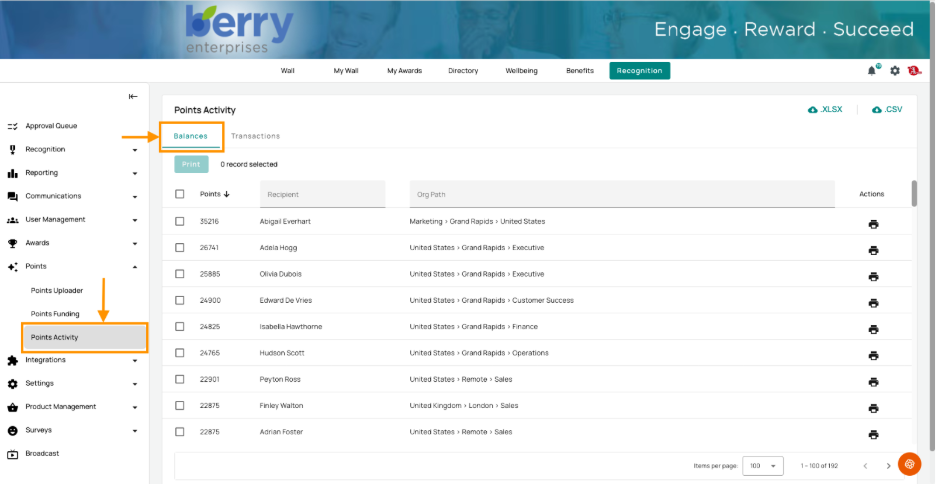
- View or print login letters if you have the permission to do so.
- Export the balances for reporting.
The Transactions Tab
The Transactions tab is new. It shows all unredeemed points, including those that are either active or expired. Points that have already been redeemed do not appear here.
For example, if an employee received 10 points for safety training and has already redeemed them, those points won't show on this tab.
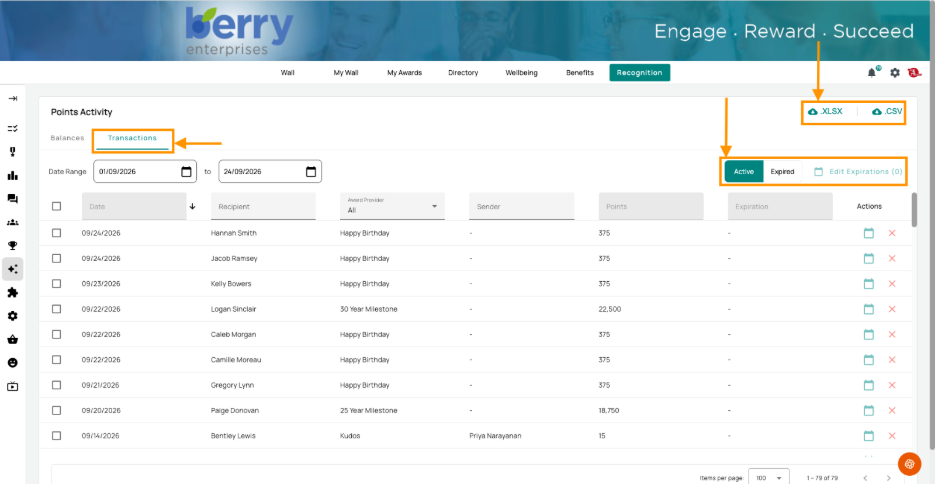
Filtering transactions
Use the filters to narrow the list:
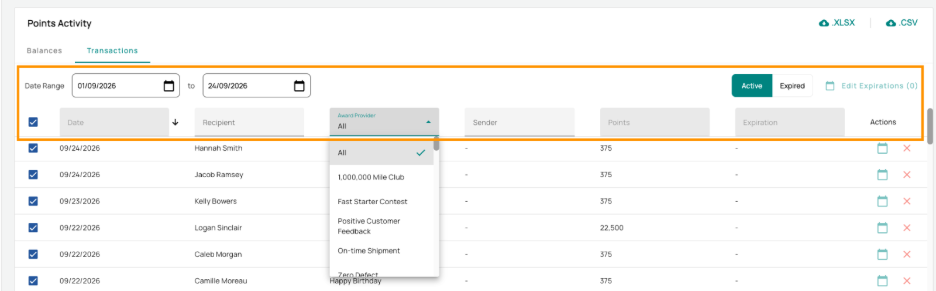
- Date range: useful for finding a specific points upload when you don't remember the exact date.
- Award provider
- Recipient name
- Sender
- Points amount
You can select one transaction or bulk-select several to act on them together.
Editing Expirations
Select one or more transactions and choose to edit the expiration. A dialogue opens with these options:
- Program default: the default expiration configured for your site. This may never be 30 days, one year, three years, or another value depending on your configuration.
- Based on issue date: set the expiration for a set period after the issue date, in days, weeks, months, or years (for example, 30 days from the issue date).
- Custom expiration date: set a specific date. This is useful when, for example, an employee is retiring, and you want their points to be redeemed by a certain date.
- Expire immediately
- Never expire
When you edit expirations in bulk, the dialogue shows a preview of all the points that will be affected and their updated expiration dates. If any chosen date has already passed, the preview flags that those points will expire immediately, so you can catch it before confirming.
Reissuing Expired Points
On the Transactions tab, expired points show an option to reissue.
Reissuing does not reactivate the original expired points. Instead, it creates a new instance that copies the original points of activity. In reporting, this means you will see two entries: the original award and the reissued one as of the date you reissue it. Keep this in mind when reviewing reports.
Note: Reissuing points does not create a wall post, even if the original points had one.
Exporting
Every view on the Points Activity page can be exported for reporting and recordkeeping.